
Open your form’s Edit form view to format instructions, headings, question labels and descriptions.
Mod means Command on Mac or Control on other keyboards throughout these guides. Tooltips and the editor’s Help panel show your device’s keys.
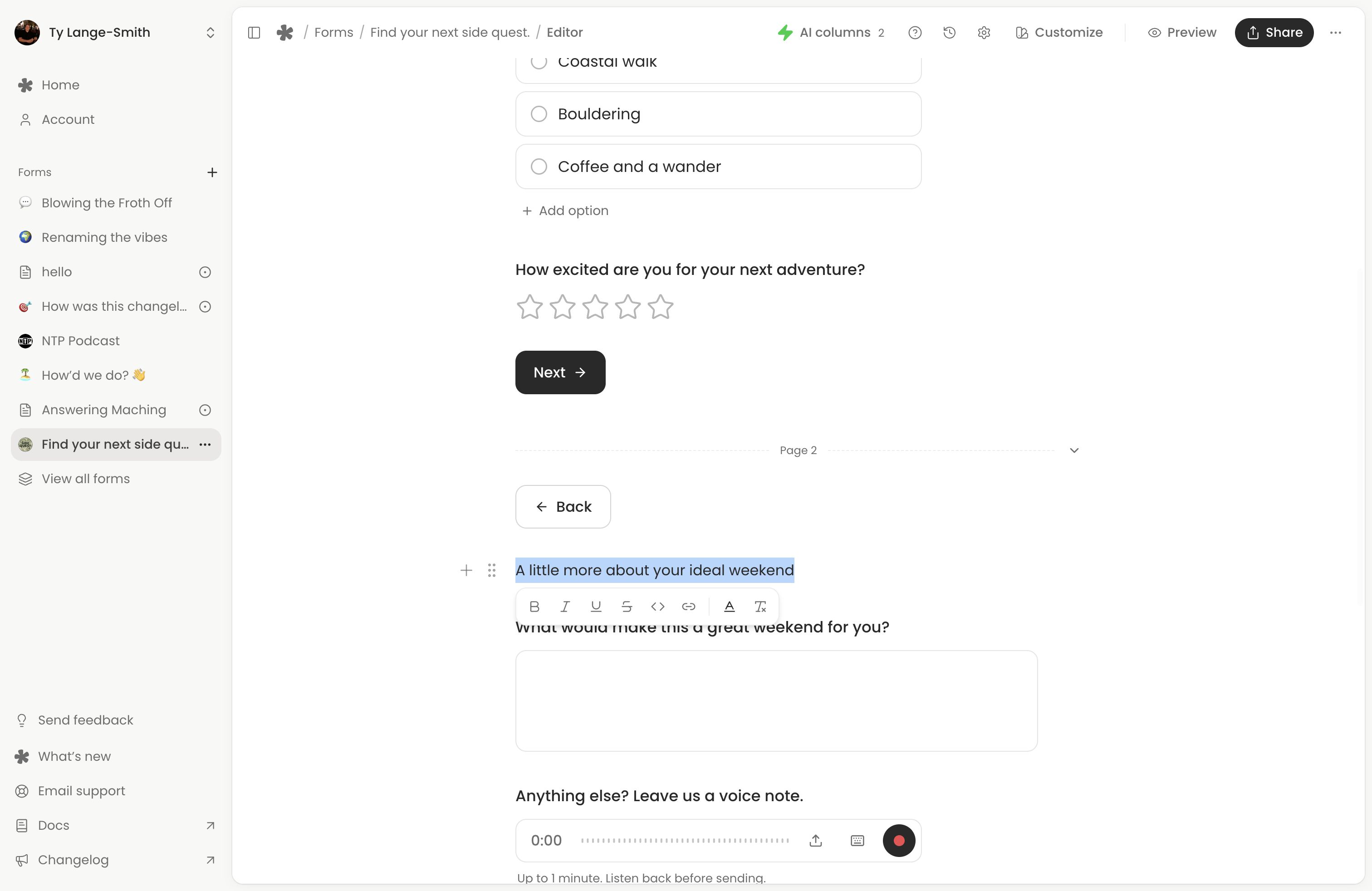
Style selected words
Select words to open the text toolbar. Choose Bold, Italic, Underline, Strikethrough, Code, a text colour or a link. The form title stays plain text. Links belong on selected words; they do not turn a question into a Link question that collects an answer.
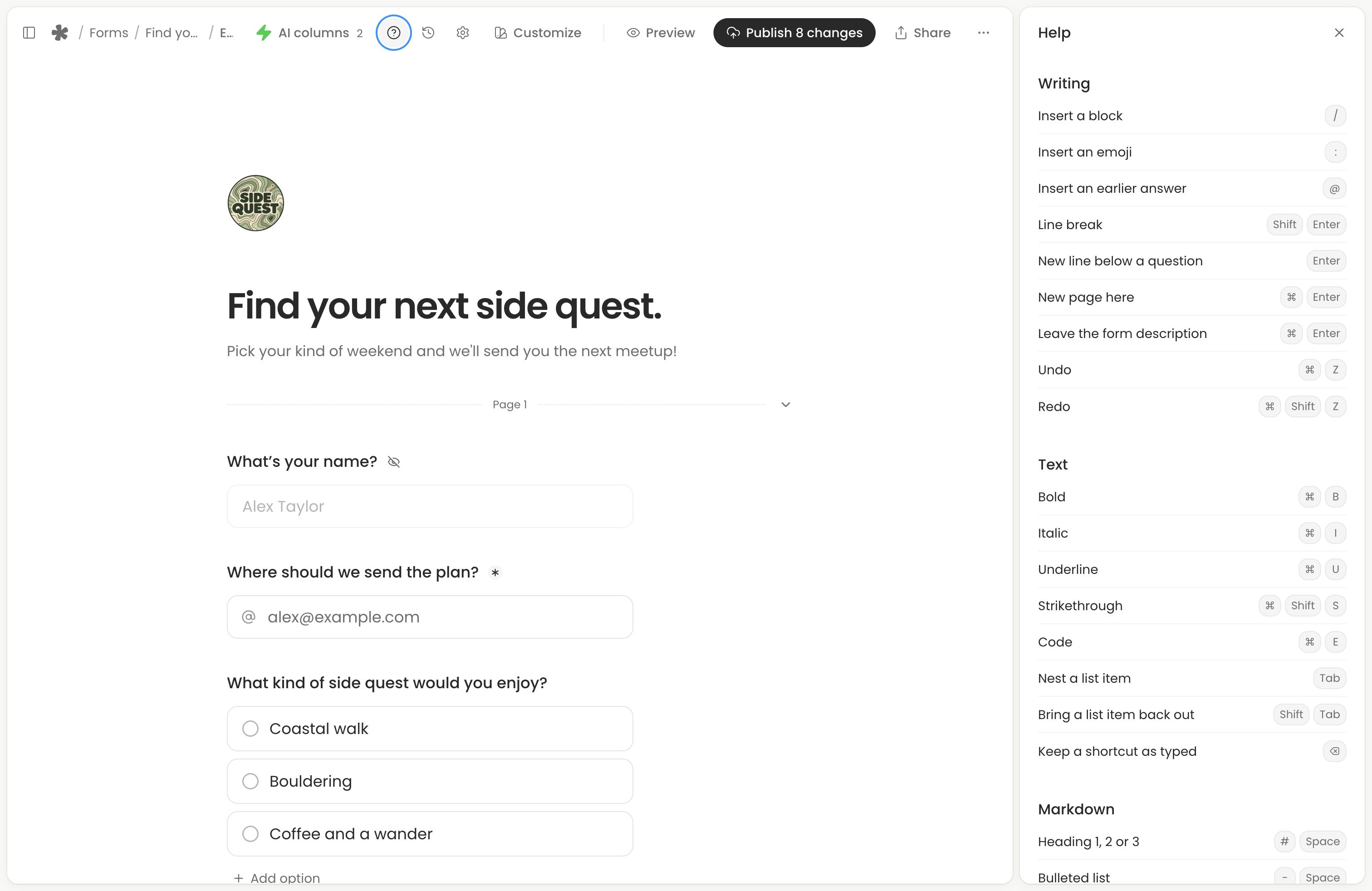
Style | Keyboard shortcut |
|---|---|
| Bold | Command on Mac or Control on other keyboardsB |
| Italic | Command on Mac or Control on other keyboardsI |
| Underline | Command on Mac or Control on other keyboardsU |
| Strikethrough | Command on Mac or Control on other keyboardsShiftS |
| Code | Command on Mac or Control on other keyboardsE |
Write with markdown
At the start of a text line, type these characters followed by a space:
Start with | Result |
|---|---|
#, ## or ### | Heading 1, 2 or 3. |
- | A bulleted list. |
1. | A numbered list. Use 3. to begin at 3 instead. |
> | A quote. |
Type three backticks at the start of a line for a code block. Code blocks keep spacing and leave markdown as typed. Press Enter on an empty last line to continue outside the block.
Around words, use **bold**, *italic*, ~~strikethrough~~, backticks for inline code, or [words](https://example.com) for a link. Press Backspace immediately after an automatic conversion to recover the characters when you meant to type them literally.
Earlier-answer chips can sit within formatted text, including inline code. Insert them with @ and choose an available earlier question. See Insert earlier answers for supported sources and skipped answers.
Continue and nest lists
Press Enter to add another item. Tab nests it beneath the previous item, up to two levels; ShiftTab brings it out again. Numbered lists count automatically.
On an empty item, Enter moves it out a level and then ends the list. Backspace at the start also moves an item out a level. Use ShiftEnter for a line break within text when you do not want another block.
Paste from another editor
Paste copied text from Google Docs, Notion, Word or a web page into the document. Supported styles, headings, lists and links carry over. Pasted markdown is formatted too. The editor keeps its supported formatting rather than copying another app’s whole page design.
Check the result in Preview, especially nested lists and links. A paste that exceeds a label, text or block limit is shortened with a message explaining the limit. Use Command on Mac or Control on other keyboardsZ to undo a paste before trying a smaller section.
Change a block’s type
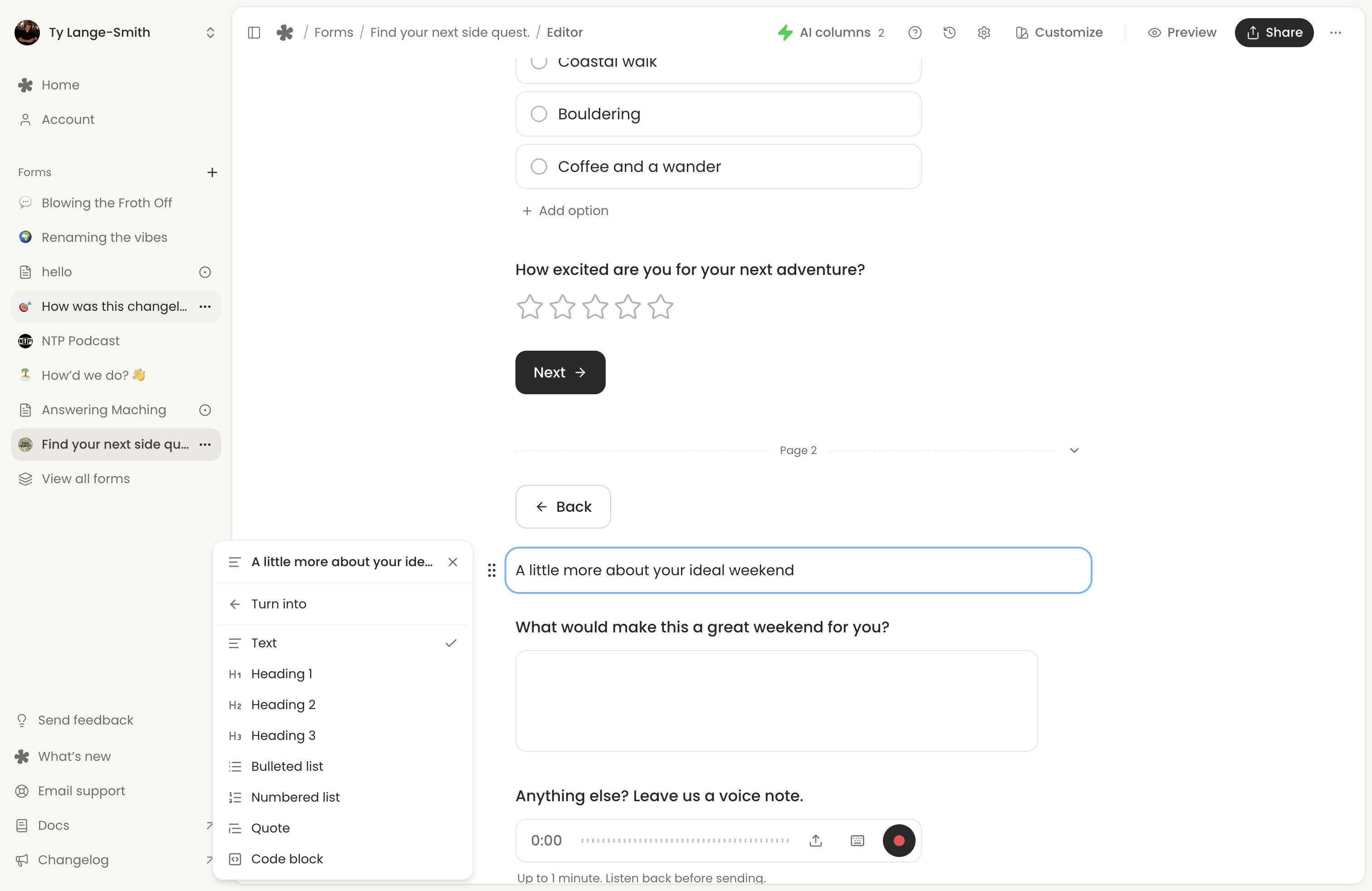
Open a block’s handle menu and choose Turn into. Text, headings, lists, quotes and code blocks can become another text type while keeping their words. Use this to make an existing instruction a heading without retyping it.
A question’s Turn into menu offers other question types. Shared settings carry across, including its label, description and required state, plus options or limits the new type supports. For example, Multiple choice can become Checkboxes. Check the new type’s settings and defaults before publishing. Existing submitted answers stay as they were.
The block reference describes the available types. Use the shortcuts below for moving, duplicating and selecting whole blocks.
Keyboard shortcuts
Action | Shortcut |
|---|---|
| Insert a block on an empty line | / |
| Insert an earlier answer | @ |
| Insert an emoji | : |
| Continue below a question | Enter |
| Break a text line | ShiftEnter |
| Start a new page | Command on Mac or Control on other keyboardsEnter |
| Undo or redo | Command on Mac or Control on other keyboardsZ or Command on Mac or Control on other keyboardsShiftZ |
| Duplicate the current block | Command on Mac or Control on other keyboardsD |
| Move the current block | AltUp arrow or AltDown arrow |
| Select the block, then edit it again | Escape, then Enter |
| Delete a selected block | Backspace or Delete |
| Open or close Help | Command on Mac or Control on other keyboards/ |
Focus a block handle and press Space to pick it up. Use arrow keys to choose its position, then Enter to drop it or Escape to cancel.
When you’re ready, publish your changes.
Next action: Format one instruction, check it in Preview and publish when it reads clearly.