
Start from the form’s Share section and open its current link. Check any status notice there, then use the matching steps below.
People see an older version
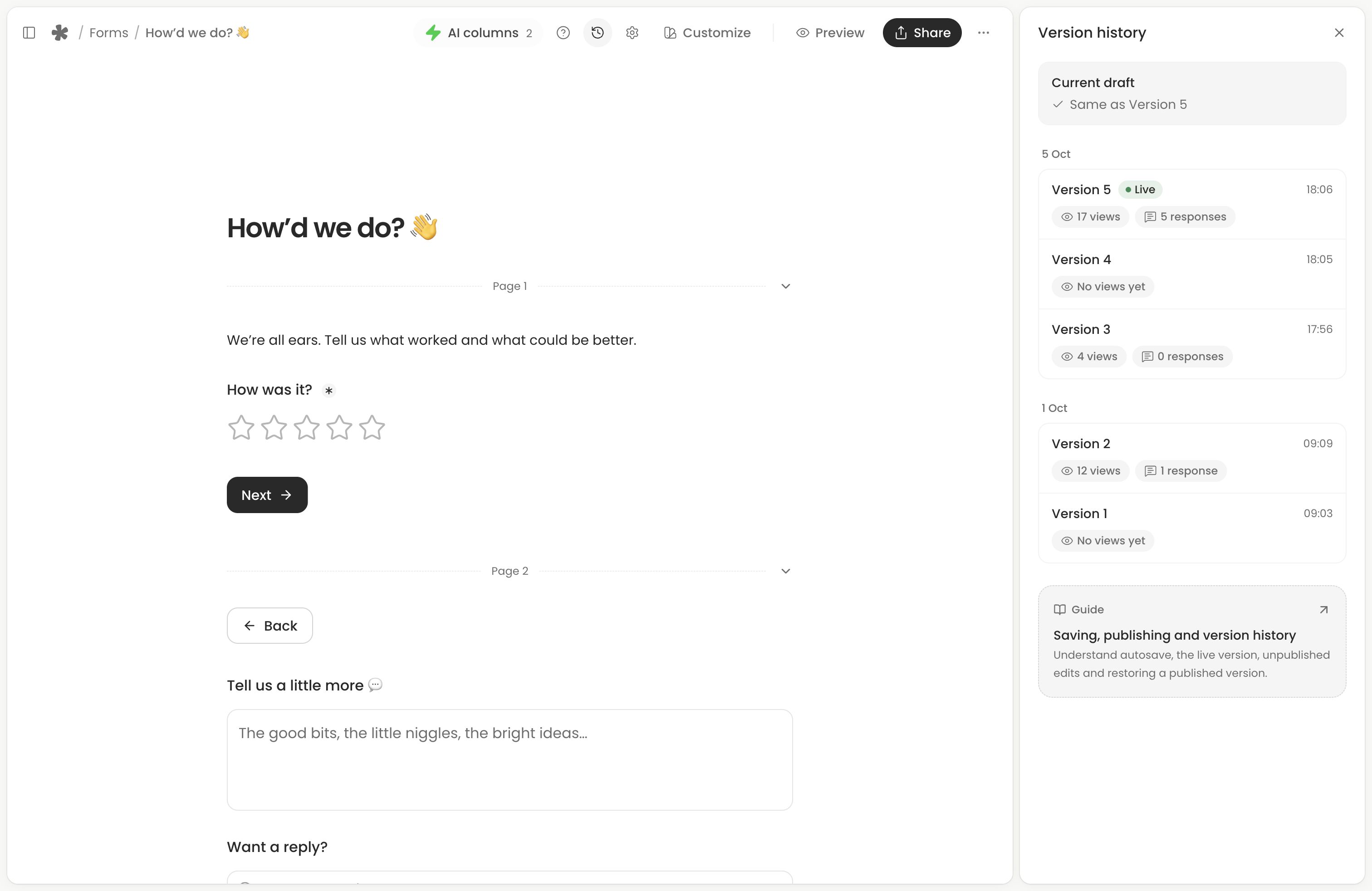
Editor changes save privately after the first live version. Unpublished changes in Share means respondents still see the last published version. Open Edit, review the form, select Publish changes and reload the public link.
Opening Share alone does not publish edits. On Creator, Version history also identifies the live version and whether the current draft matches it. See Saving, publishing and version history.
The form is not ready for responses
The first save creates a live link even if the form is not finished. A link to an incomplete published form shows a holding message.
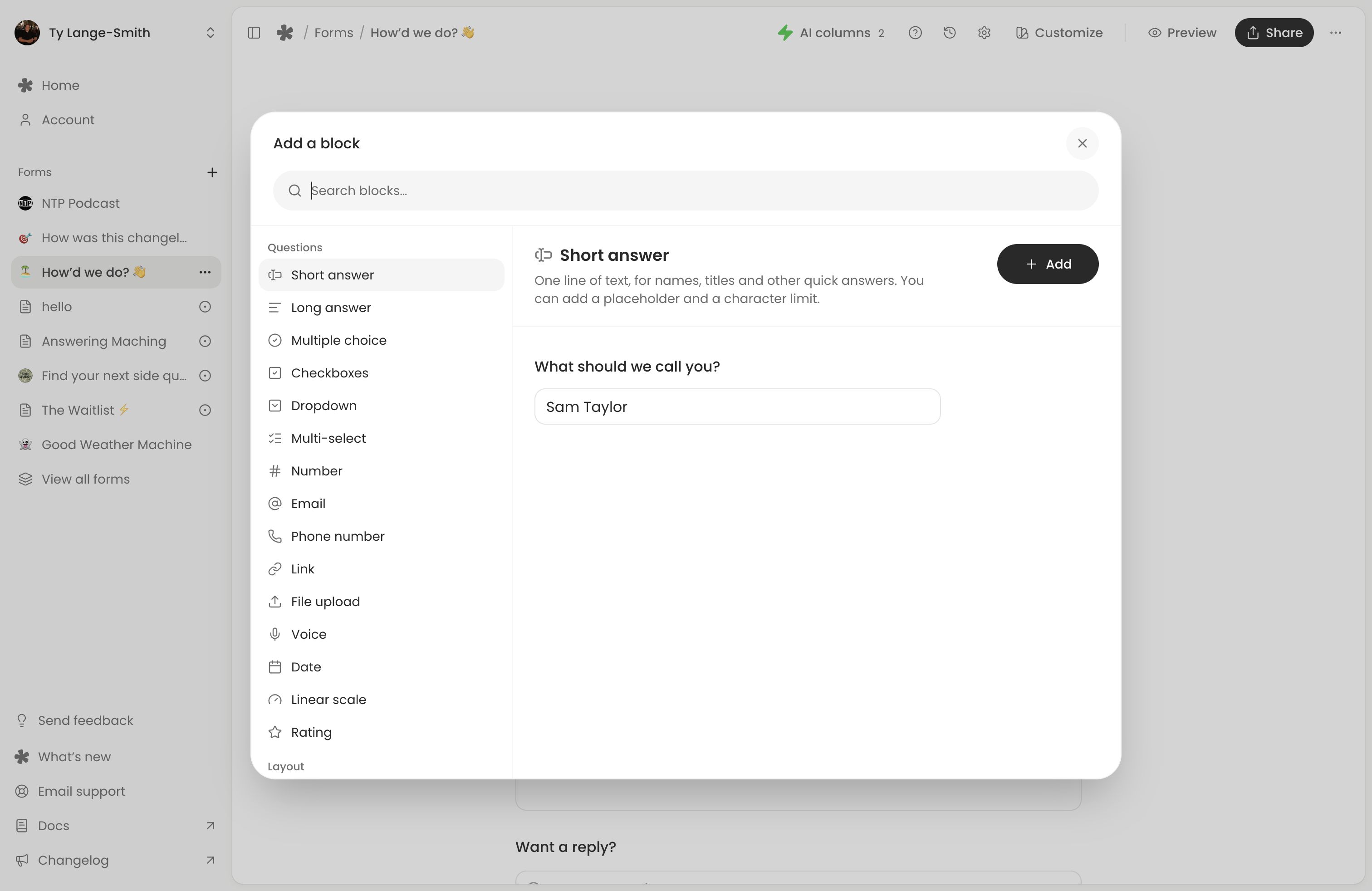
Open the editor and follow the readiness message. Add at least one question, keep questions above the thank-you page, and correct any earlier-answer references the form flags. Choice questions also need valid options before you can publish. Then publish the completed form and test the link again.
Responses are paused
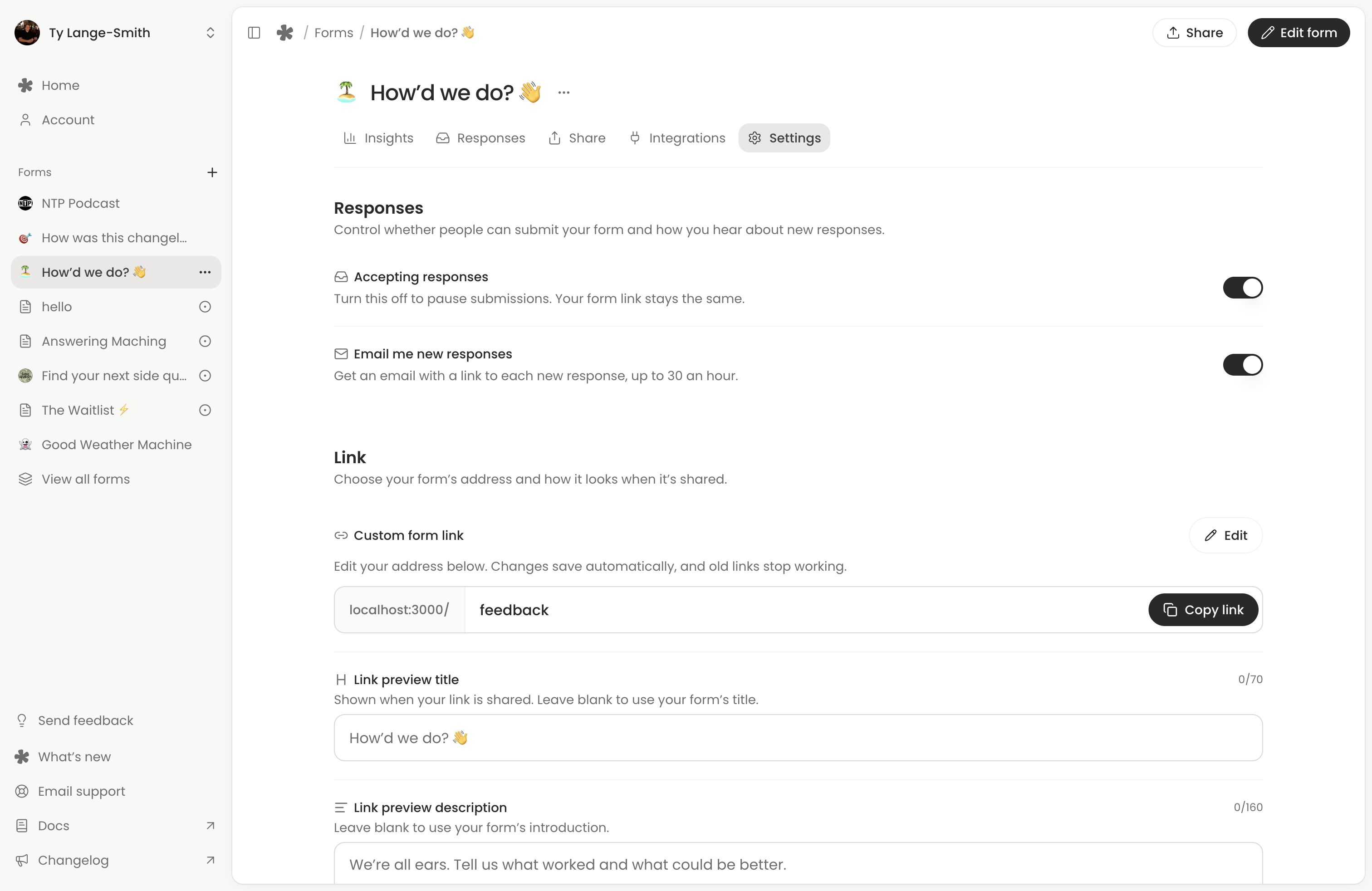
Open Settings and turn on Accepting responses. Pausing does not change the link or delete responses. Resuming applies as soon as it saves, without publishing, but an incomplete live form still needs to be finished and published.
If the public form reports an account limit, check Free vs Creator and Account and billing.
A link or QR code stopped working
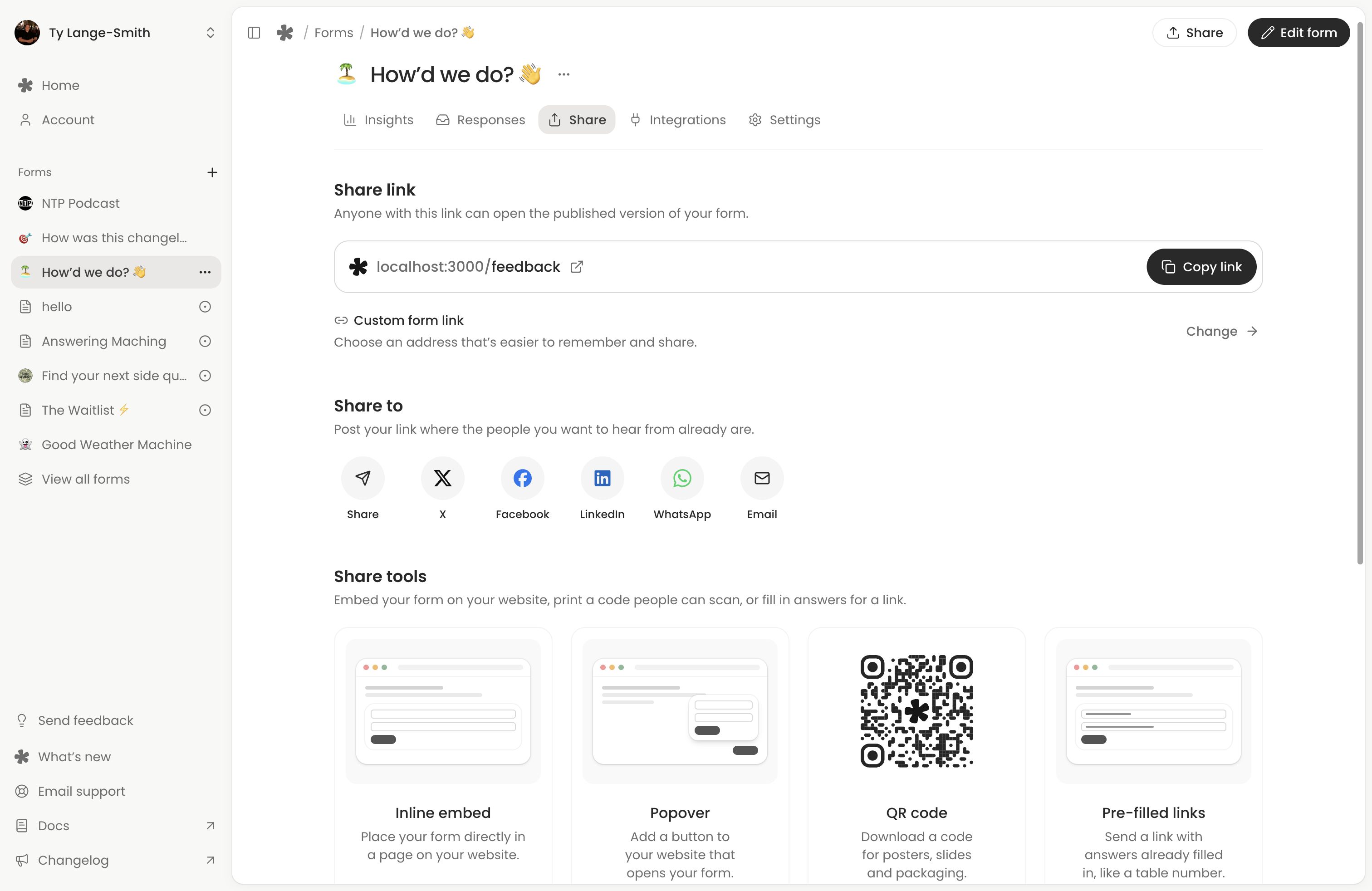
Copy the current link from Share. A previous custom address stops working after you change it, so update website buttons, messages and printed codes that used it. Download a fresh QR code and test the actual printed version.
Generated embeds use a stable form ID and survive a custom-link change. If an embed fails, check the installed snippet and script using Embed your form.
A response is missing
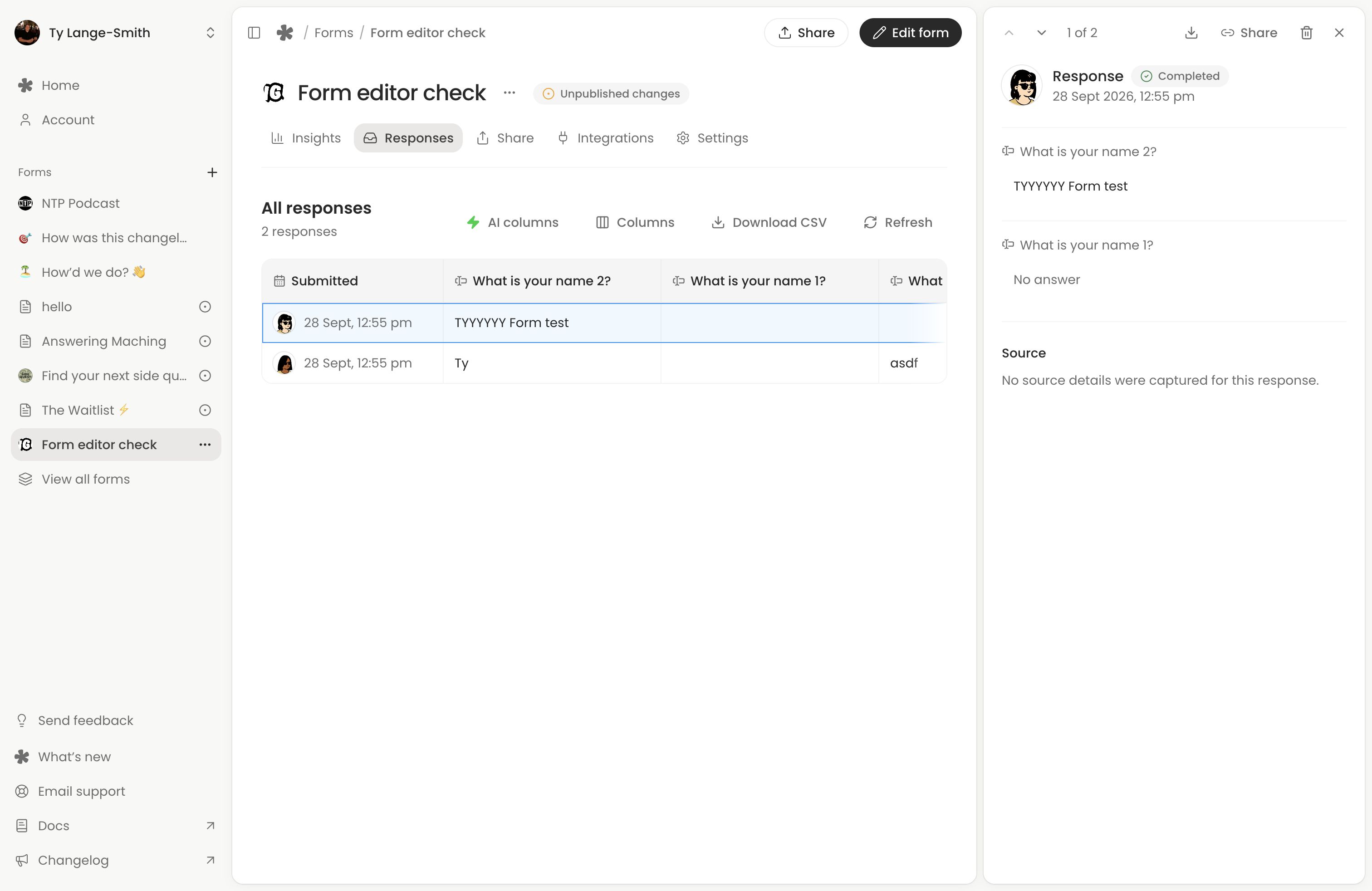
Check that you are looking at the right form’s Responses, then clear any filters. A completed submission should show confirmation to the respondent. An editor or embed-tool Preview does not create a response.
For an older response, check whether it was deleted manually or whether Delete old responses automatically is enabled in Settings. Daily cleanup removes responses beyond the chosen period with their recordings and files. Partial rows normally expire after 30 days without a new save, or sooner with a shorter deletion period. Turning deletion off cannot recover removed responses. See Manage form settings.
Recording audio, choosing a file or seeing an upload complete is not submission confirmation. Ask the respondent to return to the same browser and finish the form. If partial collection is enabled, check the Partial status filter; voice and file answers do not appear in partial rows.
If the response is present but no email arrived, check Email me new responses in Settings. Emails are limited to 30 an hour; later responses still appear in the dashboard.
A recording or file will not upload
Keep the form open and check the error beside the answer. Confirm that the file meets the question’s allowed types, size and count, and that your connection is working. Use Retry when offered. If restored progress asks you to choose a named file again, select that file again before submitting.
If the message says the owner’s storage is full, the owner needs to free storage or review their plan. Retrying cannot create more storage. Busy forms can also temporarily refuse new uploads; wait and try again when the message asks you to.
For a microphone that will not start or records silence, use Microphone troubleshooting.
Submit failed or timed out
Follow the form’s error and correct any required or invalid answers. When it offers Retry after a connection problem, retry in the same form. The form keeps the attempted answers so it can check whether the earlier submission succeeded. Wait for confirmation before leaving.
Saved progress can help after a reload, but depends on the same browser and available storage. See Saved progress and partial submissions.
Find an older Classic page
Classic pages use their own editor and messages. If you are looking for an existing voice page rather than a new form, see Classic forms.
Next action: Repeat one submission from the current live link after applying the matching fix.