
An AI column asks a question about each completed response and puts its answer alongside your form answers. Use it to spot feedback worth reading or people who may need a reply. AI results help you review responses; check the actual answers before deciding what to do.
Choose a standard column
Free and Creator include these four standard columns:
Column | Possible answers | What it helps you review |
|---|---|---|
| Spam | Likely spam, Not spam | Unsolicited promotion, scams or irrelevant bulk content in the context of your questions. |
| Sentiment | Positive, Neutral, Negative | The overall feeling expressed in written feedback. |
| Urgency | Low, Medium, High | Timing and impact described in a request. |
| Needs reply | Yes, No | Questions, contact requests and unresolved problems. |
Short, unusual or negative answers are not automatically spam. Needs reply can be Yes without an email address: it identifies a request, rather than confirming that you can contact the person. These columns do not send replies or delete responses.
Every new form starts with Spam, reading every question, including questions you add later. Open its settings to change what it reads or remove it. Turning a question off changes it to a specific selection of sources; check that selection when you add questions later.
Existing Topic columns remain supported on Free, but Topic is no longer offered when adding a standard column.
Add a column
- Open your form’s Responses or its editor and choose AI columns.
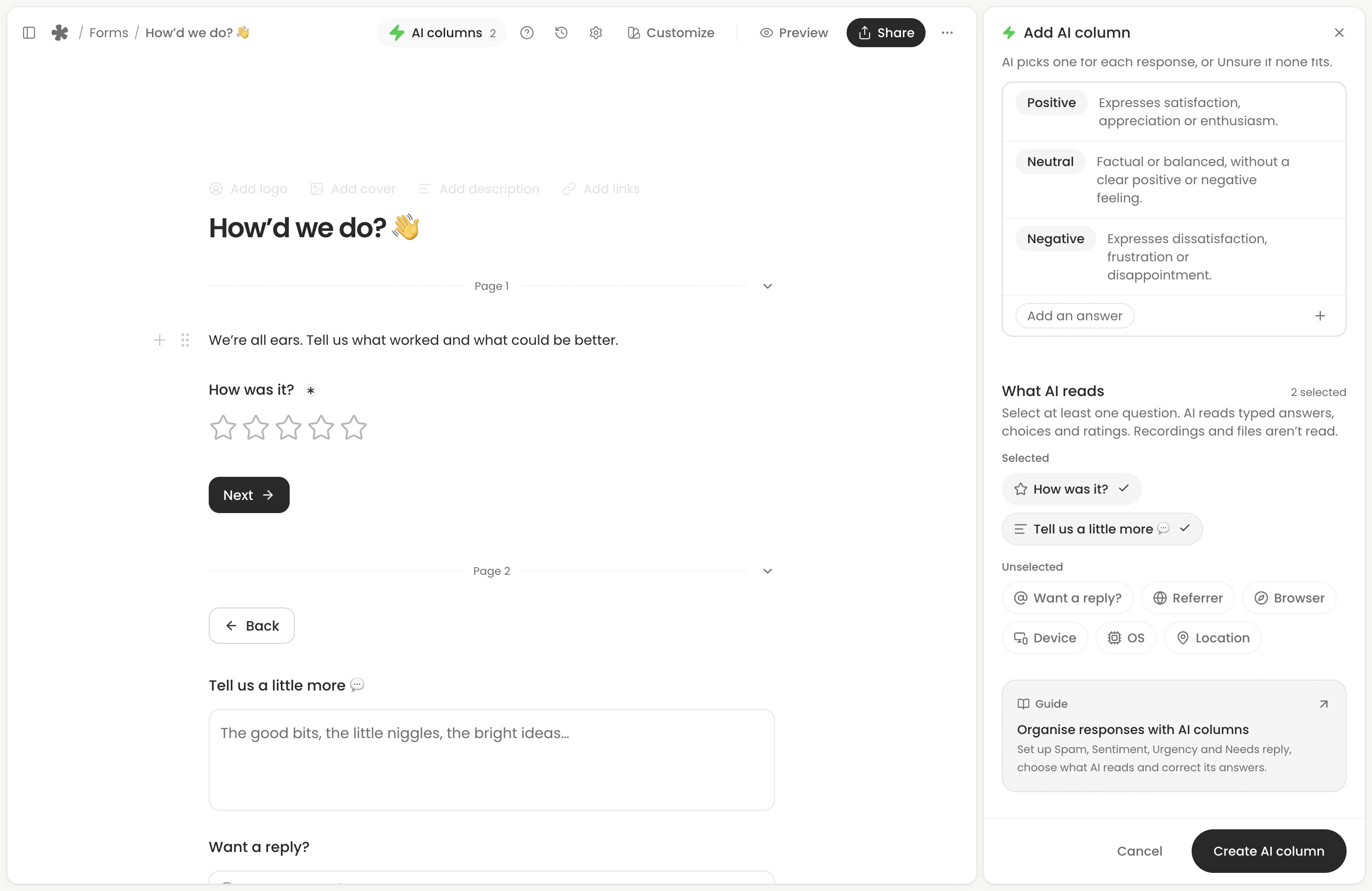
- Choose Add AI column. If there are no columns, setup opens directly.
- Choose a standard column and review its question and possible answers.
- Under What AI reads, select the questions relevant to that job.
- Select Create AI column.
Existing completed responses are queued for processing, and later completed responses are processed automatically. You can leave the page while processing continues. The editor saves pending form edits before opening setup; those edits still need Publish changes to reach respondents.
Choose what AI reads
AI reads typed answers, choices, ratings and other written question values. A voice question can contribute its typed alternative. Recordings are not transcribed or listened to, and file contents are not read. A response with only a recording cannot be understood from that audio by an AI column.
For customer feedback, select the written feedback and rating. A name or email address is usually unnecessary for Sentiment. For an enquiry, select the request and any timing question for Urgency or Needs reply.
Source details can be selected separately when available: referrer, browser, device, operating system and approximate location. They are off by default. Only selected sources are included in the AI request; leave out details that do not help answer your question.
Write a custom column on Creator
Creator lets you edit Question for AI, Column name, Possible answers and optional Special rules. Each column chooses one answer from two to twenty possible answers, or shows Unsure.
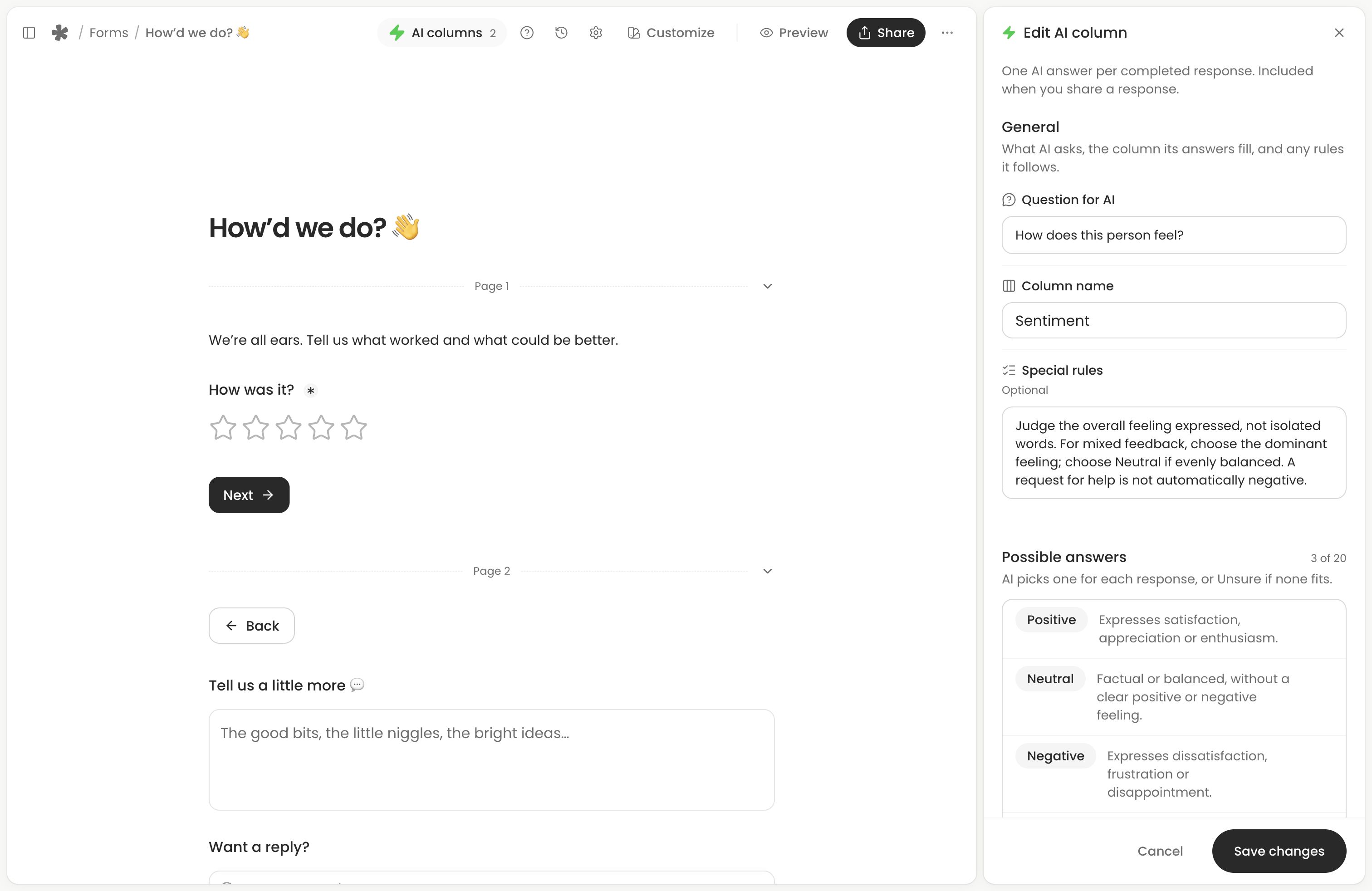
For example, use a column named Enquiry type:
- Question for AI: “What kind of help is this person asking for?”
- Possible answers: New project, Existing work, General question.
- Rule for Existing work: “Choose this for changes or problems with something we already delivered.”
- Special rules: “Choose the main request. Use Unsure when there is not enough information.”
Select the enquiry question as a source. Keep the answers distinct and describe the boundary where two could overlap. Save changes to apply updated rules. Custom columns pause if your plan no longer includes them; previous results and rules remain visible.
Review Unsure and correct results
Open a completed response and select its AI answer. The menu shows the possible answers and any available scores. Unsure means no answer fits or AI could not choose confidently; it is not an extra category you need to add.
No answer to read means the selected sources contain nothing AI can read. A recording or uploaded file alone cannot supply an answer. Check the source questions and the written response before running the column again.
Choose the answer you think fits, or choose Unsure when the response needs review. Your correction shows Edited and is kept when the column runs again. It changes the AI value, not the respondent’s answer.
To hand a correction back to AI, choose Let AI decide in its menu or Edited popover. This is available while automatic updates can run. The same option can retry a failed result or obtain scores for an older result without them.
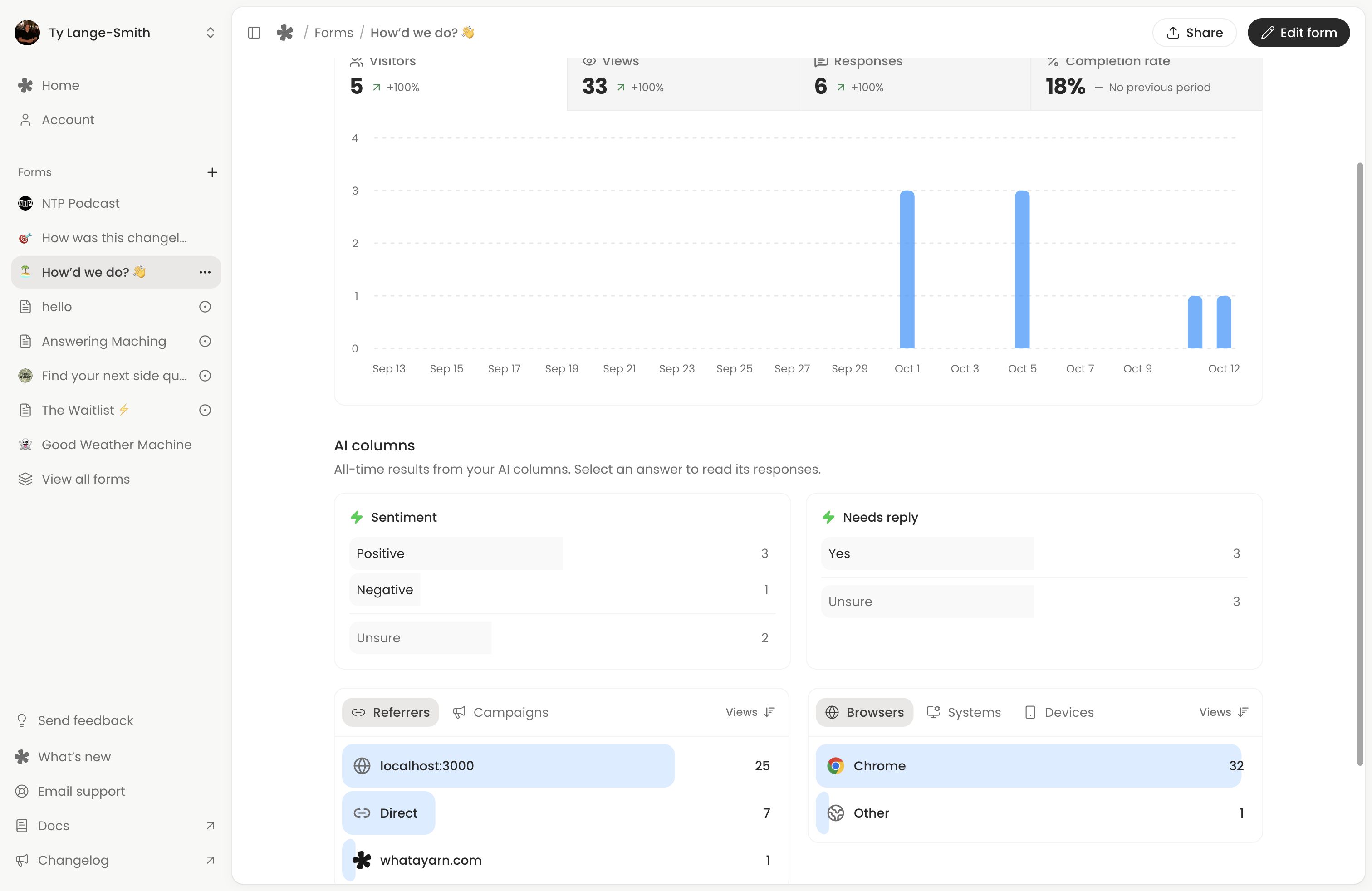
Insights also counts Unsure separately from each possible answer. Those cards summarise all-time completed responses; select an answer to inspect its matching responses.
Update or remove a column
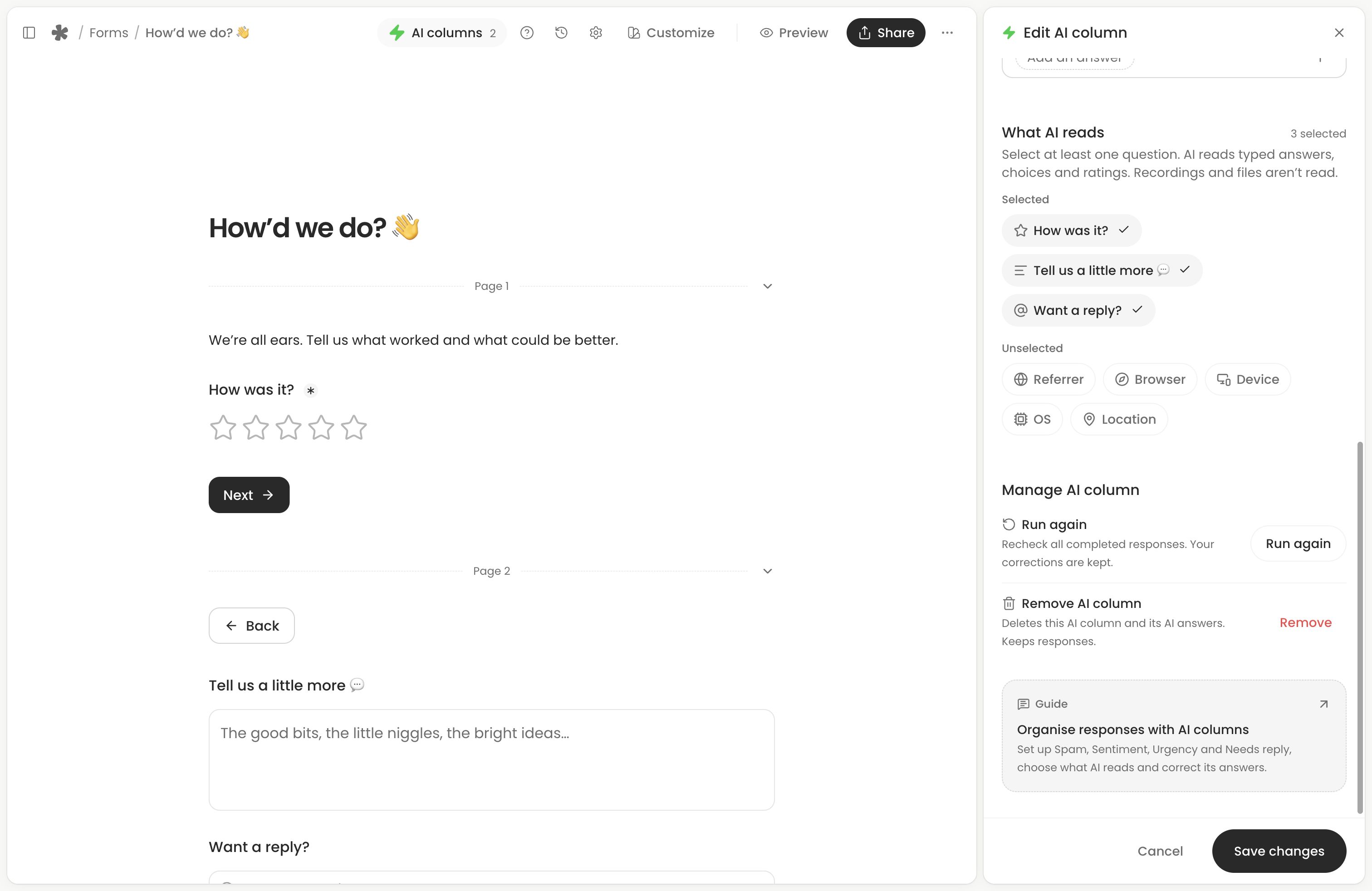
Choose its name from AI columns, or select its table header, to open settings. Select Save changes after adjusting sources or rules. Run again rechecks completed responses and keeps your manual corrections. Save any pending settings first.
Use Remove in the column’s settings to remove it and its results. Removing a column does not remove form responses.
Insights shows all-time AI result counts. Select an answer there to open its matching responses. Queued, processing, failed or paused states describe processing coverage; they are not answers to your AI question.
Sharing AI results
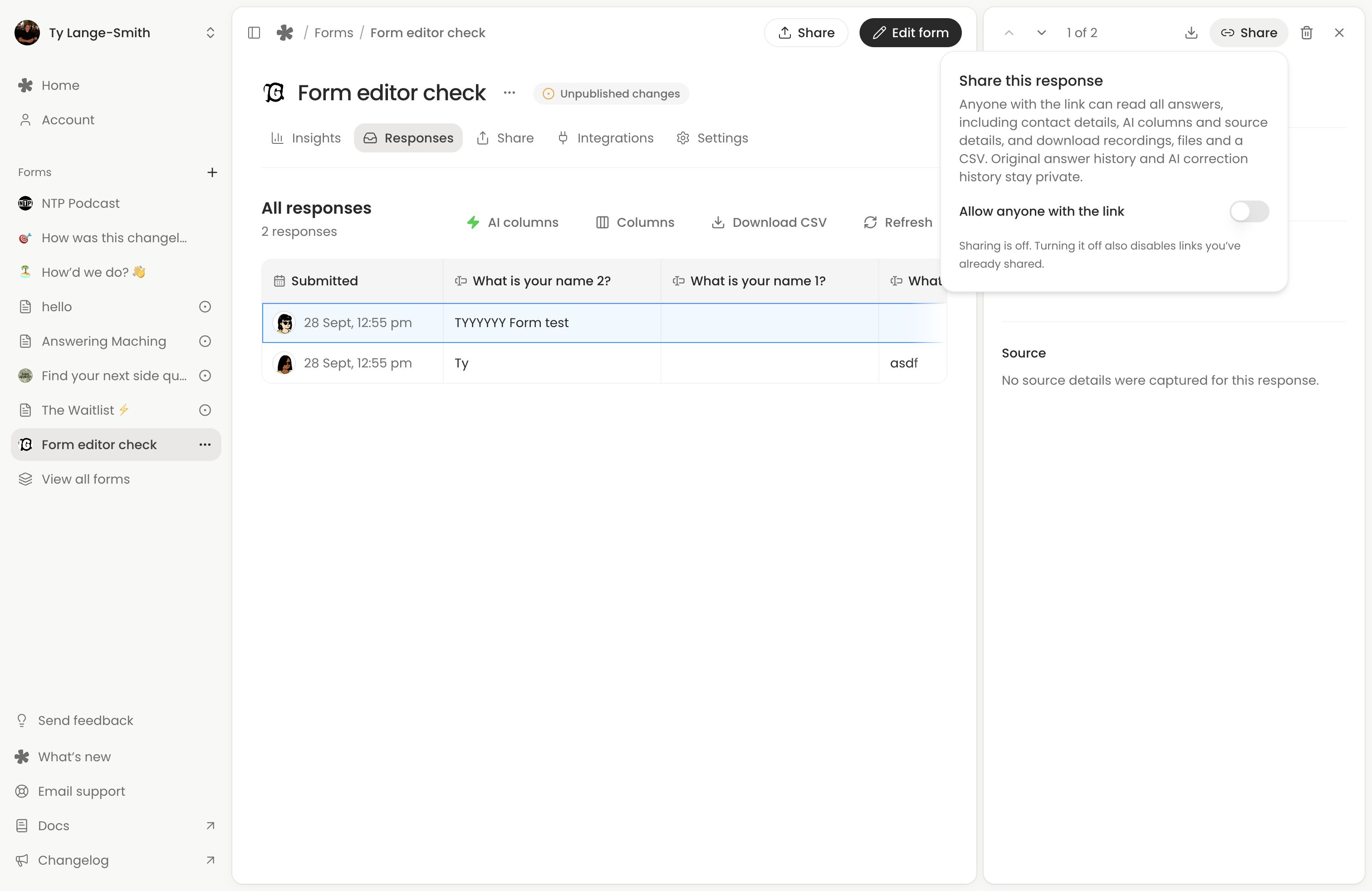
AI columns do not appear on the form respondents fill in. If you enable sharing for a completed response, its shared page includes all AI columns and available confidence alongside its answers. Review those results before sharing the response.
Next action: Add Sentiment to a feedback form, submit a written test response and check the result against what you wrote.