
Save and finish later helps someone return to an unfinished form in the same browser. Partial submissions lets the owner see supported answers before that person submits. They are separate switches in the form’s Settings and apply without publishing.
Setting | Save and finish later | Partial submissions |
|---|---|---|
| Available on | Free and Creator | Creator |
| Where answers are kept | The respondent’s browser | The owner’s Responses view |
| What is kept | Typed and selected answers, page position, recordings and selected files when browser storage permits | Supported text, choice, date, rating and scale answers |
| Expiry | 24 hours after the last change | Normally 30 days without a new save; sooner with a shorter automatic deletion period |
| Enabled initially | Yes | No |
Return to unfinished answers
When saved progress is enabled, a respondent returning in the same browser can see Welcome back. Continue where you left off restores their answers; Start over clears that browser’s saved attempt. Refreshing the same tab can restore answers directly.
After restoration, Your earlier answers are back appears below the form with another Start over option. Check restored answers before continuing, especially on a shared device.
Browser saving is best effort. Clearing browser data, switching browsers or using a device that blocks storage can prevent recovery. Some larger selected files may need to be chosen again after a reload; the form names any file it needs. Preview does not store progress.
After a successful submission, that saved attempt is cleared. Turning Save and finish later off stops browser saving for the form and clears its saved answers when the form next opens in that browser.
If the owner publishes a changed form, only answers that still fit the current questions carry over. The form tells the respondent it was updated. They should review their answers before submitting again.
Collect partial answers as the owner
On Creator, enable Partial submissions. An answered form saves supported answers shortly after typing pauses, when the respondent moves between pages and when they leave the tab. Saving is best effort and requires the form to be accepting responses.
Partials can contain short and long answers, email, number, phone and link answers, choices, dates, ratings and linear scales. Text can be unfinished, such as a half-typed email address; a partial is not a validated completed response.
Voice questions are excluded, including their typed alternatives. File-upload questions are also excluded. Recordings and files may upload in the background before Submit, but they join the owner’s completed response only after successful submission.
When your form has partial submissions, Responses shows a status filter with All, Completed and Partial options. A returning respondent can continue the same unfinished row. When they successfully submit it, its status becomes Completed.
Partial rows do not count as completed responses in Insights or the response allowance, and do not trigger new-response emails or AI classification. To analyse completed written answers, see Use AI columns.
Unfinished rows are normally deleted after 30 days without a new save. Creator’s Delete old responses automatically can remove them sooner: a 7-day period deletes partial rows whose latest save is older than 7 days during daily cleanup. This owner setting does not change the browser’s 24-hour saved-progress window. See Manage form settings.
Choose the right combination
For a longer feedback form, you might leave browser saving on and enable partial collection to review unfinished answers. For a shared event tablet, turn browser saving off. Decide separately whether you want the owner to collect partial answers, and explain that collection in your invitation or introductory text.
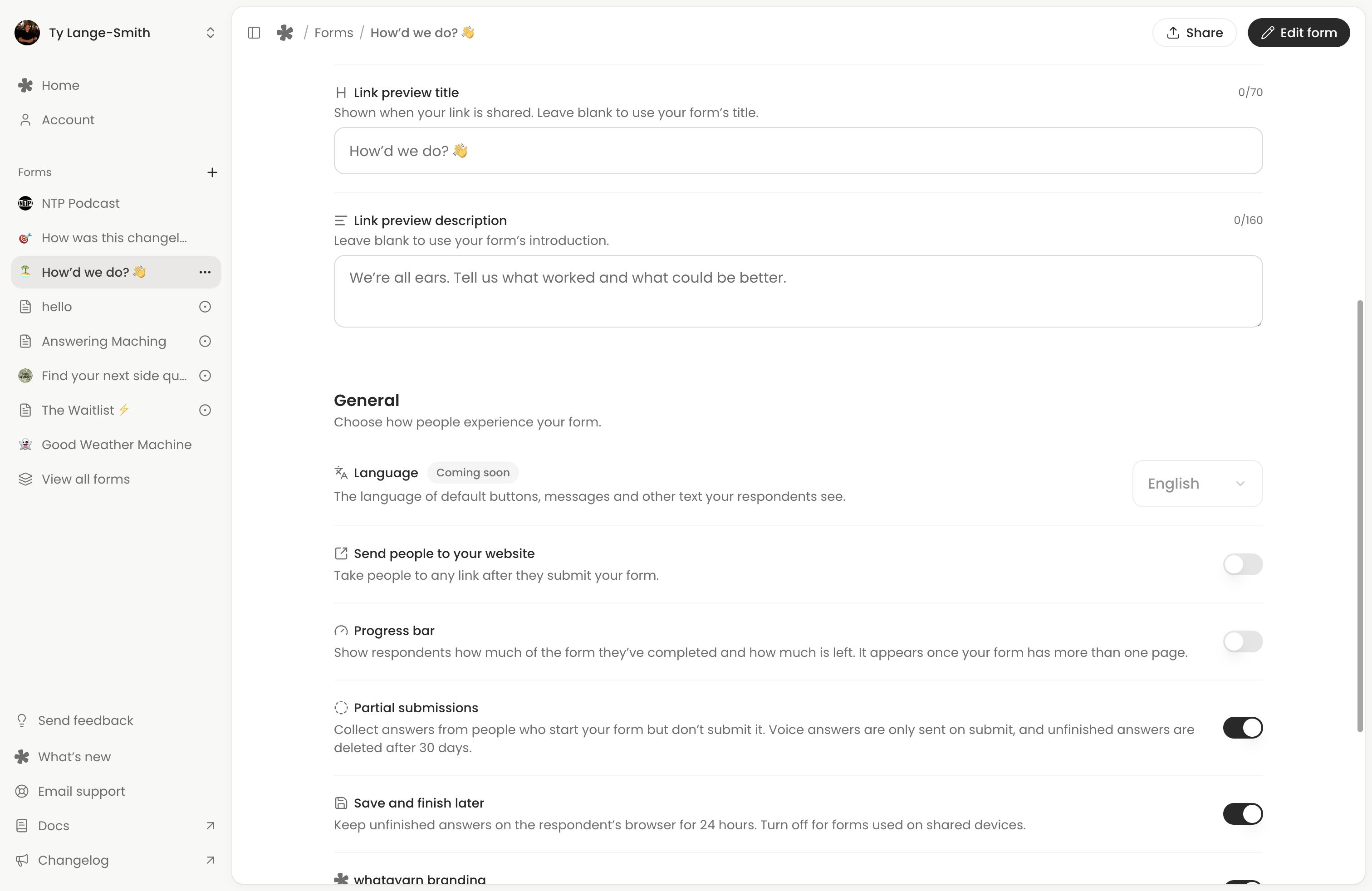
Turning partial collection off stops new partial saves; it does not turn off browser saved progress or turn existing partials into completed responses.
Next action: Open Settings and choose each switch based on where people will answer your form.