
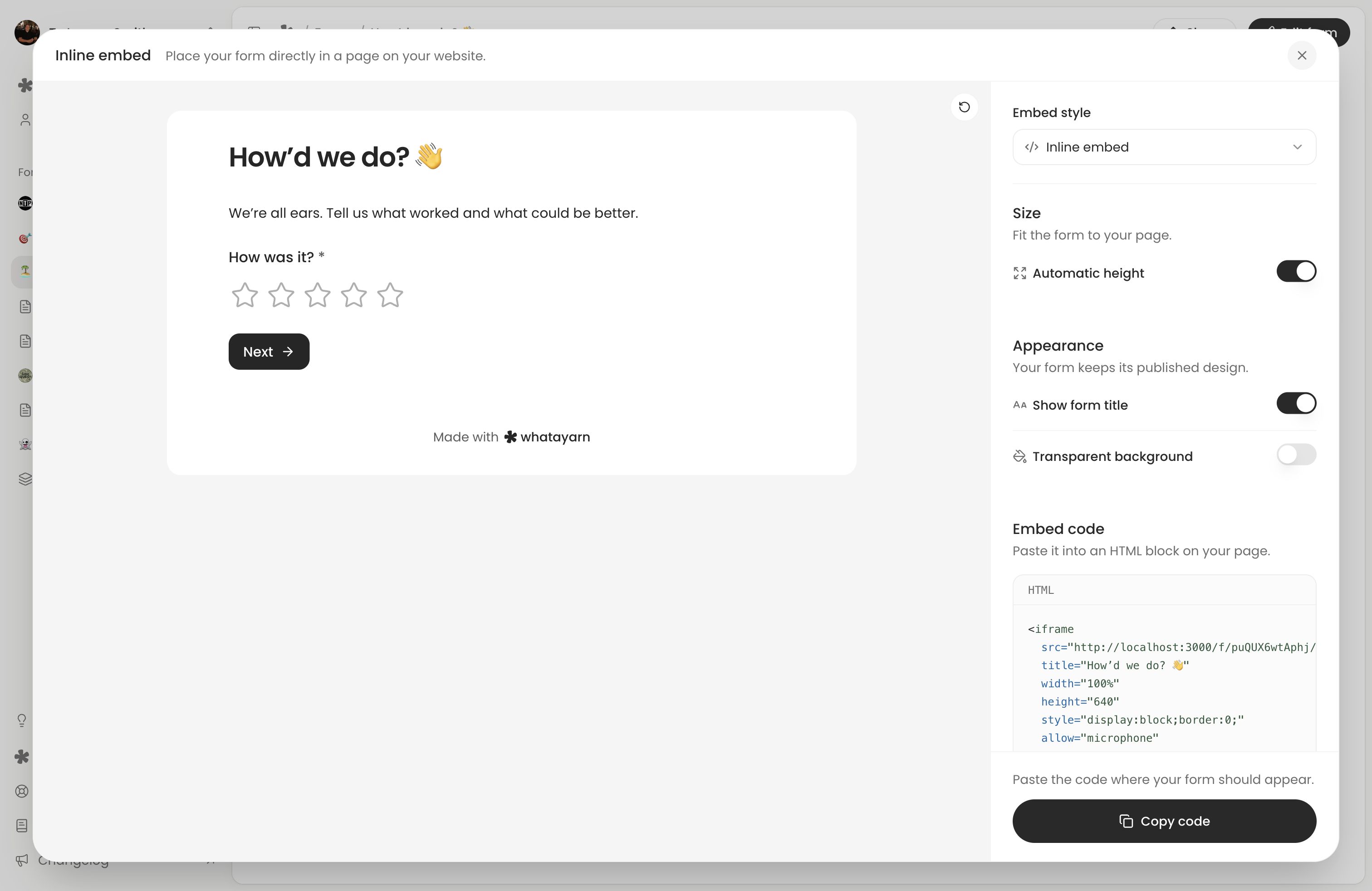
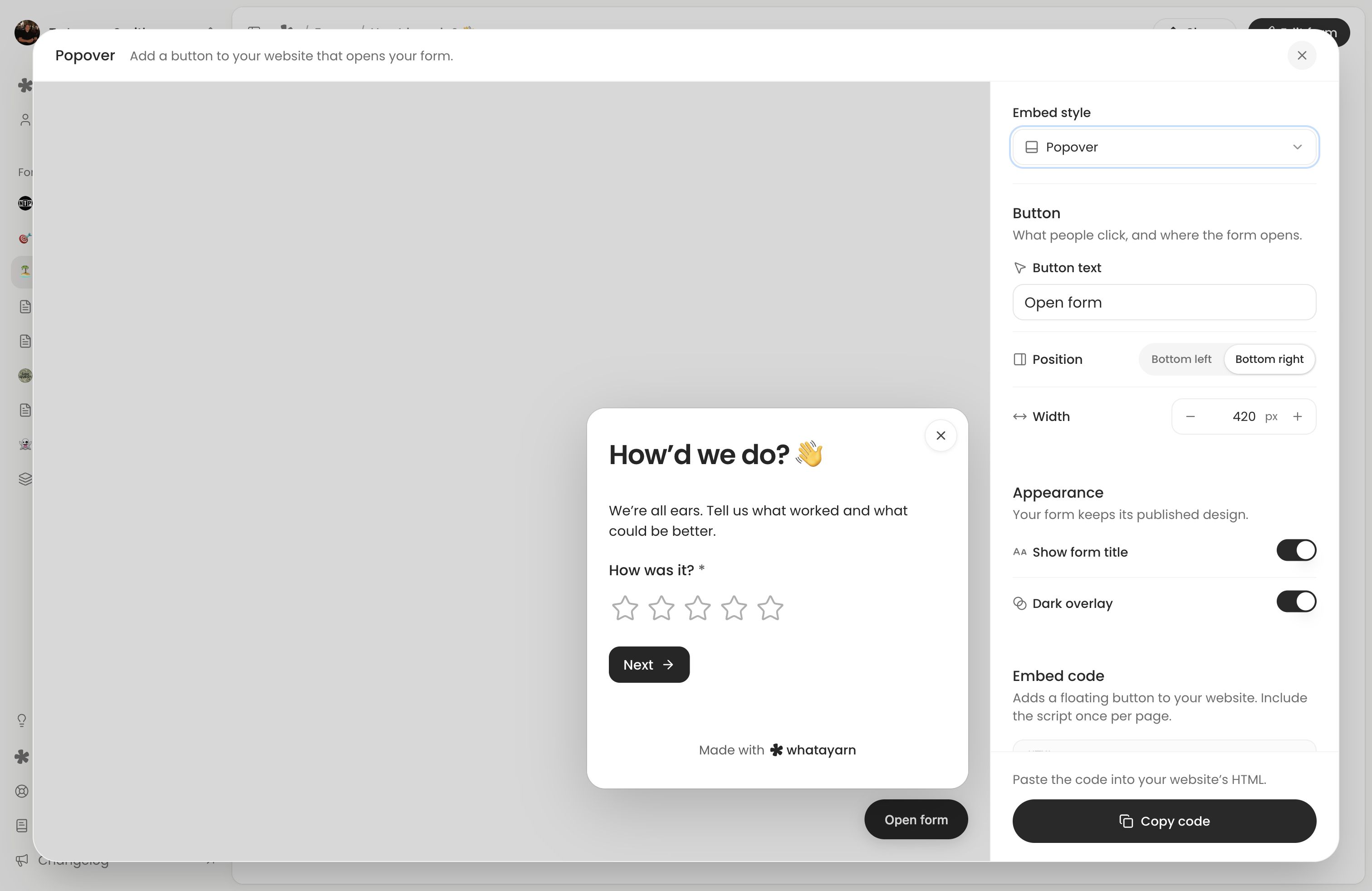
Open your form’s Share section and choose Inline embed or Popover. Both are available on Free and Creator and display your published form. Publish pending question or design changes before you install it.
Choose how the form opens
Style | Use it when | Controls |
|---|---|---|
| Inline embed | People should answer inside your page. | Automatic height or fixed height, form title and transparent background. |
| Popover | A floating button should open the form over your page. | Button text, bottom-left or bottom-right position, width, form title and dark overlay. |
For an inline form, keep Automatic height on to let the frame follow the form’s content. Turn it off to choose a fixed height between 240 and 1,600 pixels. Transparent background lets your website’s background show through.
For a popup, set Button text to a useful invitation, such as “Send feedback”. Choose its position and a width between 320 and 640 pixels. Dark overlay dims the page behind the open form.
Both styles have Show form title. The remaining colours, fonts, images and question styling come from your published design.
Install the code
- Check the preview and choose Copy code.
- Open your website editor and add an HTML or code block where the form should appear. For a popover, add it to the page where you want the floating button.
- Paste the complete code. It includes the form or button and the whatayarn script. Include the script once per page.
- Save and publish the website page.
Your website editor must allow the HTML and script in the snippet. If it strips them out, use a normal button linking to the public form while you check the editor’s custom-code options.
The embed tool’s preview lets you try the flow without creating a response. Embed options change the code you copy; to change an installed embed’s height, button or appearance options later, copy the new code and replace the snippet on your site.
Test the installed page
Open the published website page on desktop and a phone. Check that the title is readable, every question and the Submit button can be reached, and a popup opens and closes without covering other essential controls.
Complete one test through the installed form, wait for confirmation, then check Responses. This is a real response. Also test a voice question if you use one: the generated code allows microphone access, but the browser and your website must allow it too.
If voice recording works at the direct form link but fails in the embed, check that your site retained the snippet’s microphone permission and that the host page uses HTTPS. Your site’s permissions policy can also block recording in a frame. See Microphone troubleshooting.
Keep the embed working
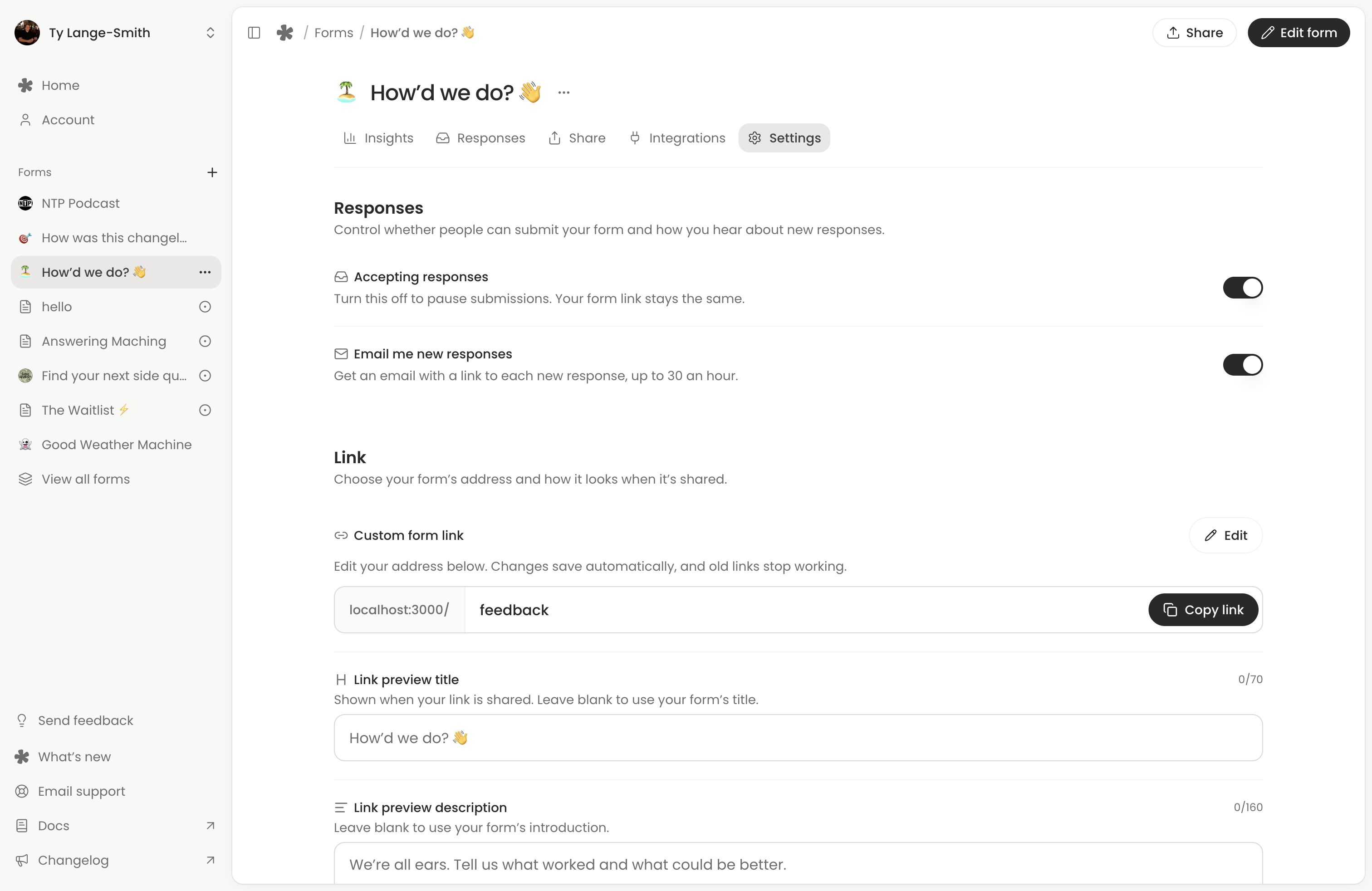
Publishing new questions or design updates changes the form shown by the existing embed. You do not need to reinstall it for those updates. Generated embeds use the form’s stable ID, so changing its custom link does not break them.
Pausing responses applies to embeds too. If the form shows a holding message or older questions, follow Form troubleshooting.
Next action: Install the copied snippet and submit one test from your published website page.