
A block is a piece of your form: a question, some explanatory text, an image or a page divider. Questions collect answers. Text, headings, images and other layout blocks help people understand or navigate the form; they do not create answers in Responses.
This reference covers the current Add a block picker. Available question, layout, media and page blocks are included on Free and Creator. Hidden field is a Creator shortcut to a hidden short-answer question, rather than a separate question type.
Add and preview a block
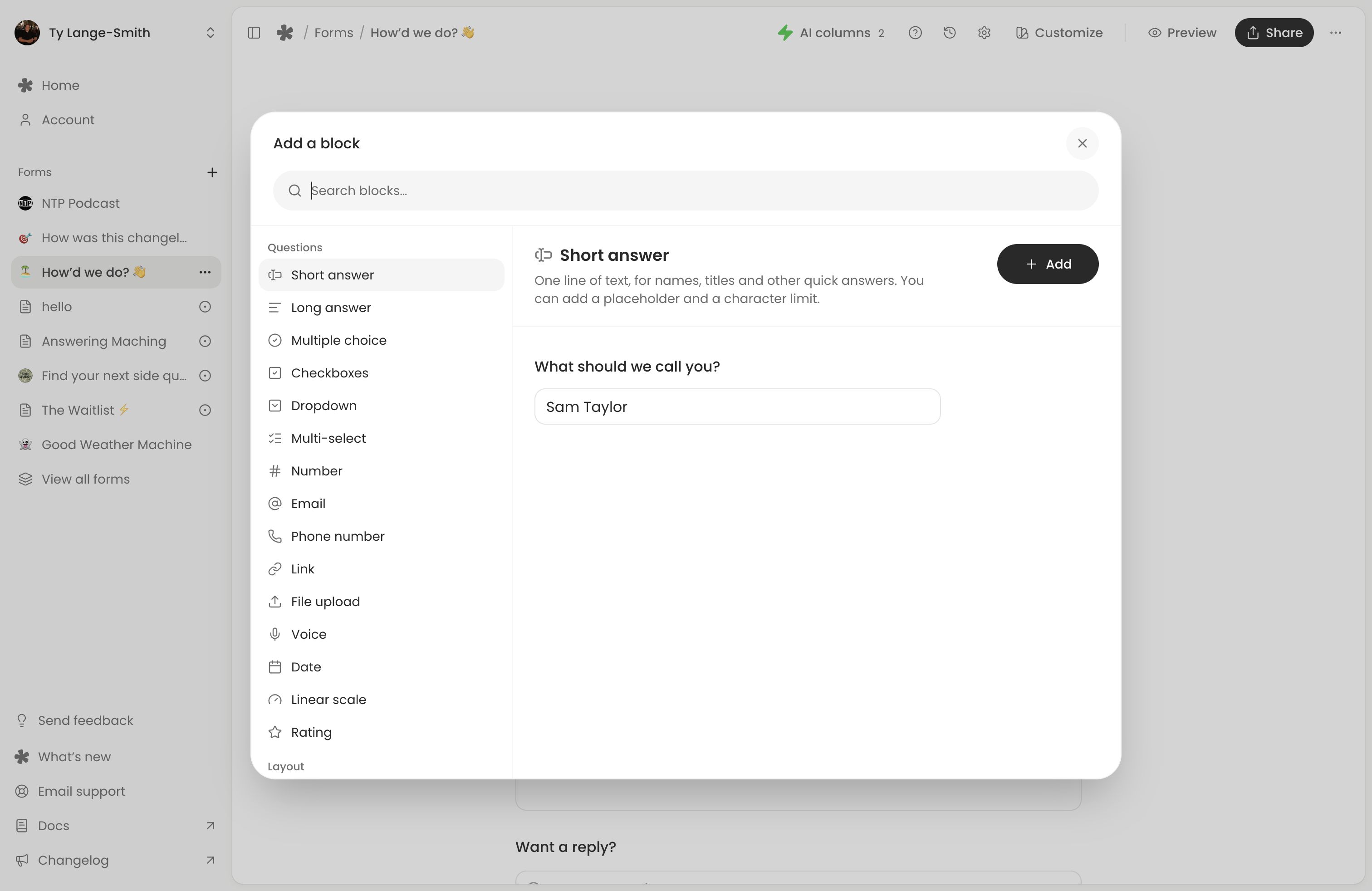
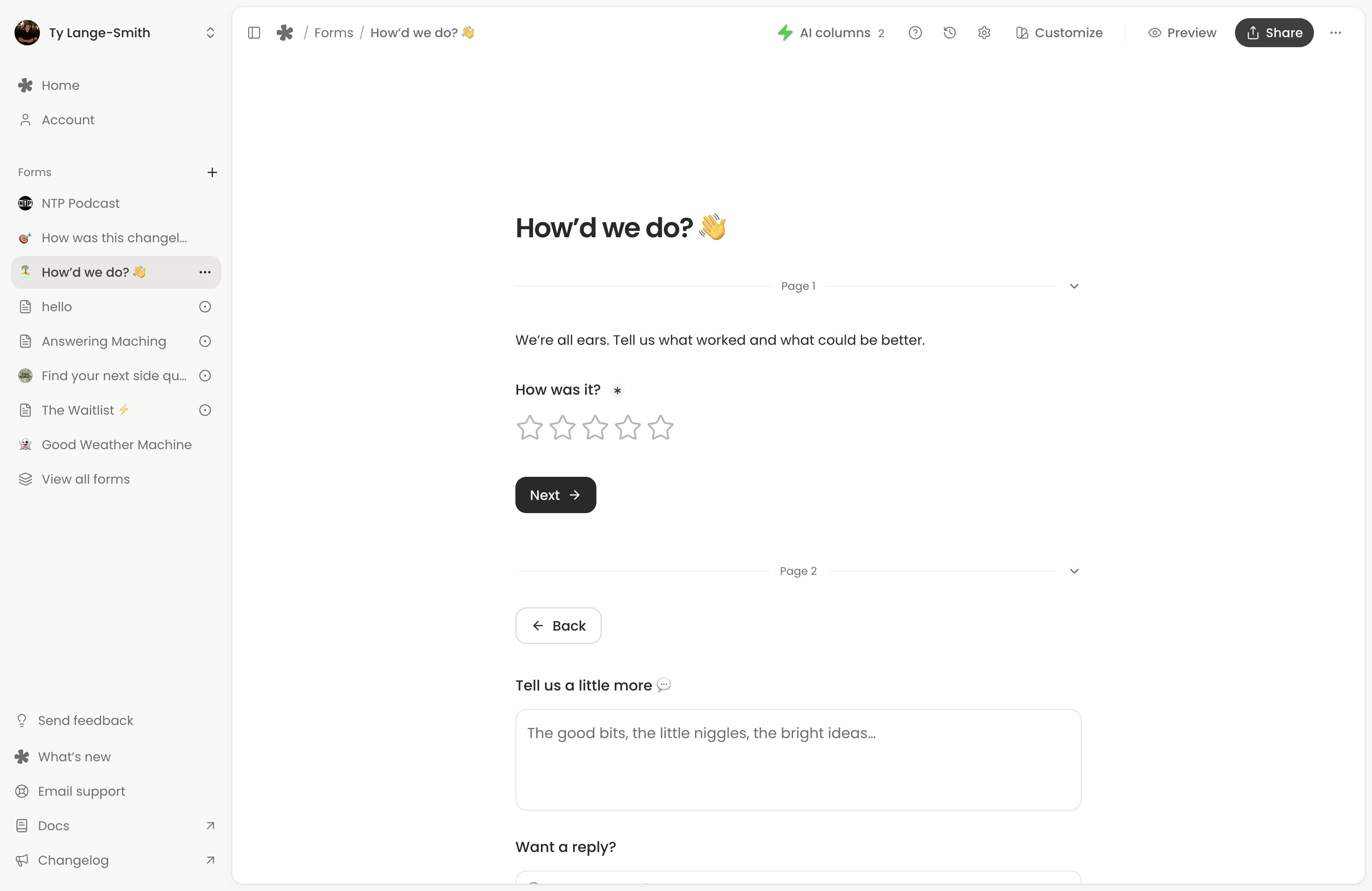
Open a form and choose Edit. Click + beside or between blocks to open Add a block, or type / on an empty line for the slash menu.
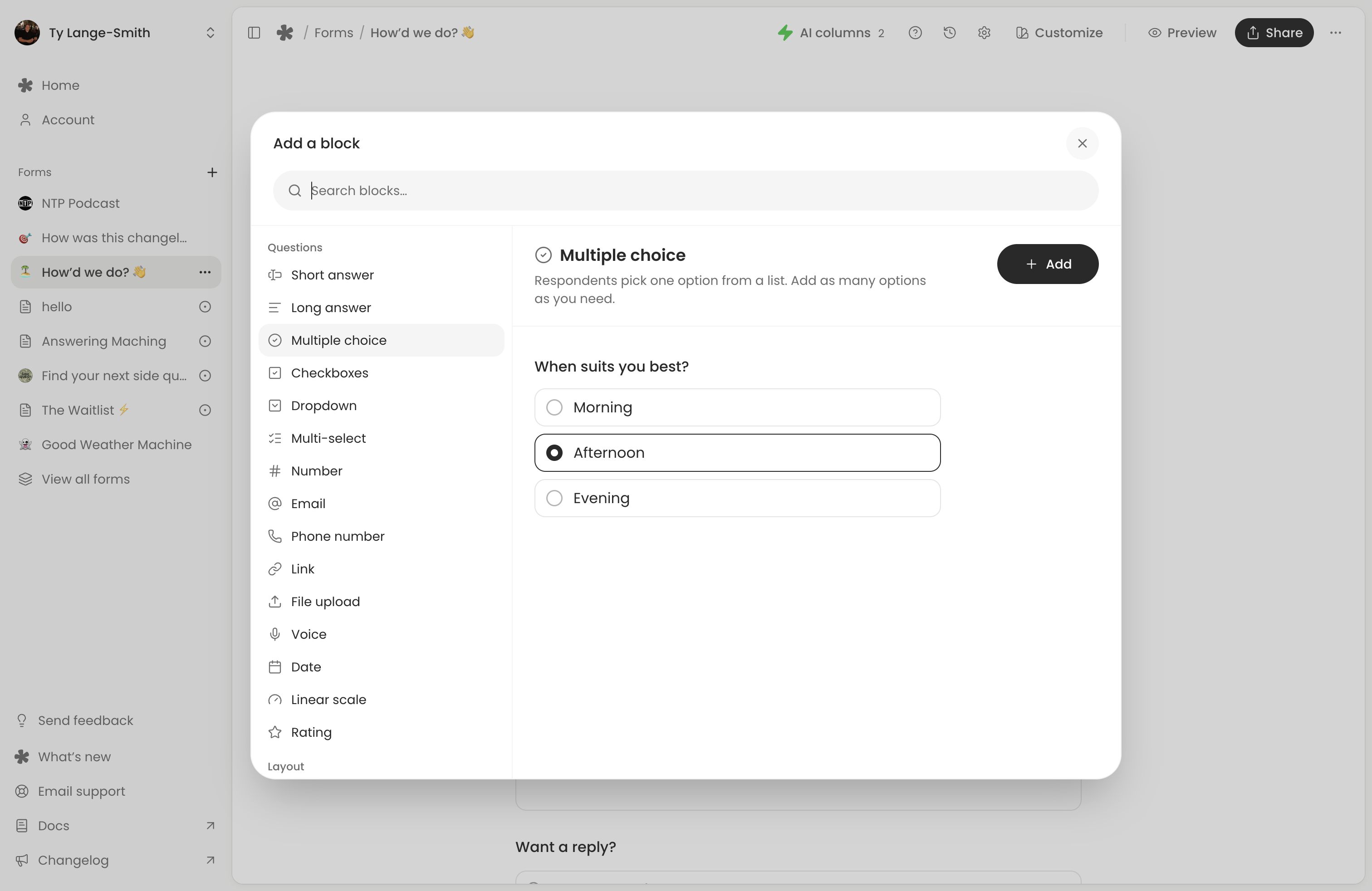
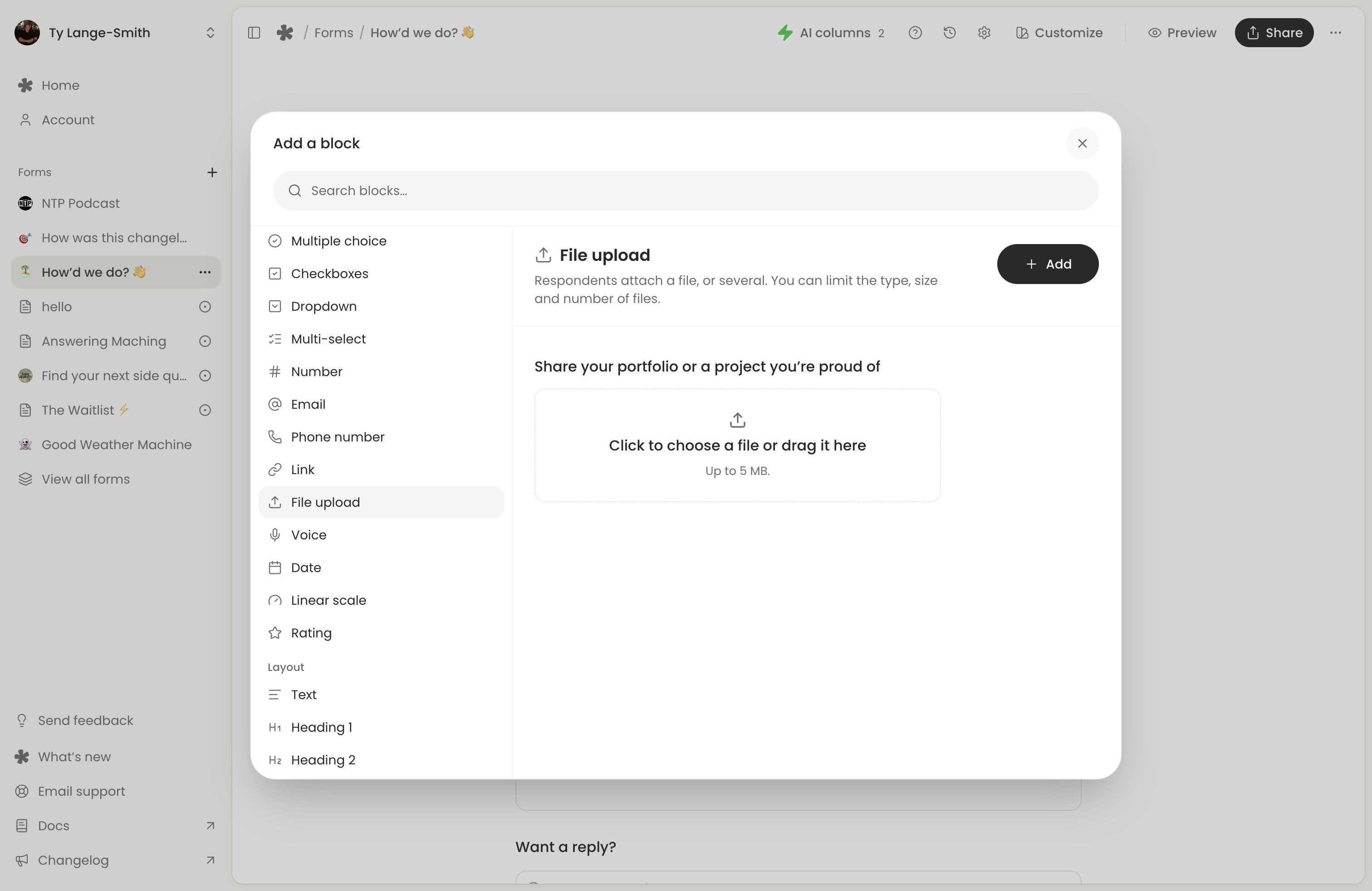
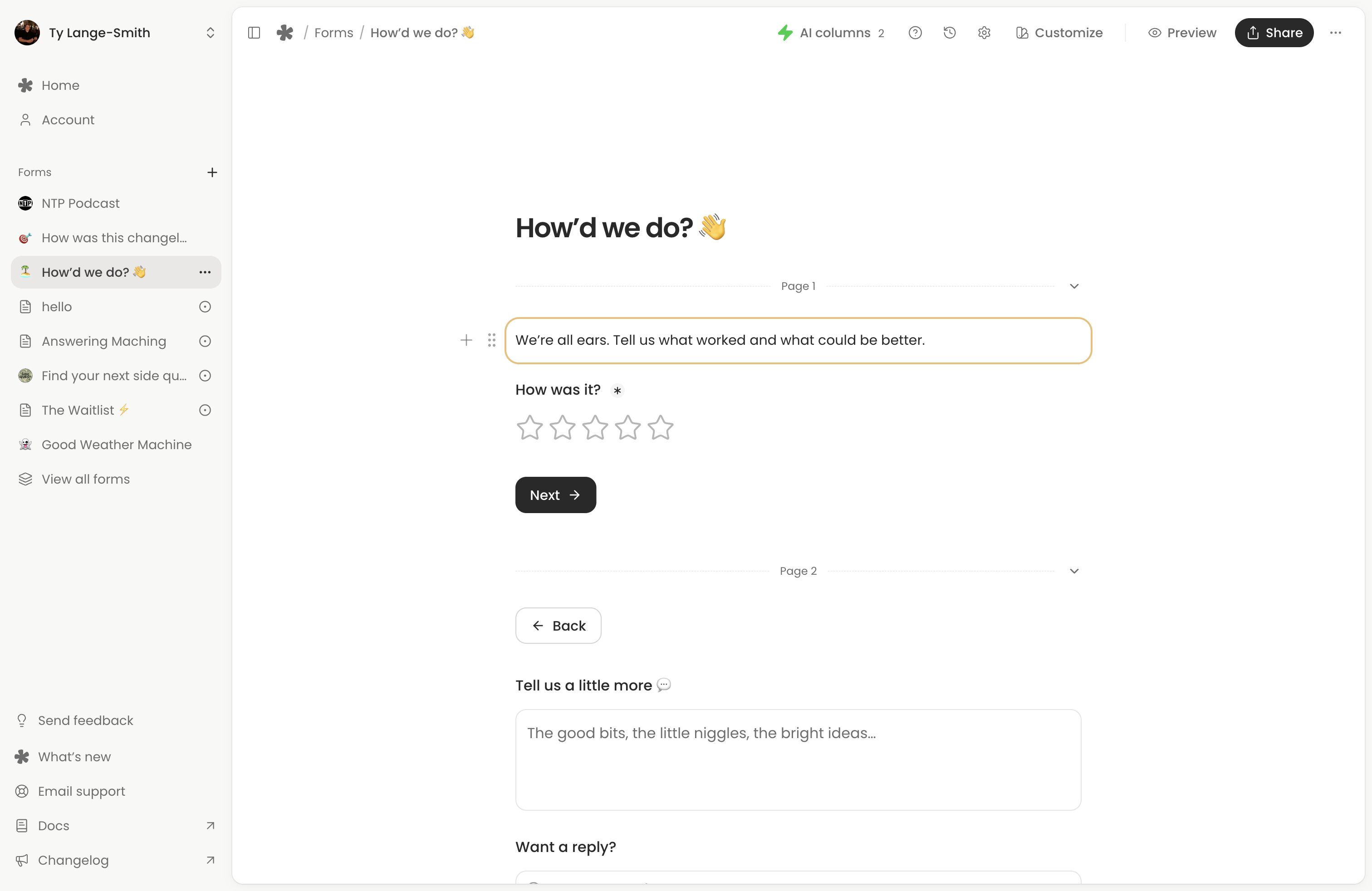
On desktop, select a block to see its built-in example, then choose Add to insert it. Browsing or previewing does not change your form or submit an answer. On phones, tapping a block adds it directly.
Questions that collect answers
Choose a format that matches the answer you need. Every question can be required or optional, have supporting text and use a shorter name in Responses. The question-specific controls below are in its block menu.
Written answers, contact details and numbers
Question | Use it for | Settings to check |
|---|---|---|
| Short answer | A name, title or brief explanation in one line. | Placeholder, default answer and minimum or maximum characters. Up to 1,000 characters. |
| Long answer | Feedback, stories or a detailed request over several lines. | Placeholder, default answer and minimum or maximum characters. Up to 5,000 characters. |
| An email address for follow-up. It checks email formatting, without verifying that the person owns the address. | Required, placeholder and default answer. | |
| Phone number | A contact number. Mobile browsers can show a number keypad; the answer is checked for a phone-number format. | Required, placeholder and default answer. Ask for a country code when you need one. |
| Link | A website, profile or portfolio address. It checks for a valid web address. | Required, placeholder and default answer. A plain text instruction containing a link does not collect an answer. |
| Number | Quantities, amounts or other numeric answers, including decimals. | Minimum and maximum values, placeholder and default answer. |
A placeholder is a hint in an empty input, not a submitted answer. A default answer is an actual starting value. Add name and contact questions only when you need them for your workflow.
Choices from a list
Question | Use it for | Settings to check |
|---|---|---|
| Multiple choice | One answer from visible options. | Write the option labels and choose a default answer if needed. |
| Checkboxes | Several answers from visible options. | Option labels, default answers and minimum or maximum choices. |
| Dropdown | One answer from a list opened as a menu. | Option labels and default answer. Useful when you want a compact field. |
| Multi-select | Several answers from a menu. | Option labels, default answers and minimum or maximum choices. |
These are four presentations of a choice question. Multiple choice and Dropdown allow one answer; Checkboxes and Multi-select allow several. Each question can have up to 100 options. Give options distinct, complete labels, and make sure any minimum number of choices can be met before publishing.
Ratings, scales and dates
Question | Use it for | Settings to check |
|---|---|---|
| Rating | A score expressed as stars. | Choose 3 to 10 stars; the default is 5. Explain what the low and high scores mean, and set a default only if appropriate. |
| Linear scale | One whole number on a scale, such as likelihood to recommend. | Start at 0 or 1; end at a number from 2 to 10. Add labels for both ends. The default scale is 0 to 10. |
| Date | A calendar date, with a time when needed. | Include time, earliest date, latest date and default answer. Date limits include the boundary days. |
A Rating or Linear scale answer is a chosen score, not free-form text. A Date answer collects a date or date and time; it does not reserve a booking or check another calendar’s availability.
Recordings and uploaded files
Question | Use it for | Settings to check |
|---|---|---|
| Voice | A recording made in the browser. When enabled, an uploaded audio file or typed answer can answer the same question instead. | Maximum length, minimum recording length, Allow file upload and Allow typed answer. |
| File upload | Documents, pictures, audio, video or other files supplied by the respondent. | Accepted file category, maximum file size and whether several files are allowed. |
For Voice, the maximum-length choices are 30 seconds, 1 minute, 2 minutes, 5 minutes or 10 minutes, bounded by your plan. Free allows up to 1 minute; Creator up to 10. A question receives either audio or a typed alternative, rather than both. Audio uploads must fit the question’s duration and file-size allowance. Follow Set up voice questions for the complete workflow.
For File upload, choose any file or restrict it to images, documents, audio or video. Set a 1 MB limit or the current maximum of 5 MB per file on either plan. One file is allowed initially; enable multiple files to allow up to ten. These files and voice recordings use your account’s storage allowance.
Voice is the recording control. File upload can accept an existing audio file, but does not record one in the browser. Neither recording content nor file content is read by AI columns; a voice question’s typed alternative can be read.
Text and layout blocks
Block | Meaning | Controls |
|---|---|---|
| Text | Instructions, introductions or other copy between questions. | Write in the document and format selected text with bold, italic, underline, colours or links. |
| Heading 1 | The largest heading for a section within the form. | Write and format its text. It is separate from the form’s main title. |
| Heading 2 | A smaller heading for a part of a section. | Write and format its text. |
| Heading 3 | The smallest heading for a short group of related questions. | Write and format its text. |
| Divider | A visible line separating parts of the same page. | Place it where it helps organise the content. It does not create a new page. |
Text and headings can insert an earlier answer with @ where that answer is available. Use a heading or supporting text to explain a question, rather than adding a question just to display instructions.
Images and social links
Block | Meaning | Controls |
|---|---|---|
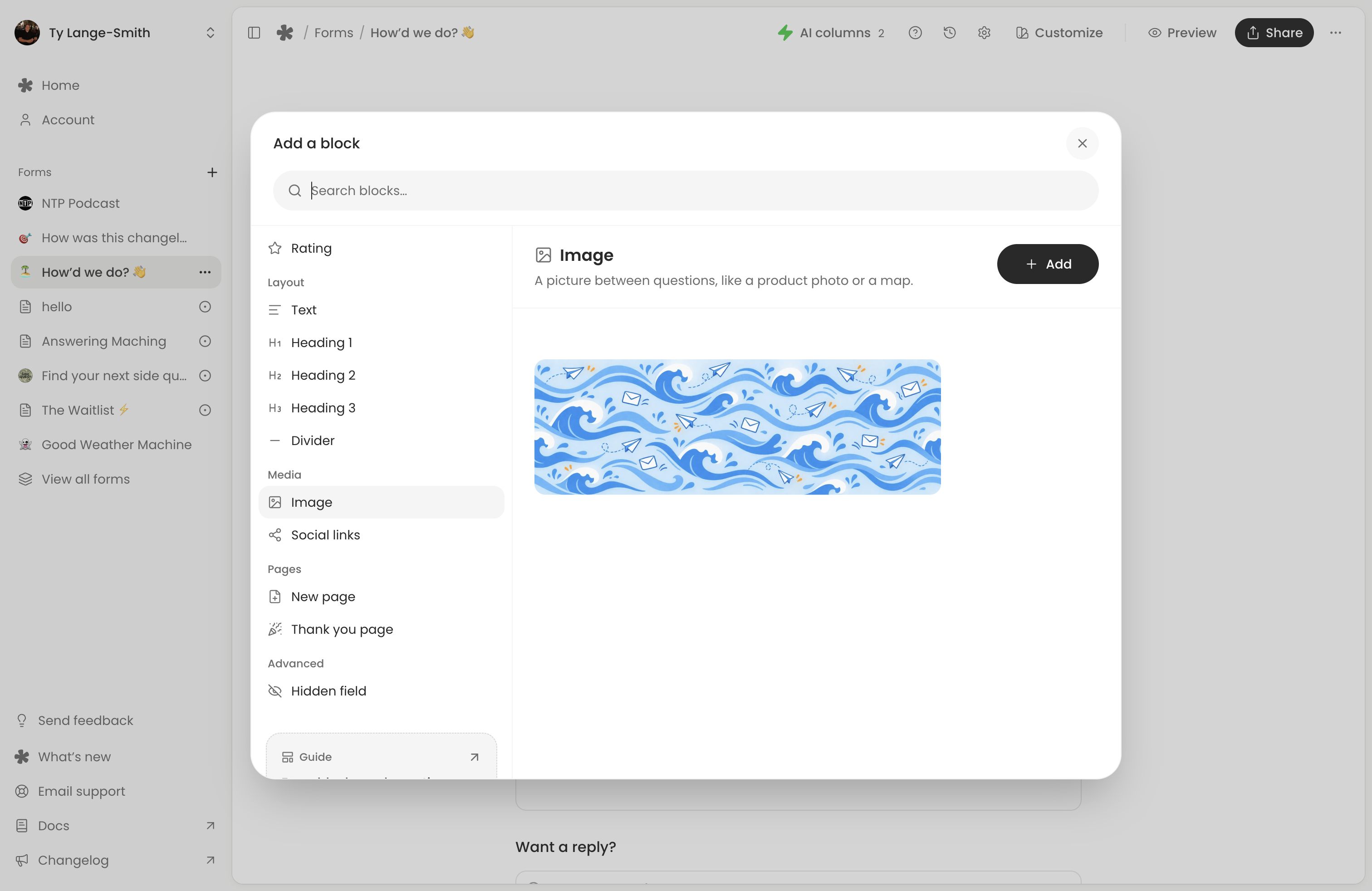
| Image | A picture within the document, such as a product photo or a map. | Upload the image and add Alt text when it carries information. |
| Social links | A row of icons linking to profiles or websites. | Add, edit or remove links. One block supports up to 12 links. |
These blocks display your content. Use File upload when you want respondents to send you images or documents, and Link when you want them to supply a web address.
Social links use the destination to choose the icon. They can appear within the document; Add links in the header is another way to add a link row. An Image block is separate from the form’s logo or cover.
Pages and the thank-you screen
New page
New page splits the form into steps. The content after it appears on the next page. Respondents use Next to continue and submit on the final answering page. Its settings let you rename the Next and Back buttons or hide Back.
Use pages when they create sensible groups, such as contact details followed by a project brief. A Divider only separates content visually on the same page. Enable a progress bar separately in Form settings.
Thank you page
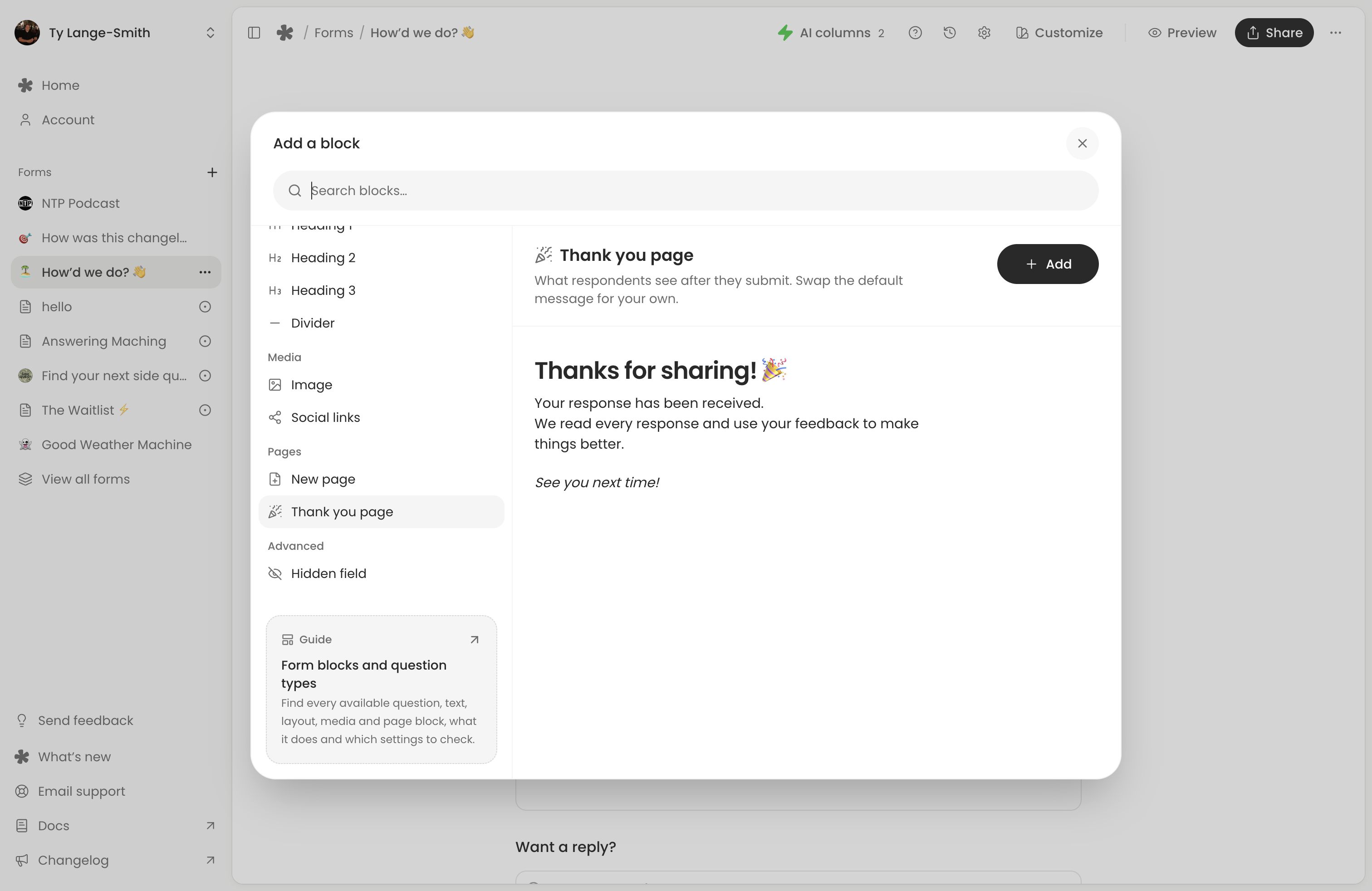
Thank you page starts the content shown after a successful submission. Add a heading, text or media after its divider to explain the next step. A form can have one thank-you page.
Keep every question before the thank-you divider; questions after it cannot be answered. Without a custom thank-you page, the form uses its default confirmation. A Creator redirect can take people to another website after that confirmation, so test it alongside your thank-you content.
Hidden fields on Creator
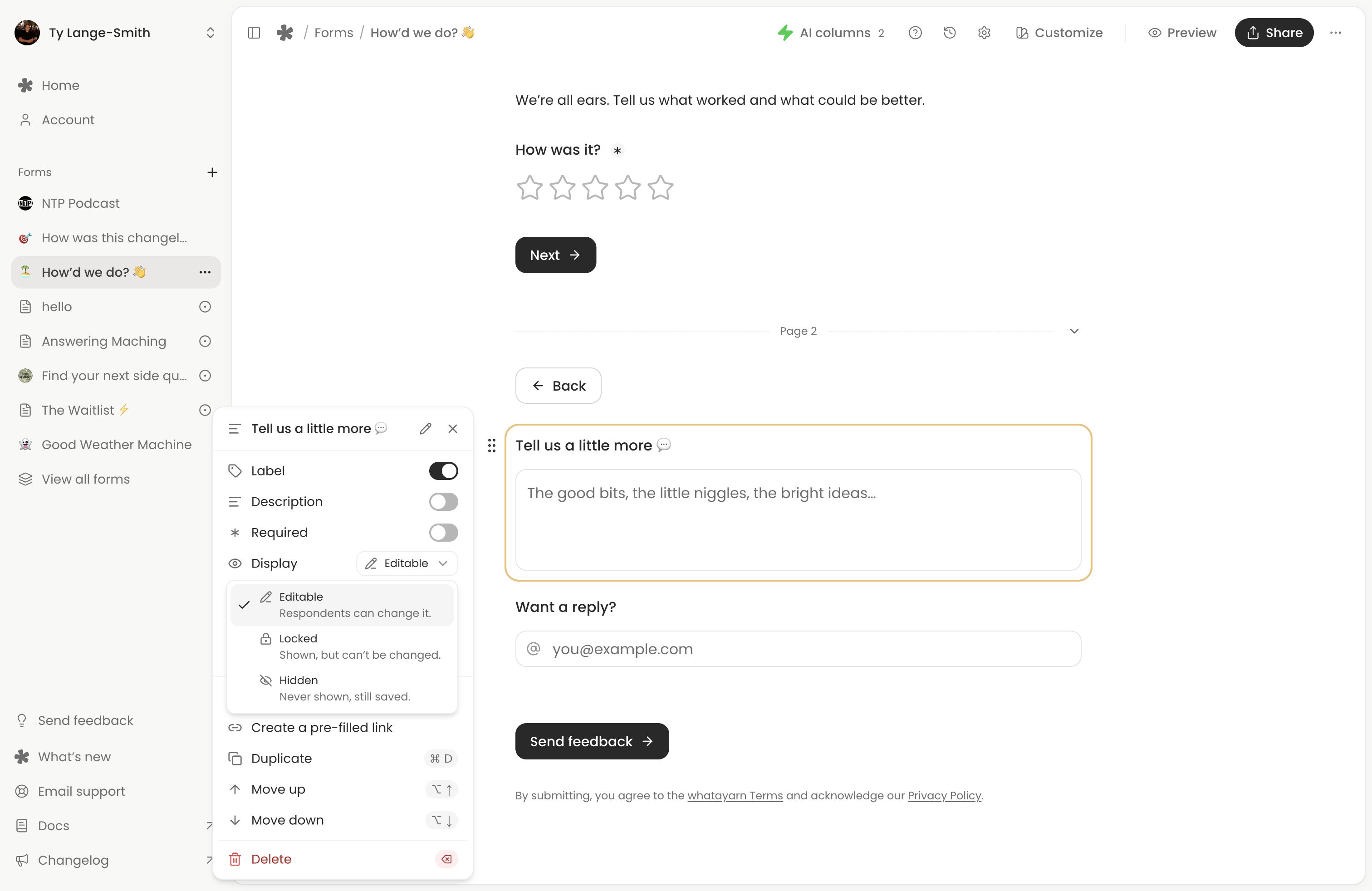
Choose Hidden field under Advanced to add a short-answer question with Display already set to Hidden. Respondents do not see it, but its value is saved with their response. Use it for a table number, campaign label or another value supplied by your link.
Give it a clear question name, configure its link answer or default, and test that value in Responses. Other supported questions can also use Hidden display. Locked shows a supplied answer without letting the respondent change it; Editable lets them change it.
Hiding a question does not add conditional logic or make the URL value a verified identity. See Pre-fill answers and hidden fields for supported types, link keys and examples.
Settings shared by questions
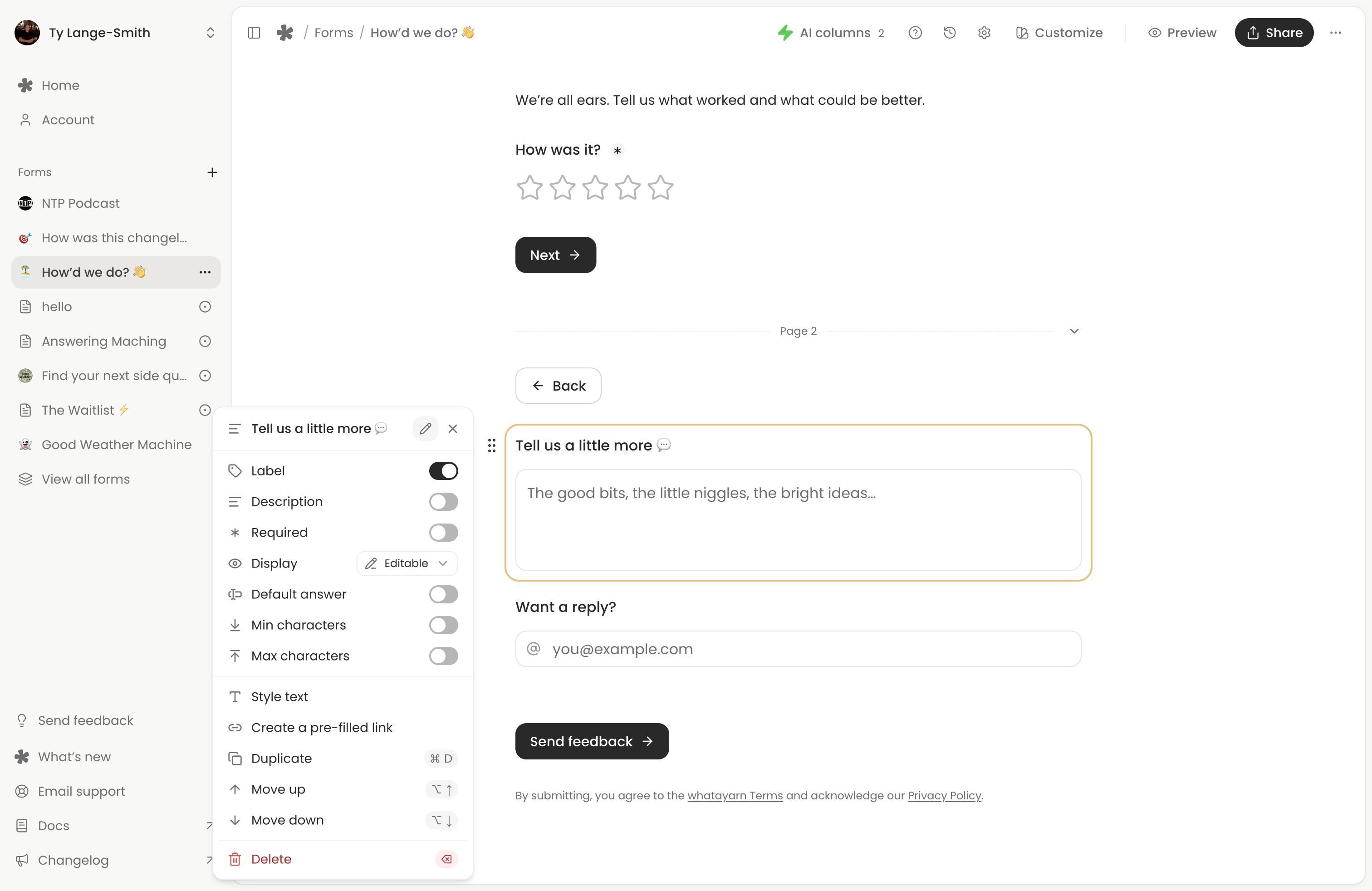
Open a question’s block menu to adjust Label, Description and Required. An optional question can be skipped; a required question must have a valid answer before submission.
Use Rename in responses for a shorter private column name without changing the question people read. Supported questions also have placeholders and default answers. A label can be hidden, but nearby text should still make the question understandable.
Moving or duplicating a question keeps its settings with it. Renaming or moving an existing question preserves its identity and association with existing answers. See Write questions and form text for editing, drag controls, keyboard shortcuts and answer references.
Header and form controls
The main title, Add description, logo, cover, design and Submit button text are form controls rather than question types in the picker. Edit the plain-text title directly, and use the header controls to add its introduction, images and links.
For logo, cover and styling, follow Customize your form design. For accepting responses, saved progress, notifications and redirects, follow Manage form settings.
Features marked coming soon
Signature questions, Payments and Conditional logic are coming soon. They are not available blocks or working question settings yet. You can collect an RSVP, request or uploaded document today, but the form does not take a payment, capture a drawn signature or automatically skip questions based on an earlier answer.
Check Free vs Creator for live features and current allowances. Publish your completed questions and test the live link before sharing it.
Next action: Open Add a block, preview the question that matches the answer you need, then add and configure it.