
Open a form from Forms (opens in a new tab) and choose Settings. These settings apply as soon as they save. You do not need to publish question or design changes to apply them.
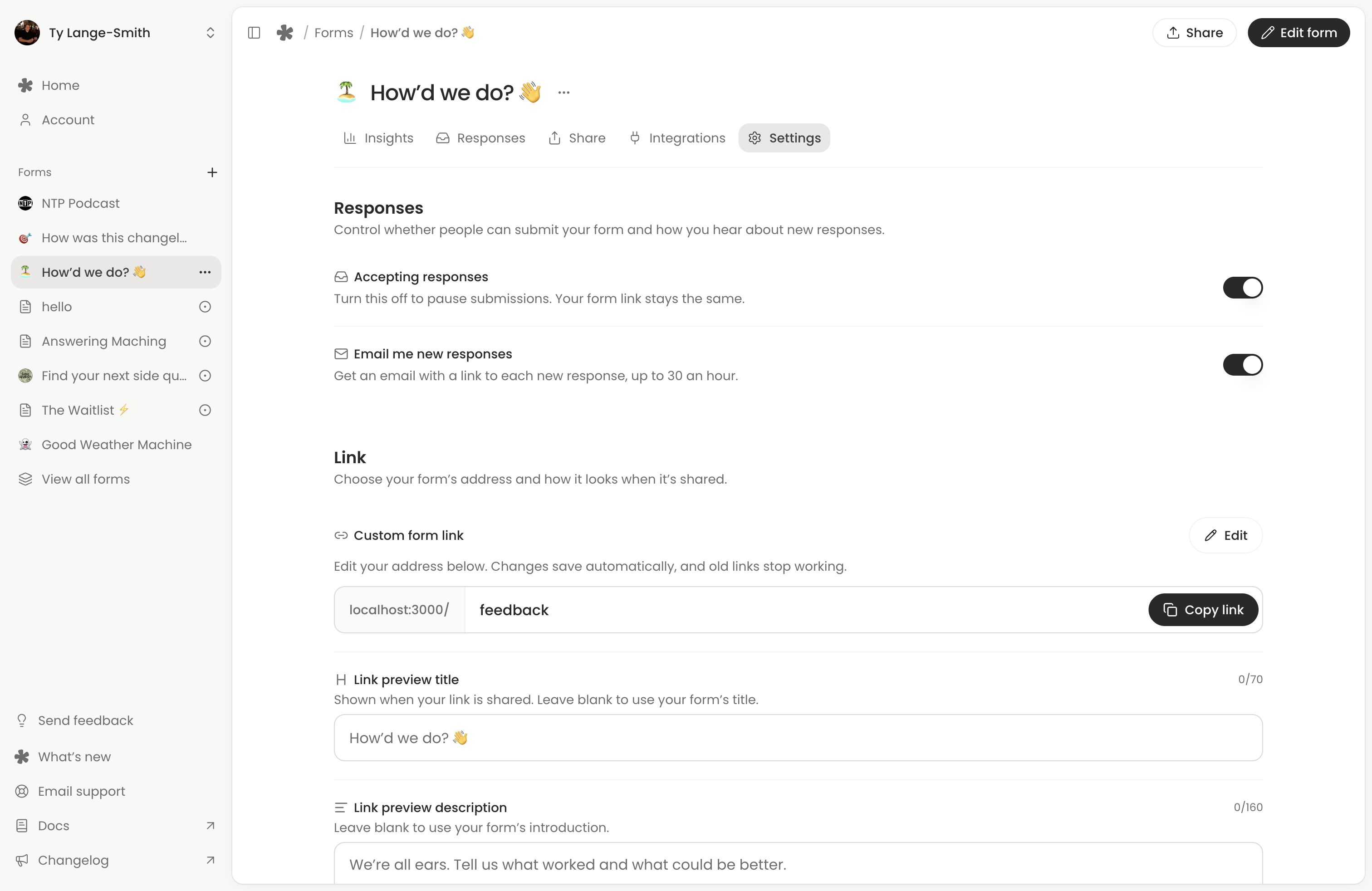
Control responses and email
Accepting responses pauses or resumes submissions. Pausing keeps the form’s link the same and preserves existing responses. Turn it back on to accept responses again. The published form must also be ready to collect answers.
Email me new responses sends the owner an email linking to each completed response, up to 30 emails an hour. It is available on both plans. Later responses in a busy hour still appear in Responses even when no email is sent. Partial submissions do not send these emails.
Set the address and link preview
Under Link, Creator can edit Custom form link. Changes save automatically when you leave the field or press Enter. Wait for the save confirmation before copying it. The old custom address stops working, so replace any links or QR codes using it. Generated embeds keep working.
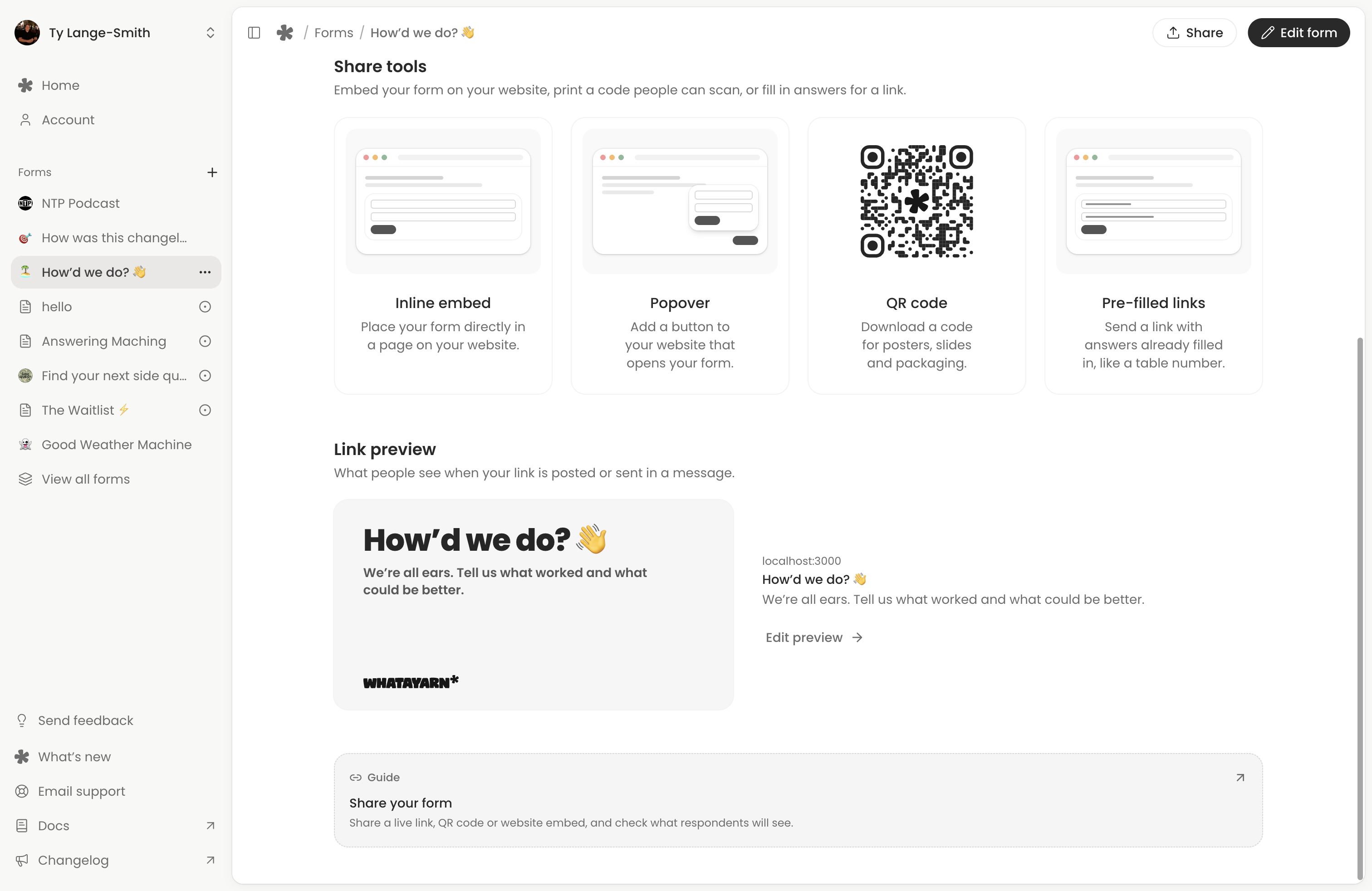
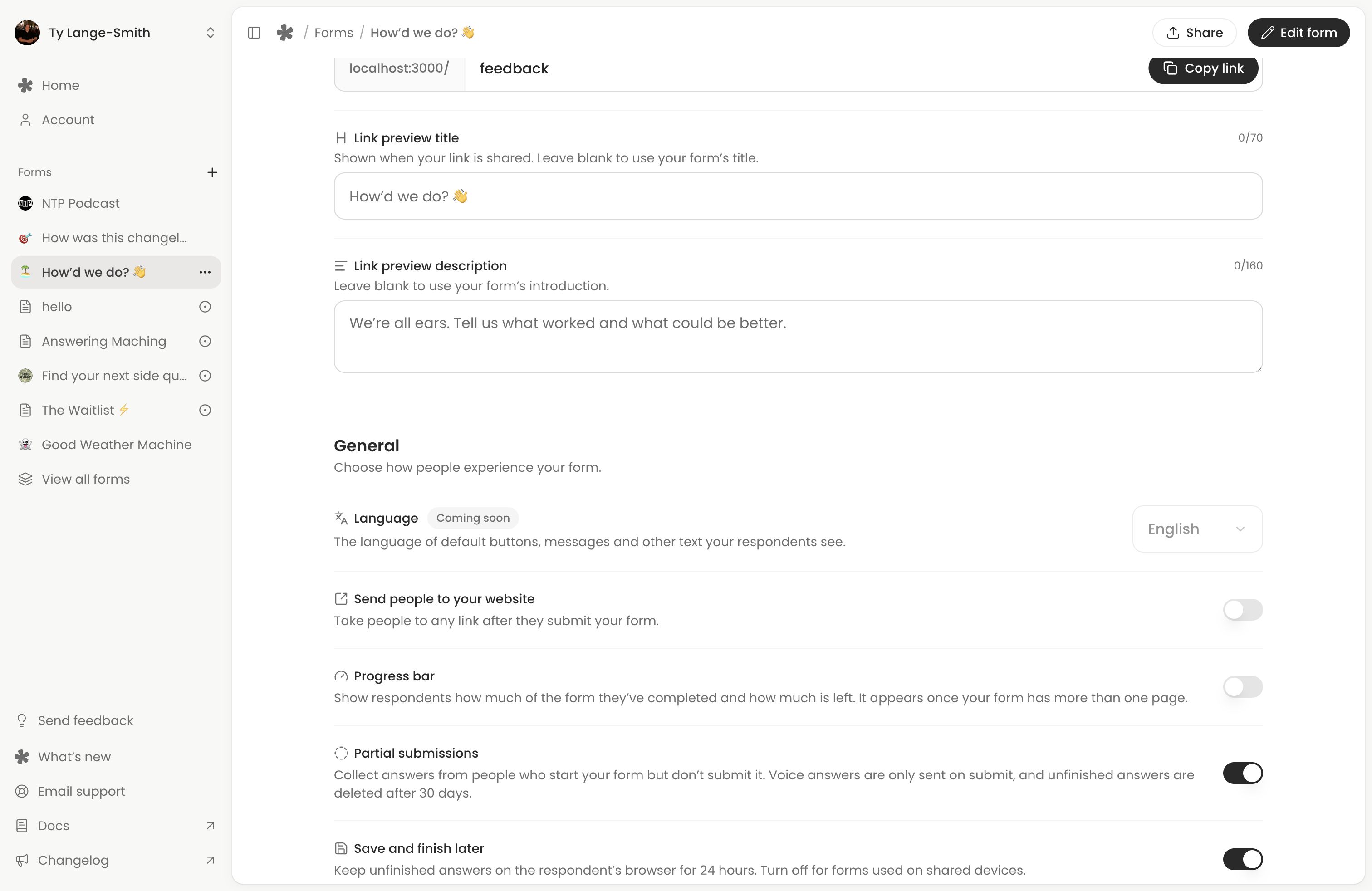
Both plans can set Link preview title and Link preview description. Leave a field blank to use the form’s title or introduction. Custom preview text saves immediately; the form’s content and images change publicly when you publish them.
See Share your form for the full sharing workflow.
Help people complete the form
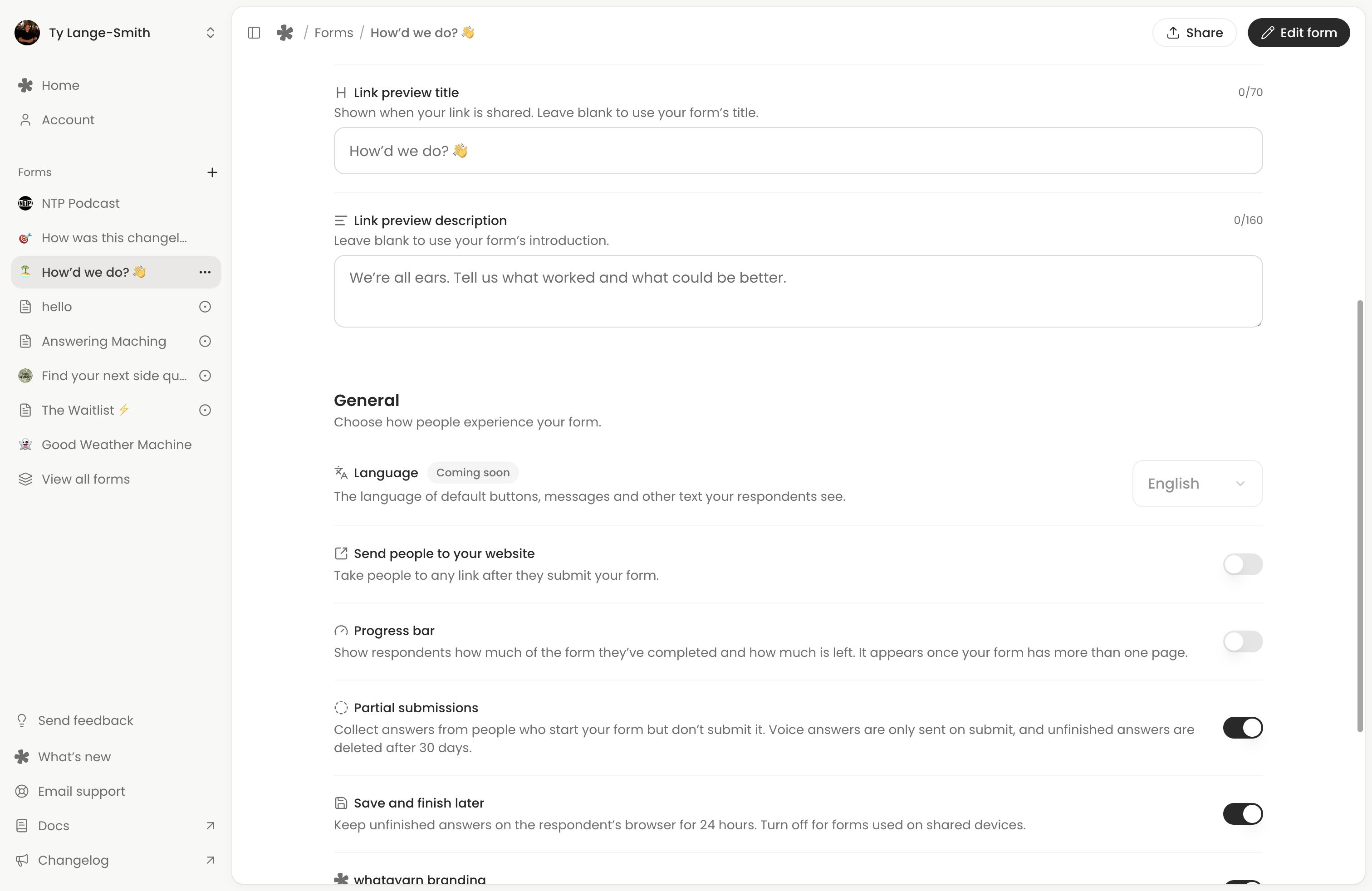
Progress bar shows progress when the form has more than one page. It is available on both plans.
Save and finish later keeps unfinished answers in the respondent’s browser for up to 24 hours after their last change. It starts enabled and works on both plans. Turn it off for a shared tablet or kiosk so the next person is not offered someone else’s answers.
Partial submissions, on Creator, collects supported unfinished answers in your Responses view before someone submits. Unfinished rows are normally deleted after 30 days without a new save; a shorter automatic deletion period removes them sooner. Voice and file questions are excluded. These two features work independently: Saved progress and partial submissions explains what each keeps and who can see it.
Choose what happens after Submit
On Creator, Send people to your website lets you enter a Redirect URL. Respondents see a short confirmation after a successful submission, then go to that address. Test both the submission and destination from the live link.
whatayarn branding controls the “Made with whatayarn” mark at the end of the form. Removing it requires Creator.
To write your own thank-you message, add a thank-you page in the editor and publish it. Unlike the settings above, that message is part of the form document. See Write questions and form text.
If you move to Free, Creator-only partial collection and redirects stop applying, and the whatayarn branding returns.
Delete old responses automatically
On Creator, enable Delete old responses automatically under General. It starts with 90 days. Use Delete responses after to choose 7 days, 30 days, 90 days, 6 months, 1 year or 2 years.
The policy saves without publishing. Daily cleanup deletes completed responses older than the chosen period, together with their recordings and files. Age is measured from submission for completed responses and the latest save for partial rows. A shorter period also deletes partial rows before their usual 30-day expiry.
If responses are already older than the selected period, a confirmation shows how many would be deleted before you save the setting. Check the count and export anything you need first. Deletion cannot be undone.
Turning the switch off stops future automatic deletion; it does not restore deleted responses. Moving to Free stops automatic deletion and clears the setting, so choose a period again if you later return to Creator.
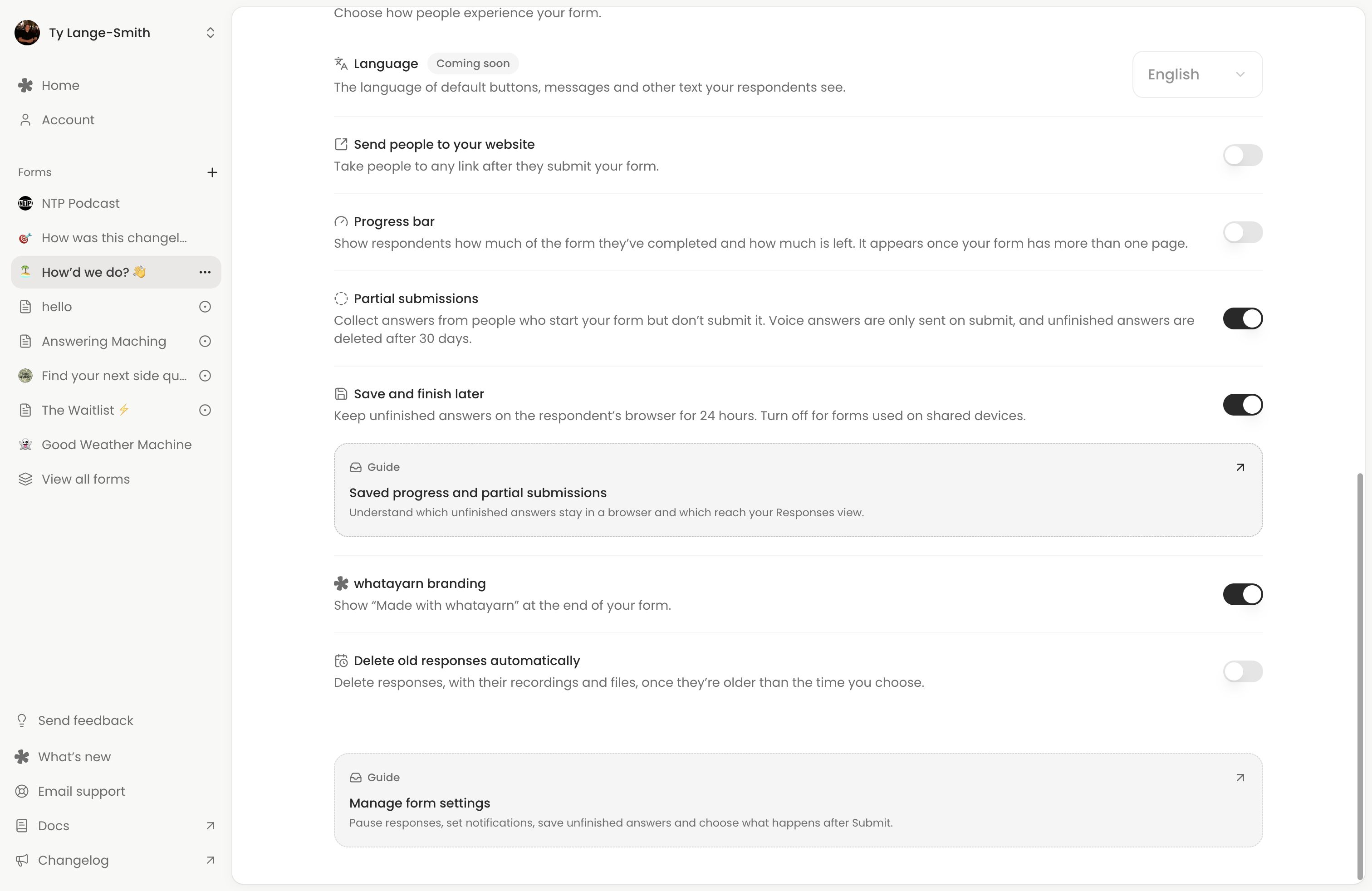
Settings marked coming soon
Form language is currently English. The language selector is not available yet.
Next action: Check whether your form should accept responses, then open its live link to verify the saved settings.