
Your editor saves your work automatically. Publish changes decides when later edits appear at the live link. You can keep collecting responses to the published form while preparing its next version.
When a new form becomes live
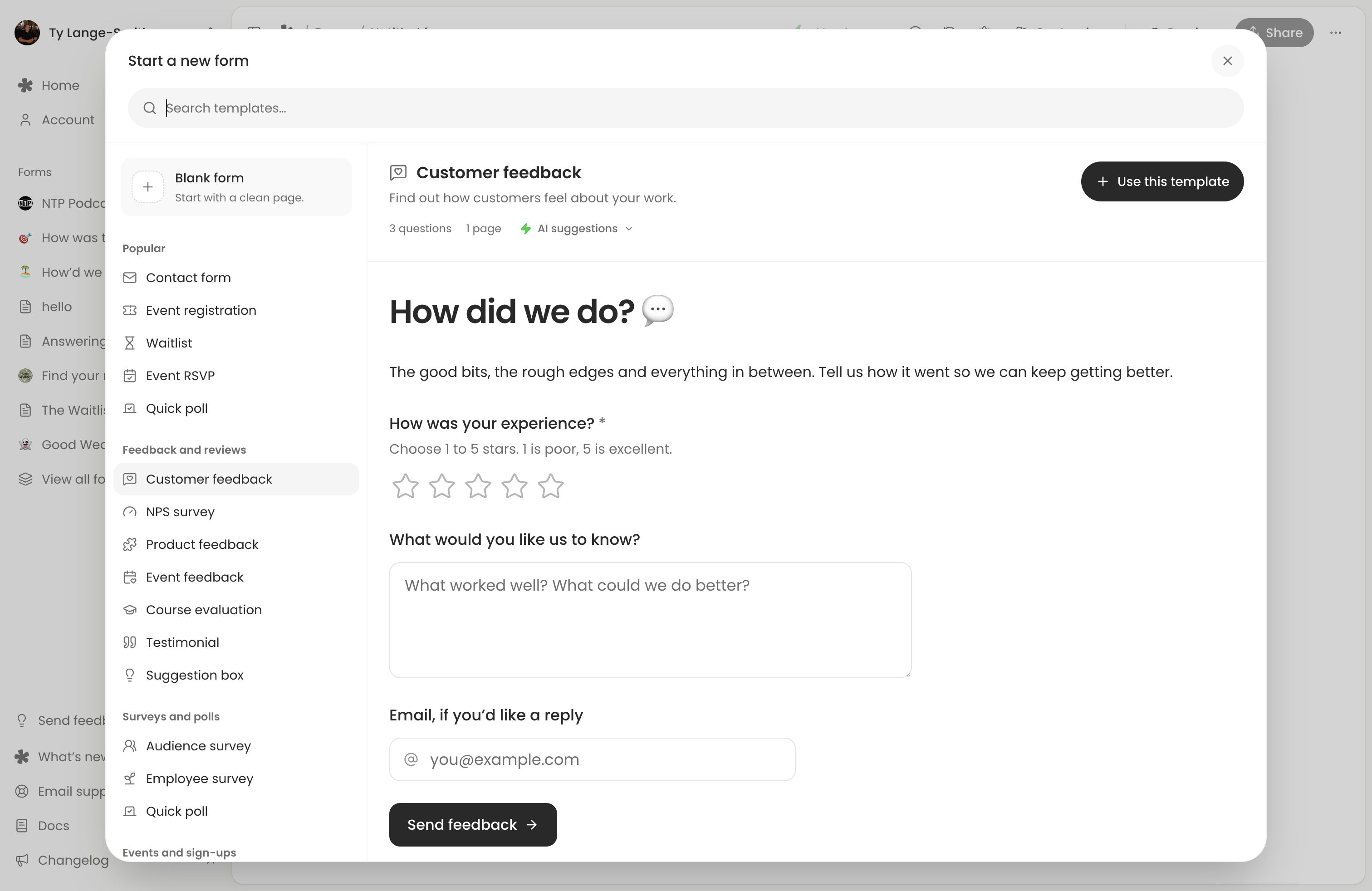
Opening a blank editor creates no saved form. Using a template, writing a title or text, or adding a question creates the form when its first save succeeds. That first saved version is published automatically and gets a live link.
A live version without complete questions shows This form is being updated. Please check back soon. Complete the questions and publish the changes before inviting people to answer.
Make and publish changes
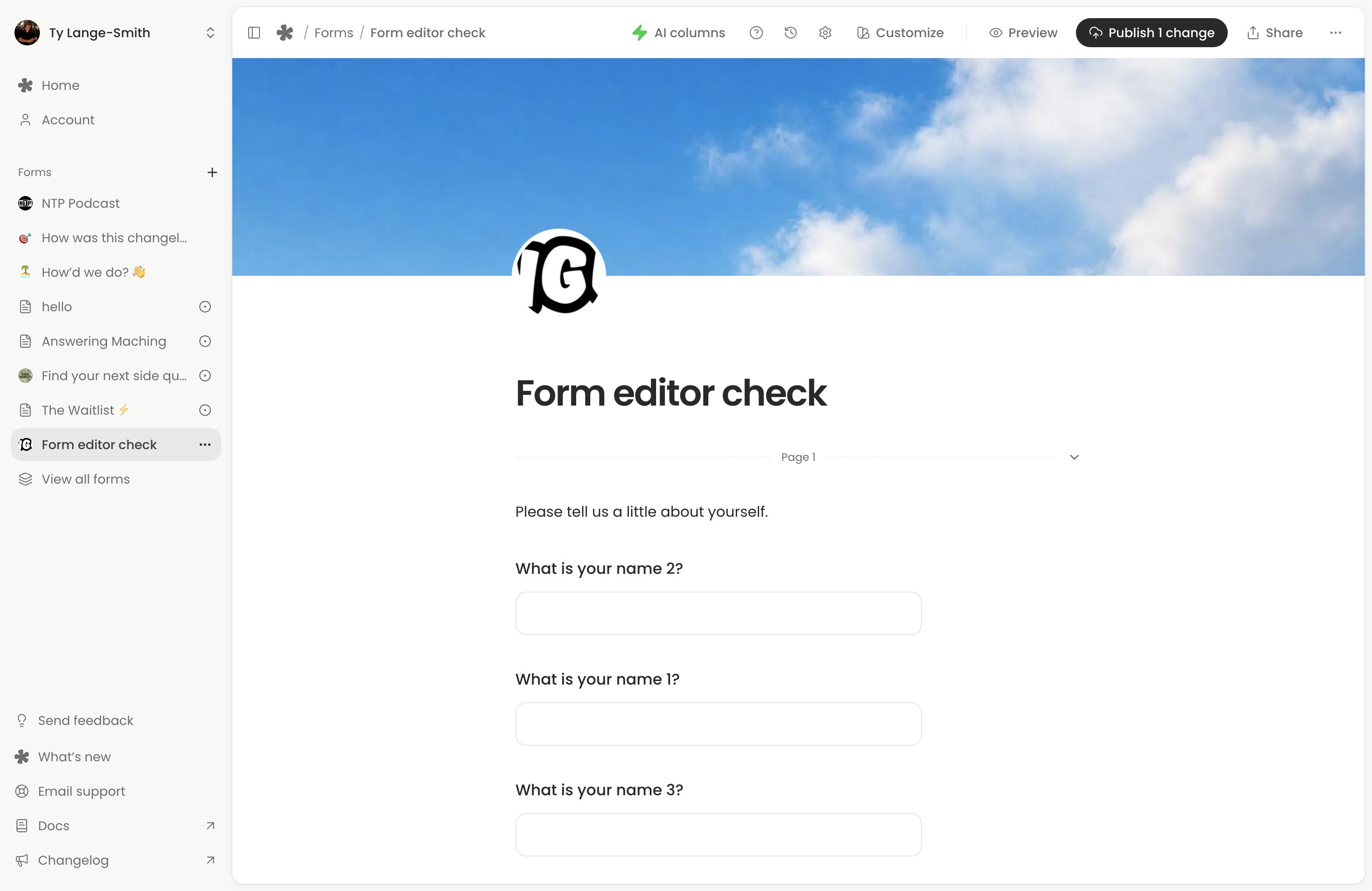
- Open the form and select Edit.
- Change its text, questions or design. Wait for the save status to finish; later autosaves are private.
- Use Preview to test your current edits. Preview uses the editor’s current content and does not save responses.
- Select the publish button. It shows the number of changes when there are unpublished edits.
- Wait for the publishing confirmation, then open the live link to check the result.
Publishing saves pending edits before updating the live version and keeps the editor open. Edits you make while publication is in progress remain unpublished. Renaming a form also needs publishing before its live title changes.
Share saves pending work and opens sharing tools. It does not publish that work. Its preview shows the live version, so it can differ from the editor’s Preview until you publish.
Settings that apply directly
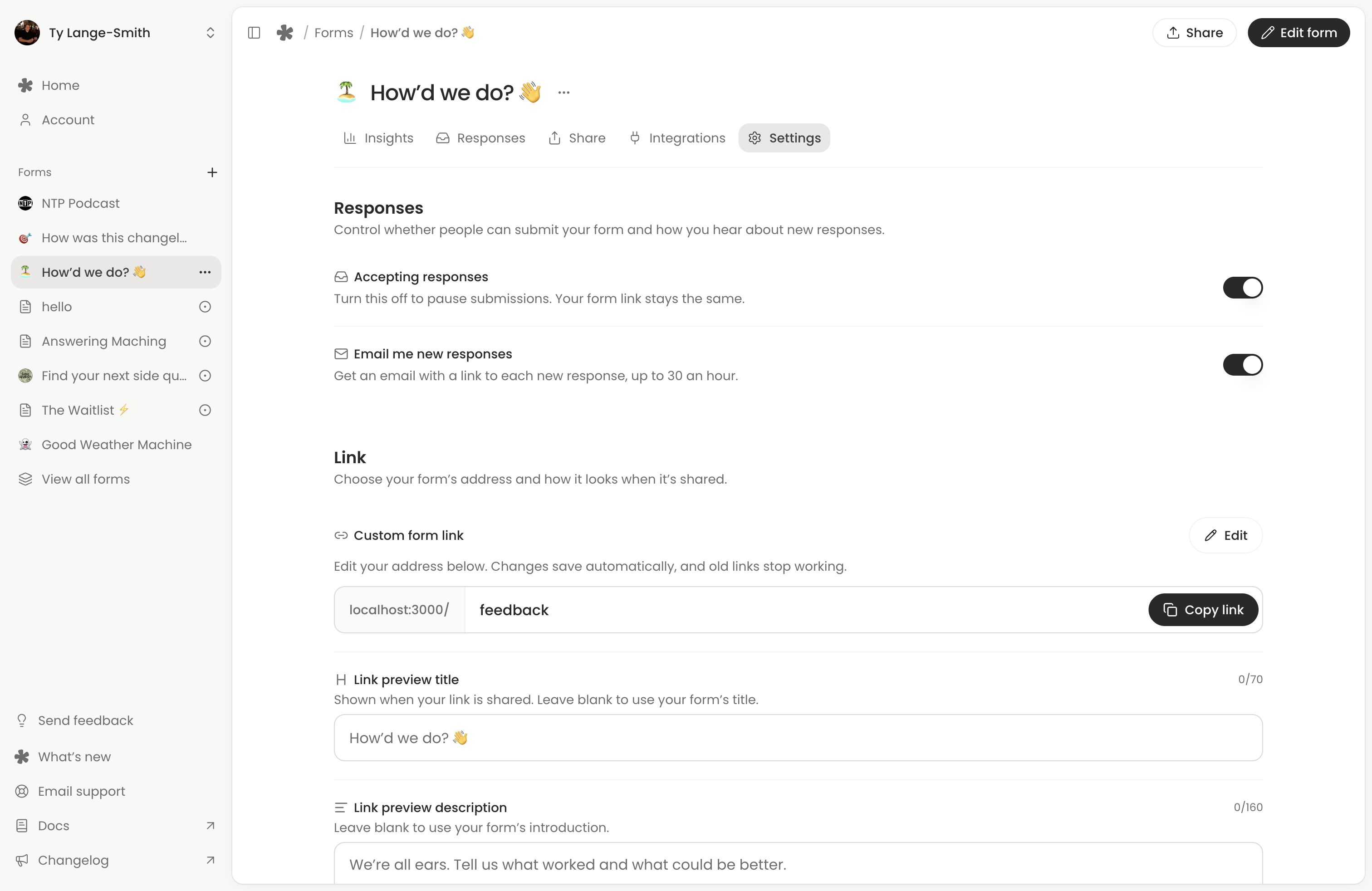
Content and design follow the publishing workflow. Form settings such as Accepting responses, notifications, saved progress, partial submissions, branding, the progress bar, automatic response deletion and the post-submission redirect apply without publishing. Some settings require Creator. See Manage form settings before changing them on a form already in use.
Turn off Accepting responses to pause submissions. The link remains available and existing responses stay in your account. Turning it back on resumes collection at the same link; publishing does not change this switch. People who already have the form open cannot submit while it is paused.
Responses across versions
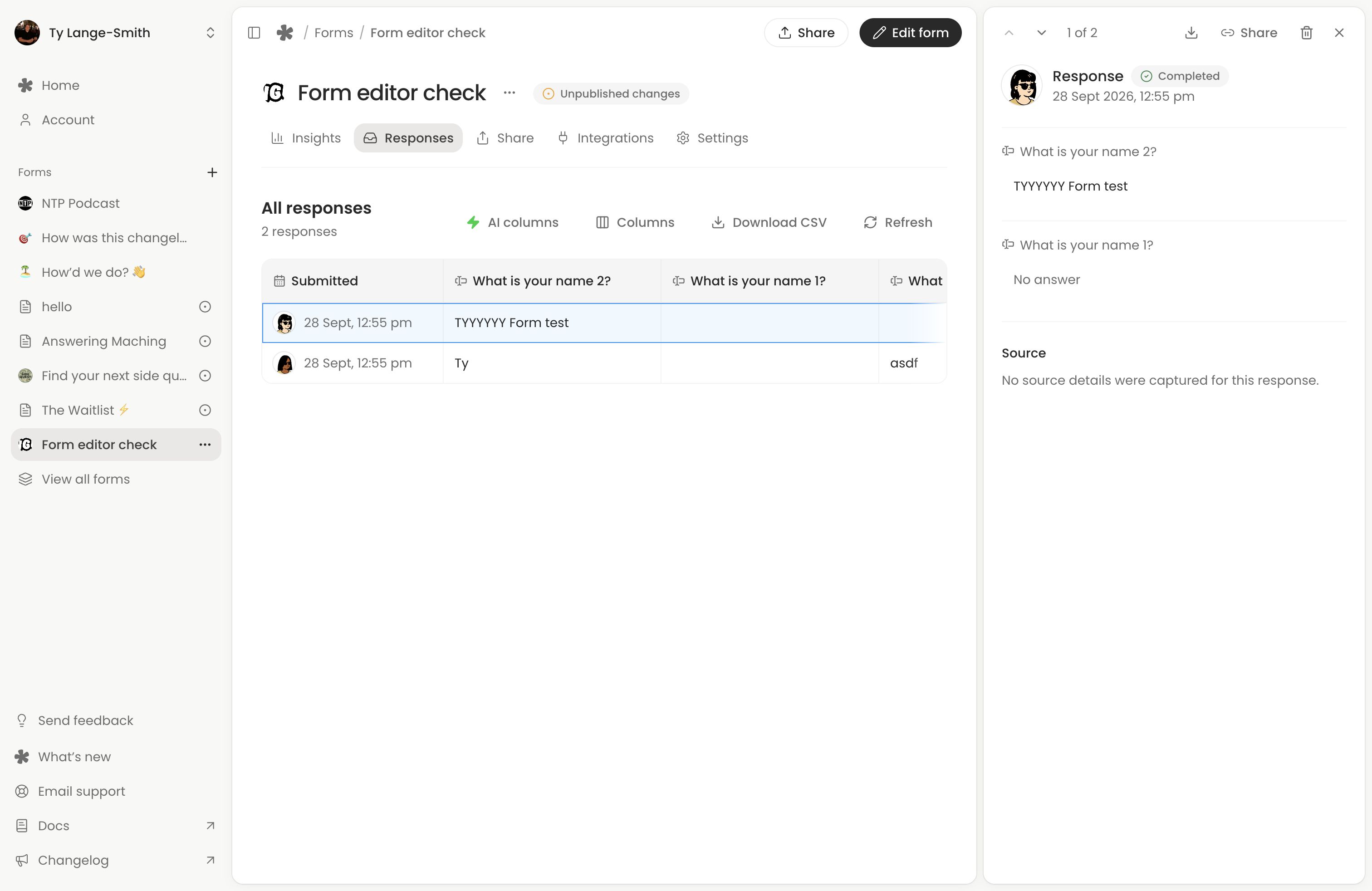
Each response keeps the published questions and rules that person answered. Publishing a new version does not change those stored answers. Someone already answering an older complete version can still submit it, provided the form is accepting responses.
Responses generally displays your live question names. Removed questions remain available in response details and exports; you can show their columns from Columns. See Review responses for the table and answer history.
Restore a published version
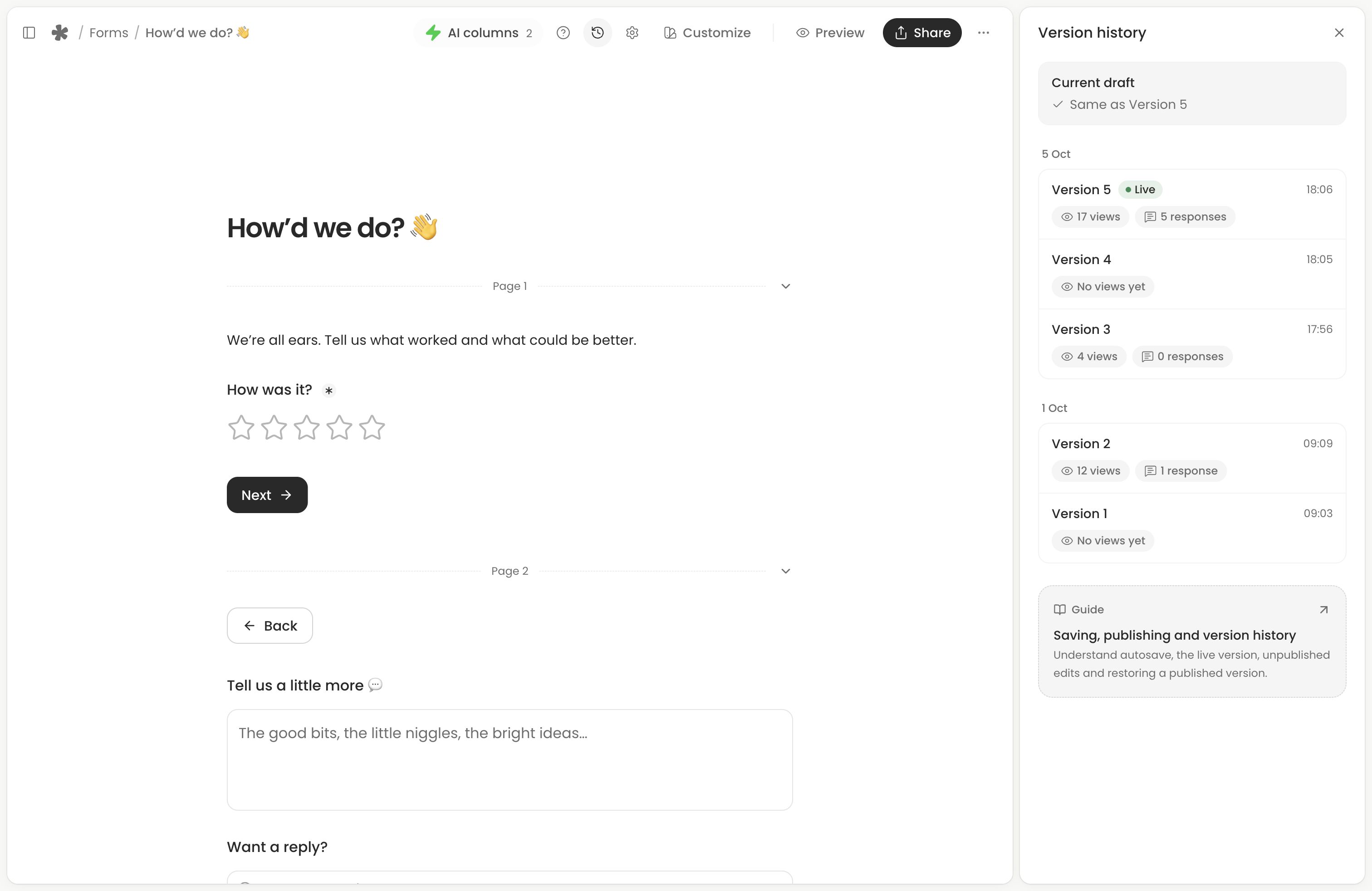
Version history is included on Creator. Open Version history in the editor to view published versions and the current draft. The Live marker identifies the version at your public link. Ordinary autosaves are not separate history entries.
- Select a version to inspect it.
- Choose Restore this version. If it would replace unpublished work, read and confirm the replacement prompt.
- Review the restored draft in the editor and Preview.
- Select Publish changes when you want it to become live.
Restoring copies the earlier version into your draft. It does not publish it or erase the versions and responses already in history. Publishing the restored draft creates a new version.
Next action: Open your live link after publishing and submit a test response.