
Build a small feedback form with a rating, written feedback and optional contact details. You can complete this tutorial on Free.
Open Forms (opens in a new tab), sign in and select New form. Choose Customer feedback, then Use this template.
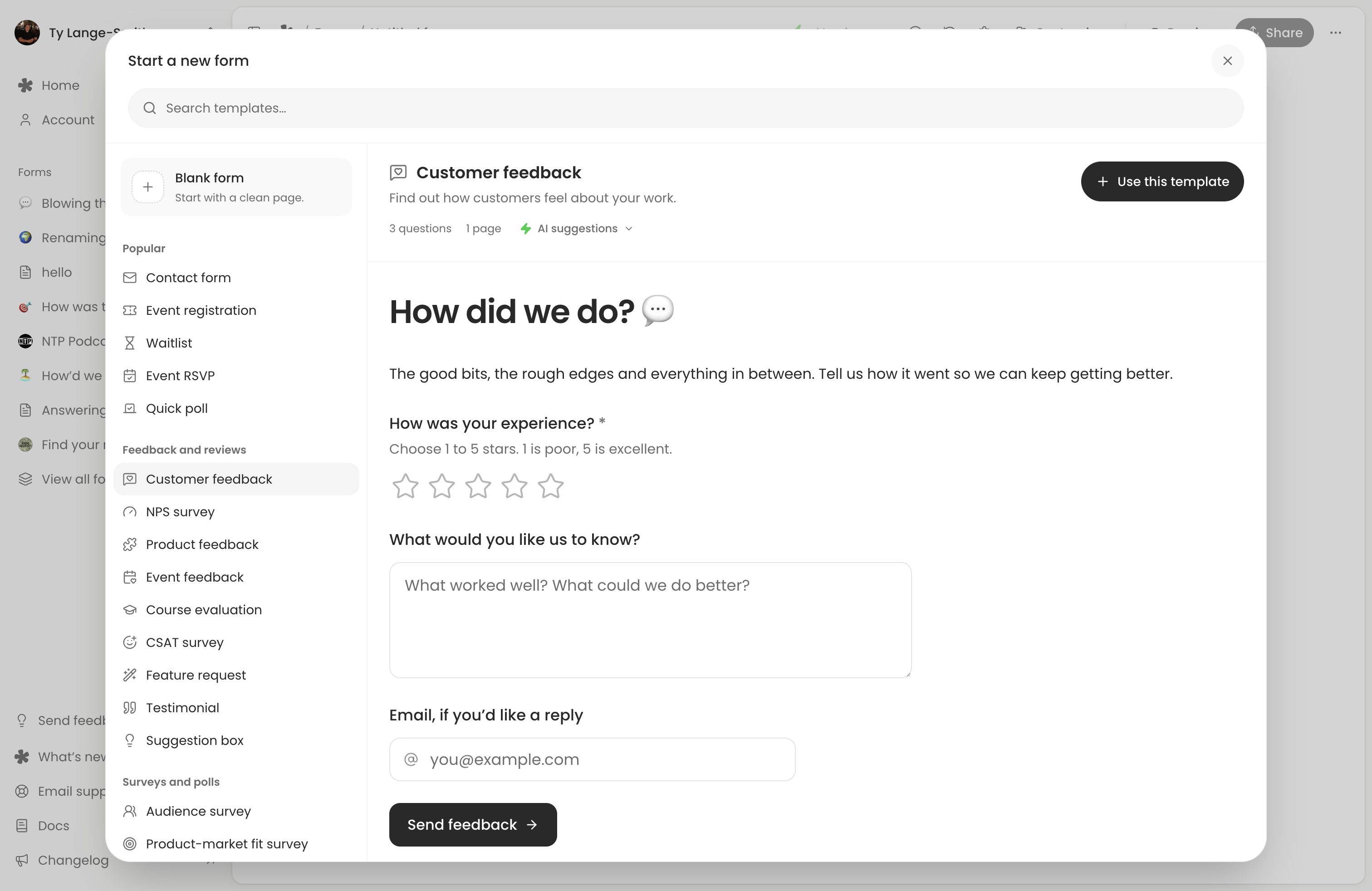
1. Write a clear introduction
Change the title to Tell us about your visit. Edit the introductory text to explain the request:
How was your visit? Tell us what worked and what we could improve. Leave an email if you’d like a reply.
Write directly in the template’s text block. You can also use Add description for a short introduction beneath the title.
2. Add questions
Keep these three questions:
- How was your experience? Open its block menu and check that Stars is 5 and Required is on.
- What would you like us to know? Use this for written feedback.
- Email, if you’d like a reply. Leave this optional.
To add another question, click + between blocks or type / on an empty line. For example, add Multiple choice to ask which service someone used. The block reference helps you choose the right type.
If a recording would help, you can add an optional Voice question instead.
3. Check the design and live version
Choose the design
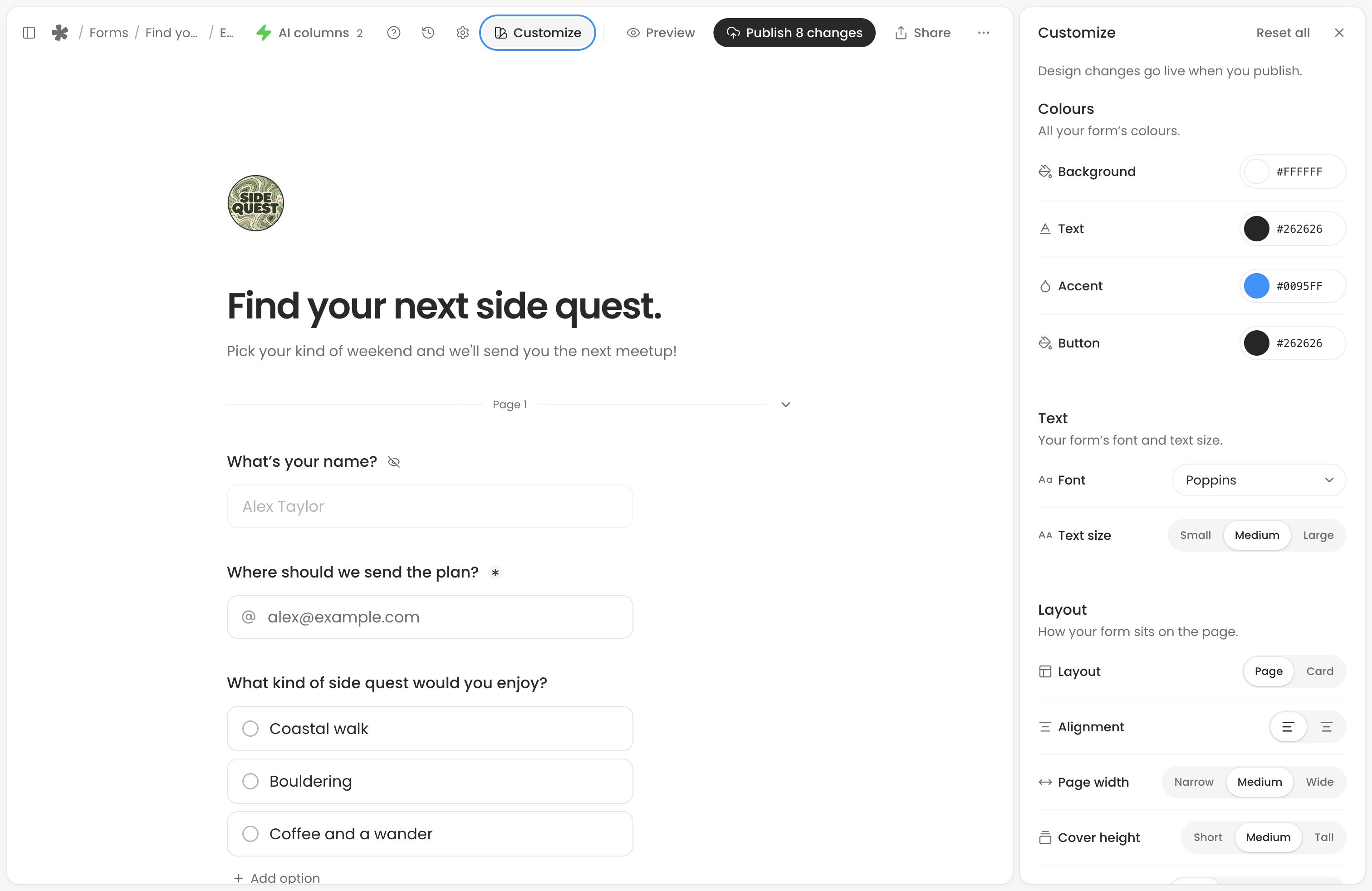
Select Customize to choose colours and fonts, or add a logo and cover. You can leave the defaults for this first test.
Try the questions in Preview
Open Preview, choose a rating and write a sample answer. Submit to check the thank-you screen; preview answers do not appear in Responses. Switch between desktop and phone layouts to check wrapping and navigation, then choose Back to editor.
Publish the completed form
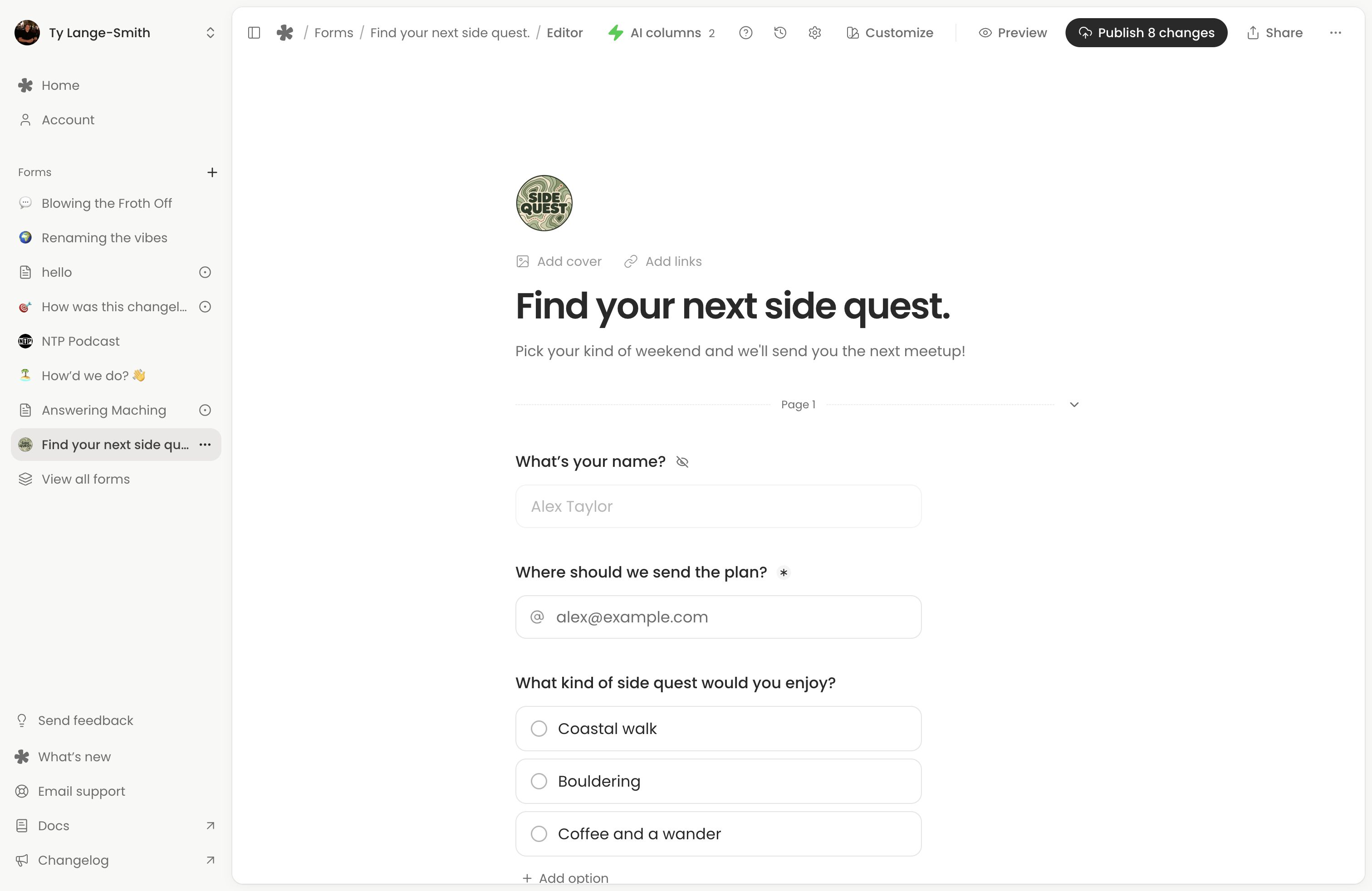
Select Publish changes in the editor header. The button shows how many changes are ready to publish. Wait for the confirmation, then open Share to copy the live link.
If there are no unpublished changes, your saved form is already live. See Saving, publishing and version history for the draft, preview and live-link rules.
4. Submit a test
- Copy the link from Share and open it on your phone.
- Choose a rating and write “This is a test response” in the feedback question. Leave email blank for this test.
- Submit and wait for the thank-you confirmation; this live-link submission is a real response.
- Return to Forms (opens in a new tab), open your form and select Responses. Open the test response and check its answers.
If the live form differs from the editor, see Form troubleshooting. To organise the feedback, try a Sentiment AI column.
Add another form
Select New form from Forms or the sidebar. Each form has its own questions, live link and Responses view. Browse the template library for another starting point.
Next action: Share your tested link, or embed the form on your website.