
Open Forms (opens in a new tab), select a form, then Responses. Each form keeps its own answers; choose Edit form to change its questions.
Open a response
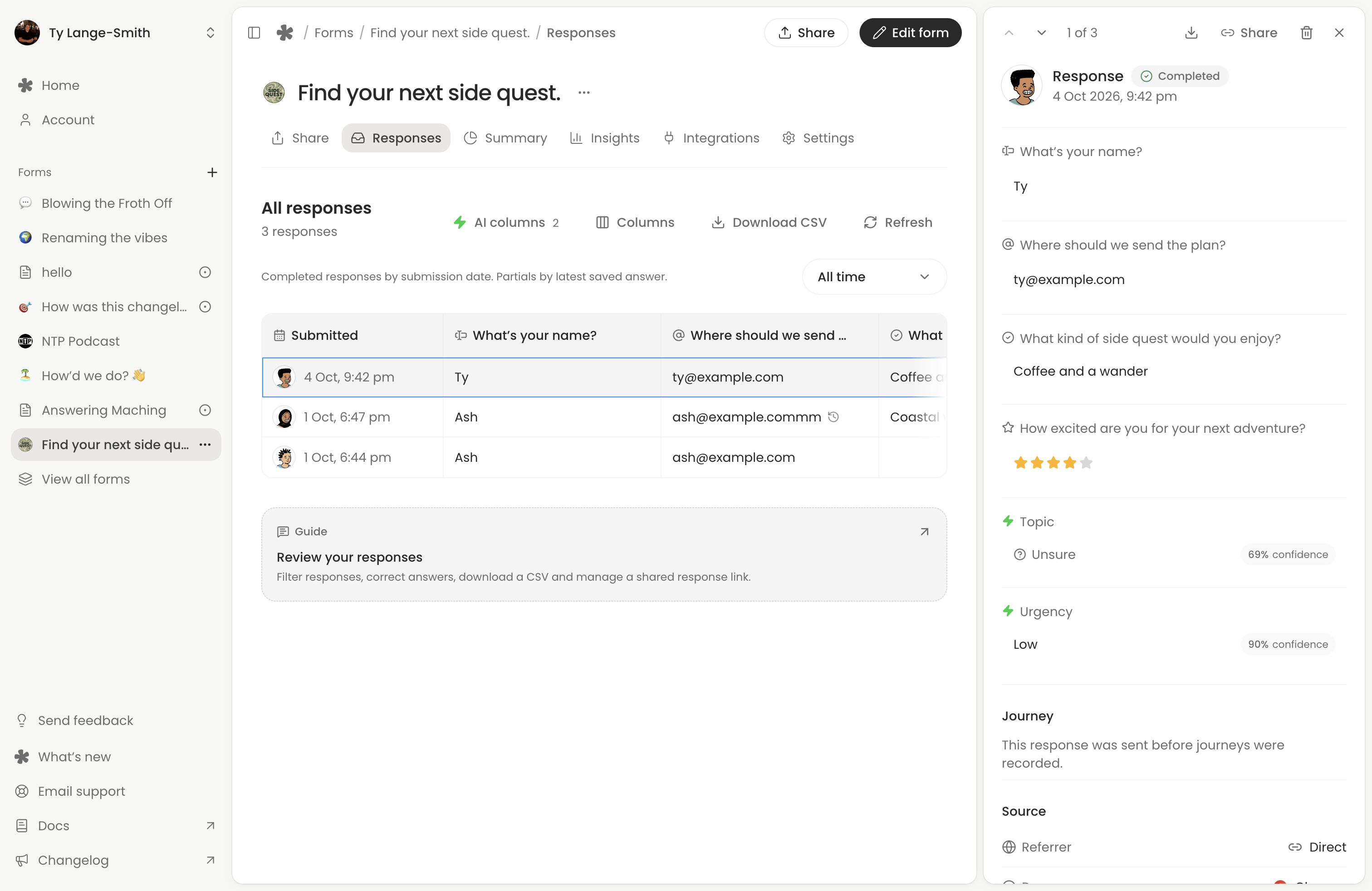
Select a row or card to read its answers, play recordings and download files. Answers use the latest published names and order while keeping the types and choices each person saw; removed questions are marked Removed.
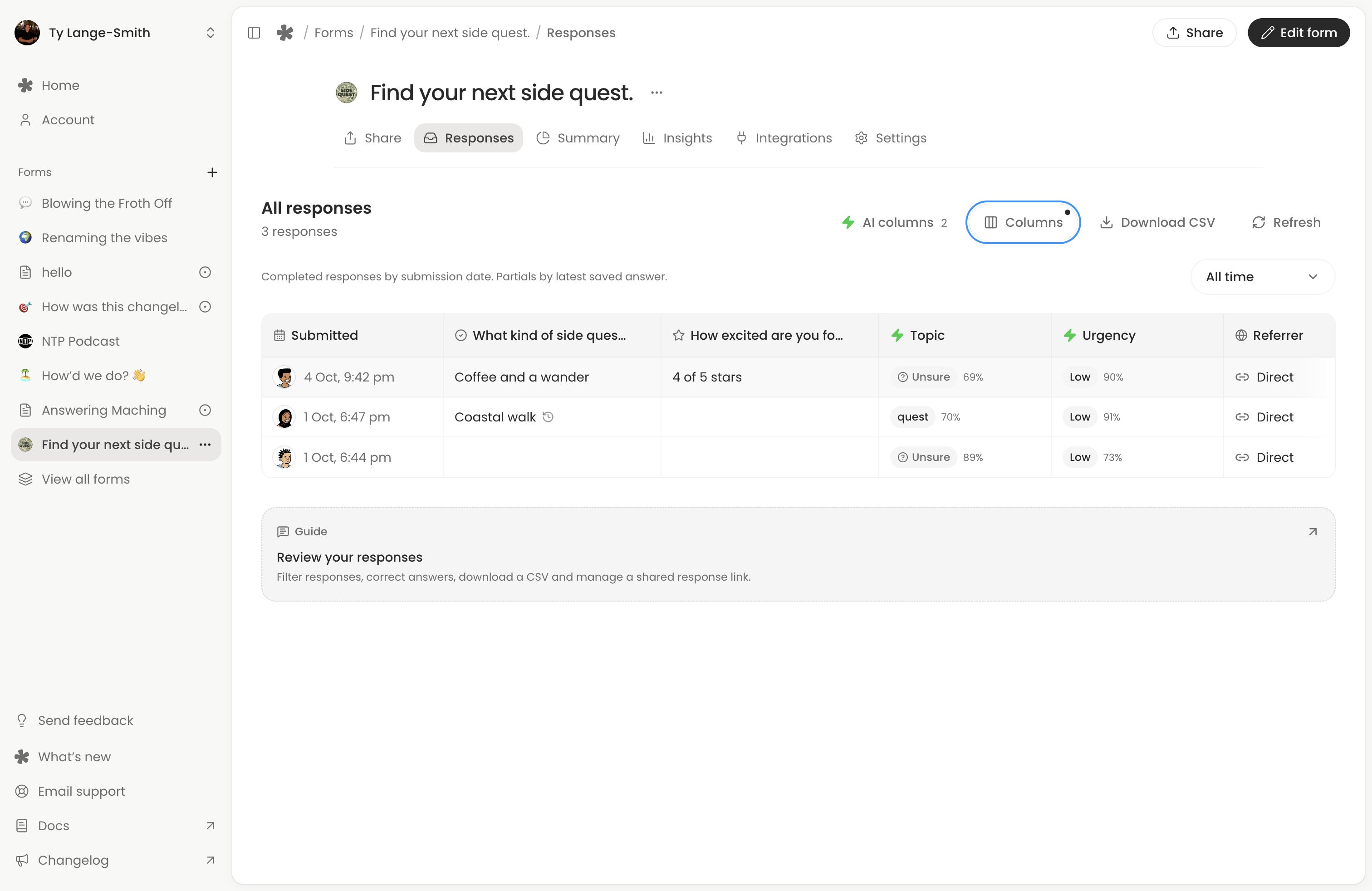
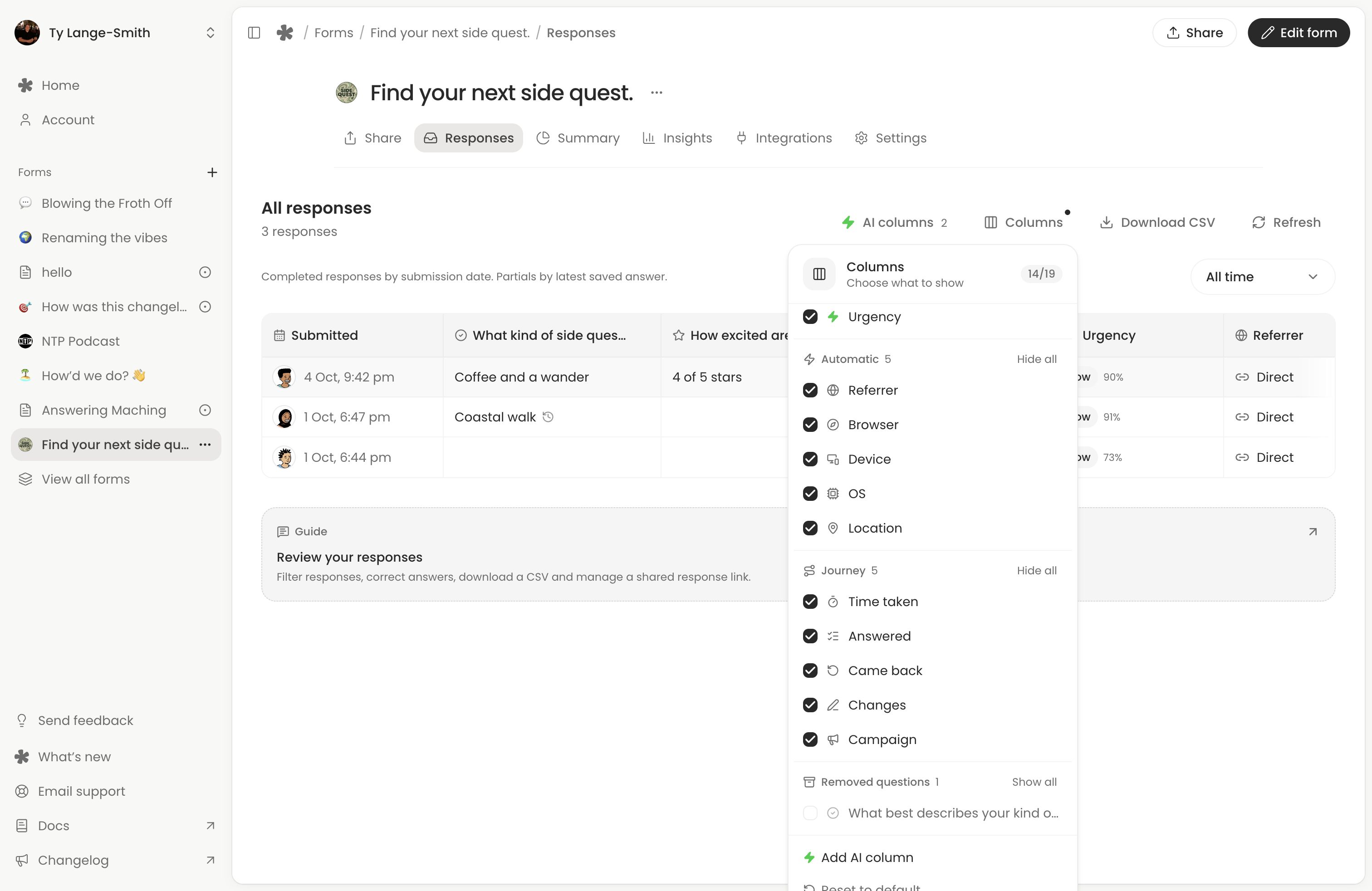
Use Columns to choose question, AI, source and journey columns. Hiding columns changes your view without removing answers or excluding them from exports.
Choose a reporting period
Choose dates above Responses, or All time to include every date. Dates carry over from Summary or Insights; otherwise Responses starts at All time. Completed responses use submission dates; partials use their latest save. Date, status and AI filters also apply to CSV exports.
Complete and partial
On Creator, enable Partial submissions to collect supported unfinished answers. Use Filter by status to choose all, completed or partial responses; on phones, these choices appear above the cards. See Saved progress and partial submissions for supported answers.
Good to know
- Partials cannot be edited or shared and normally expire after 30 days without a change.
- Recording not sent, File not sent and Signature not sent mark media that only arrives on submission.
- A Partial Insights journey means someone stopped before submitting, whether or not their answers were collected.
Use AI columns
Choose AI columns, then Add AI column. Free includes Spam, Sentiment, Urgency and Needs reply; Creator adds custom questions and rules.
AI reads selected written answers, choices and ratings, excluding recordings and files. Open a completed response to check or correct its AI result. See AI columns for setup and corrections.
To filter Responses by an AI result, select it in Summary, then choose View responses. Clear the AI chip to see other results; the status filter still applies.
Correct an answer
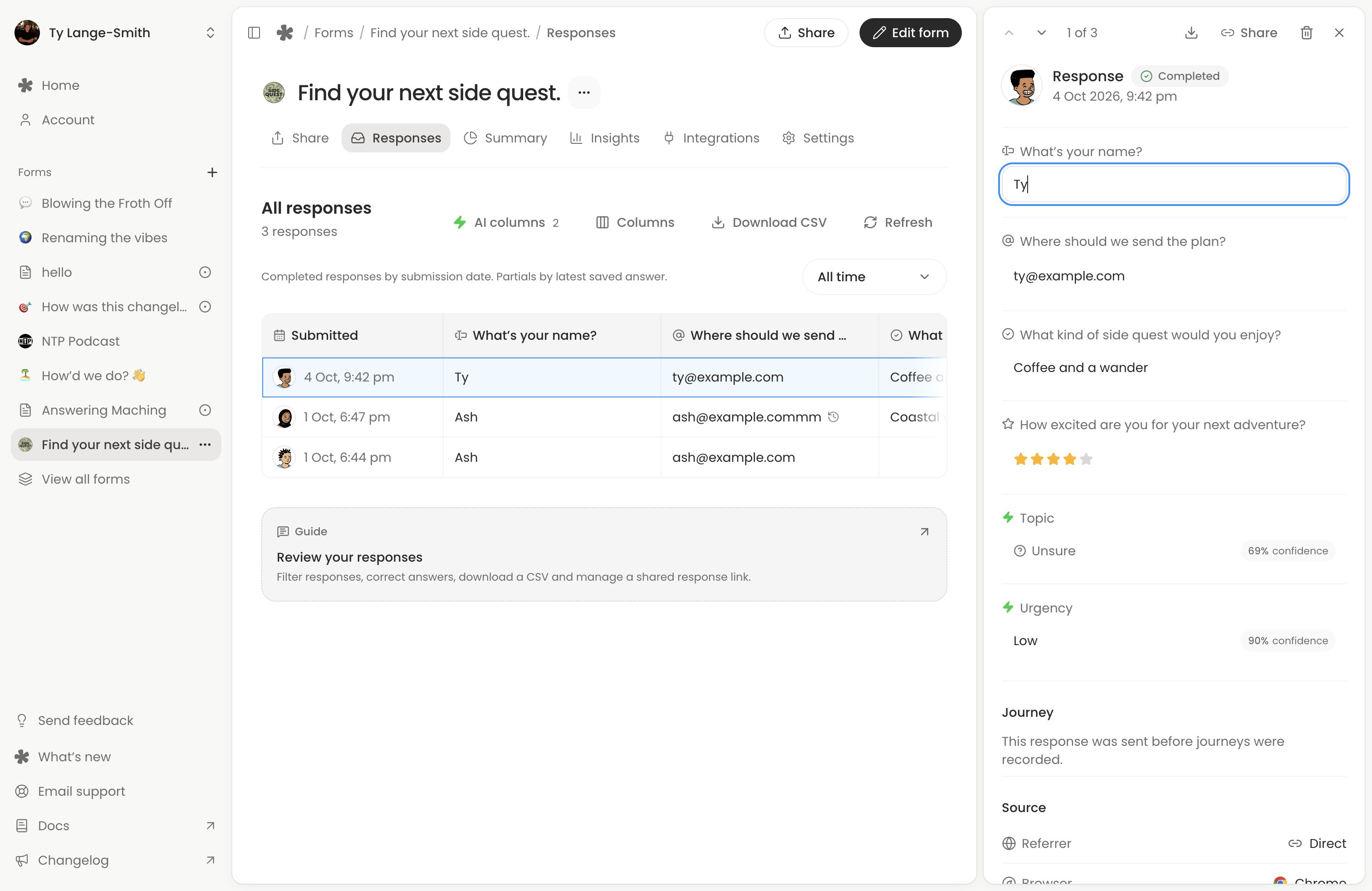
Open a completed response and select an answer to change it. Written answers, choices, ratings, scales, dates and times are editable, including skipped optional questions and typed voice alternatives. Recordings, files, rankings, matrices and signatures cannot be edited.
- Single-line text: press Enter or click away. Multiline text: use Command on Mac or Control on other keyboardsEnter or click away.
- Choices, ratings and scales: pick an answer. Multiple-choice changes save when the menu closes.
- Dates with times, or times alone: choose the values and select Save.
- Press Escape to undo unsaved changes. If saving fails, choose Retry or Undo change.
Select Edited to see the original, or Revert to original to restore it. Only the first original is kept.
Corrections appear in the table, CSV and shared page. Automatic AI results update; manual corrections stay. Submission dates, counts and sent emails stay unchanged.
Download and export
Choose Download CSV above Responses, or from the response tools menu on phones. For one response, open its details and choose Download CSV.
Exports include answers, AI results, Visitor details, Journey columns, UTC dates and response IDs. To keep media, use the recording’s Download control or the file’s download link before deleting anything.
Good to know
- Exports include every matching row, beyond the loaded table. Hidden columns and ticked rows do not narrow them.
- CSV media links require your account access.
- Removed questions are labelled. Rankings become numbered lists; matrices show each row’s answer. Signatures show Signed; open the response for the drawing.
- Time taken exports in seconds; Answered uses two numbers for sorting.
Share one completed response
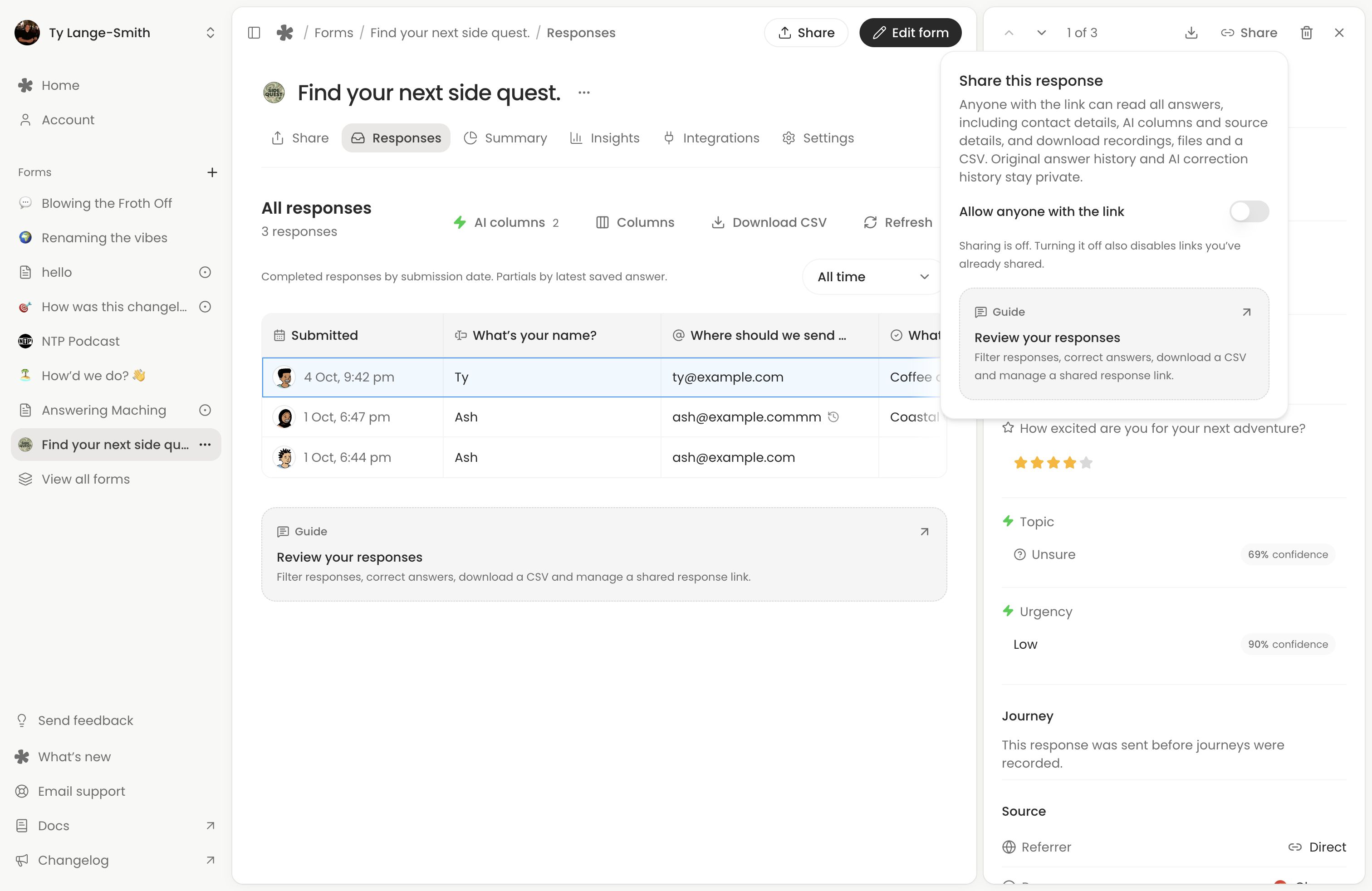
- Open the response and choose Share.
- Turn on Allow anyone with the link.
- Choose Copy link, or open the page to check it.
Review before sharing: anyone with the link can see contact details, answers, AI results and Visitor details, download media or a one-row CSV, and follow a link to the form.
To revoke access to the page, CSV and media, reopen Share and turn off Allow anyone with the link.
Good to know
- Original answer history and unpublished edits stay private; later corrections and AI results appear publicly.
- Re-enabling sharing uses the same link. Deleting the response or form disables it.
- Revocation cannot remove downloaded copies.
Check Visitor details
Open Columns, then Automatic to choose Visitor details. Creator includes referrer, browser, device, operating system and approximate location. These can be missing or approximate; use them as context, not verified identity.
See how each response was answered
Choose from the Journey group in Columns, on every plan:
- Time taken: answering time, excluding time away.
- Answered: answered questions out of those shown.
- Stopped at: where an unfinished attempt stopped, the next question after its last answer, or the page if all its questions were answered. Appears for partials after 30 minutes without activity.
- Came back: returns after at least 30 minutes away.
- Changes: changes to previously given answers.
- Campaign: the link’s
utm_sourcetag.
Sort a CSV by Time taken to spot unusually fast responses; see Insights counting rules for missing timings.
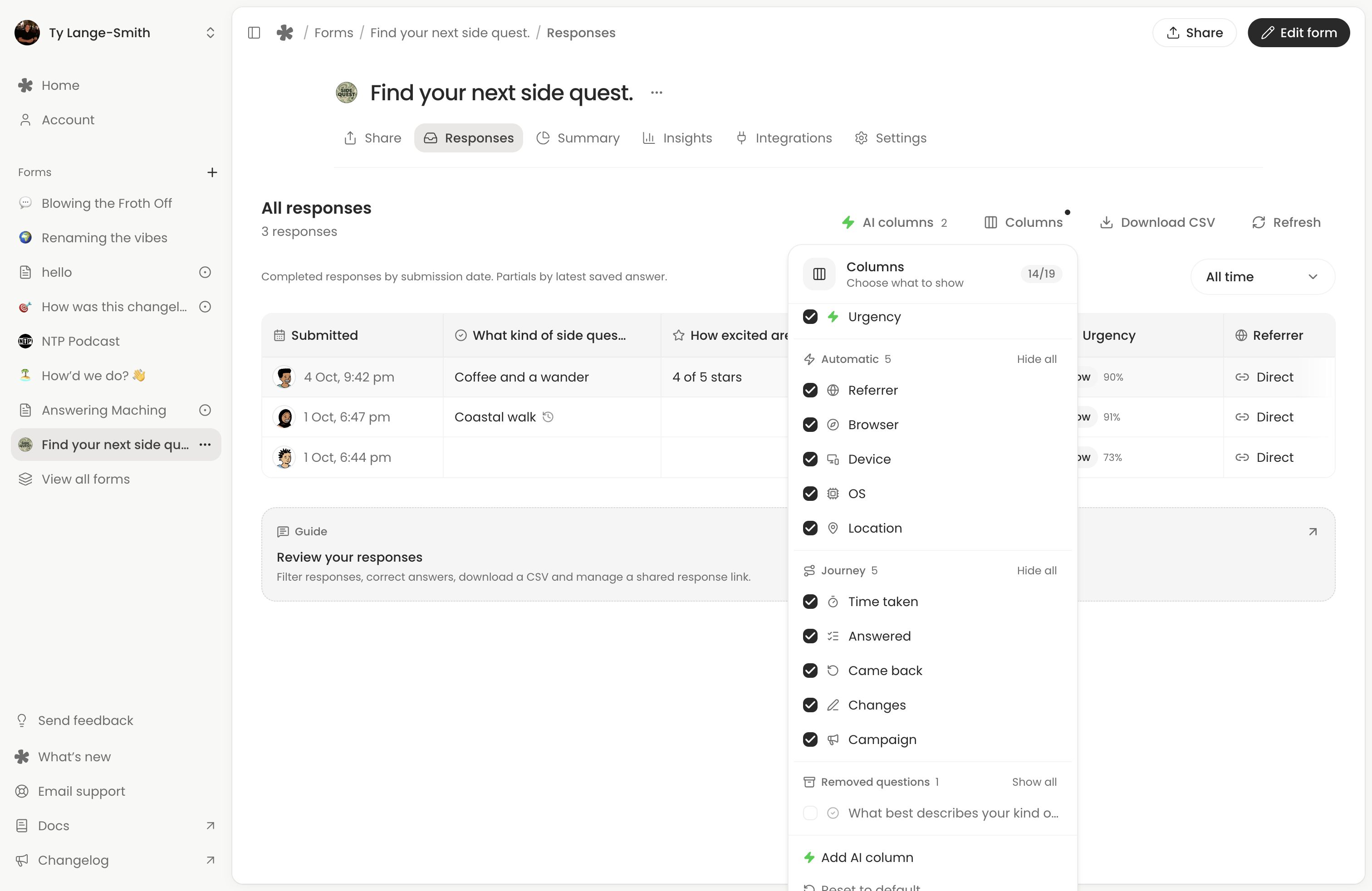
On Creator, open a response to follow its Journey timeline beside the answers.
Delete responses
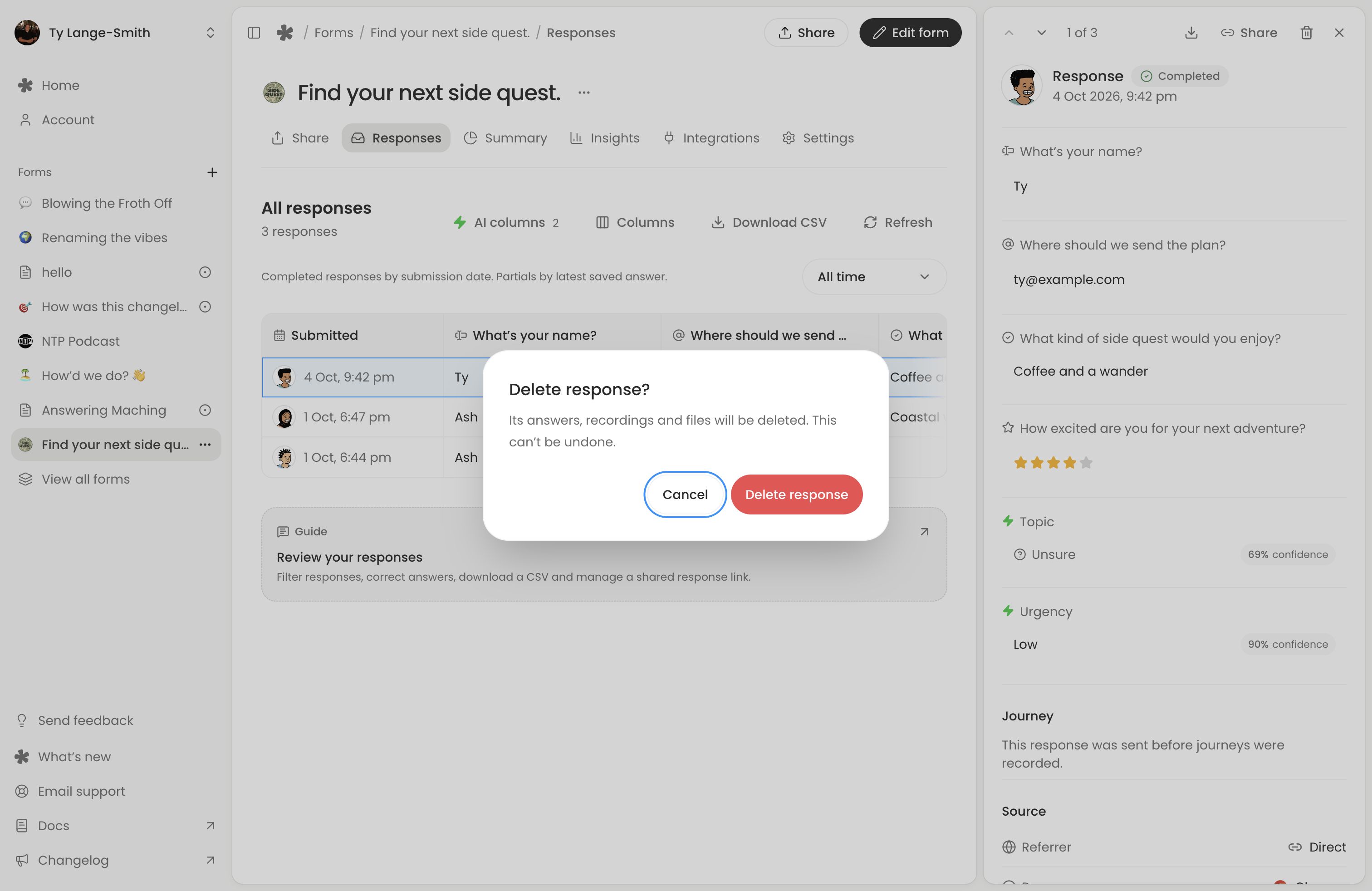
Use a response’s delete action, or select rows and choose Delete. Selecting all covers loaded rows. Download anything you need first: deletion permanently removes answers, media and the Insights journey.
Creator can also delete responses automatically after a retention period.
For older voice pages, see Classic forms.
Next action: Submit a test, open it here and download its CSV before inviting respondents.