
People open your form from a shared link, QR code or website embed. They answer in their browser without needing an app or a whatayarn account. The published form determines which questions and instructions they see.
Answer the questions
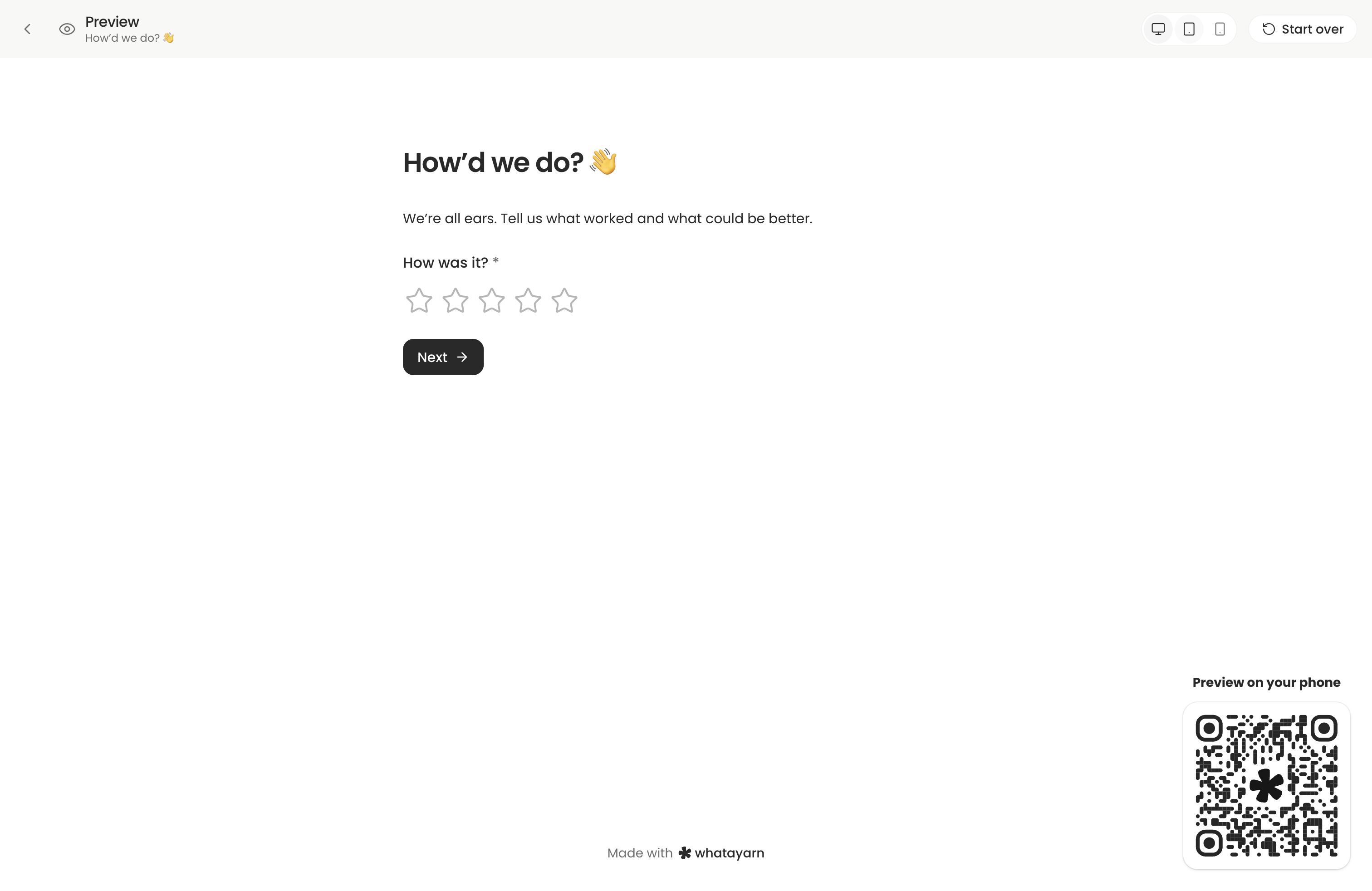
People fill in the questions you included, such as text, contact details, choices or ratings. Required questions must be completed before submitting; optional questions can be skipped.
A form can have one page or several. On a multi-page form, use Next to continue and Back when available to review earlier answers. Follow the instructions beside each question and correct any validation errors shown.
Some answers may already be filled in by a default or a personalised link. Check editable answers before continuing. Locked answers are visible but cannot be changed; hidden fields are not shown.
If your form includes a voice question, see the voice question guide for recording and alternative answers.
Save and finish later
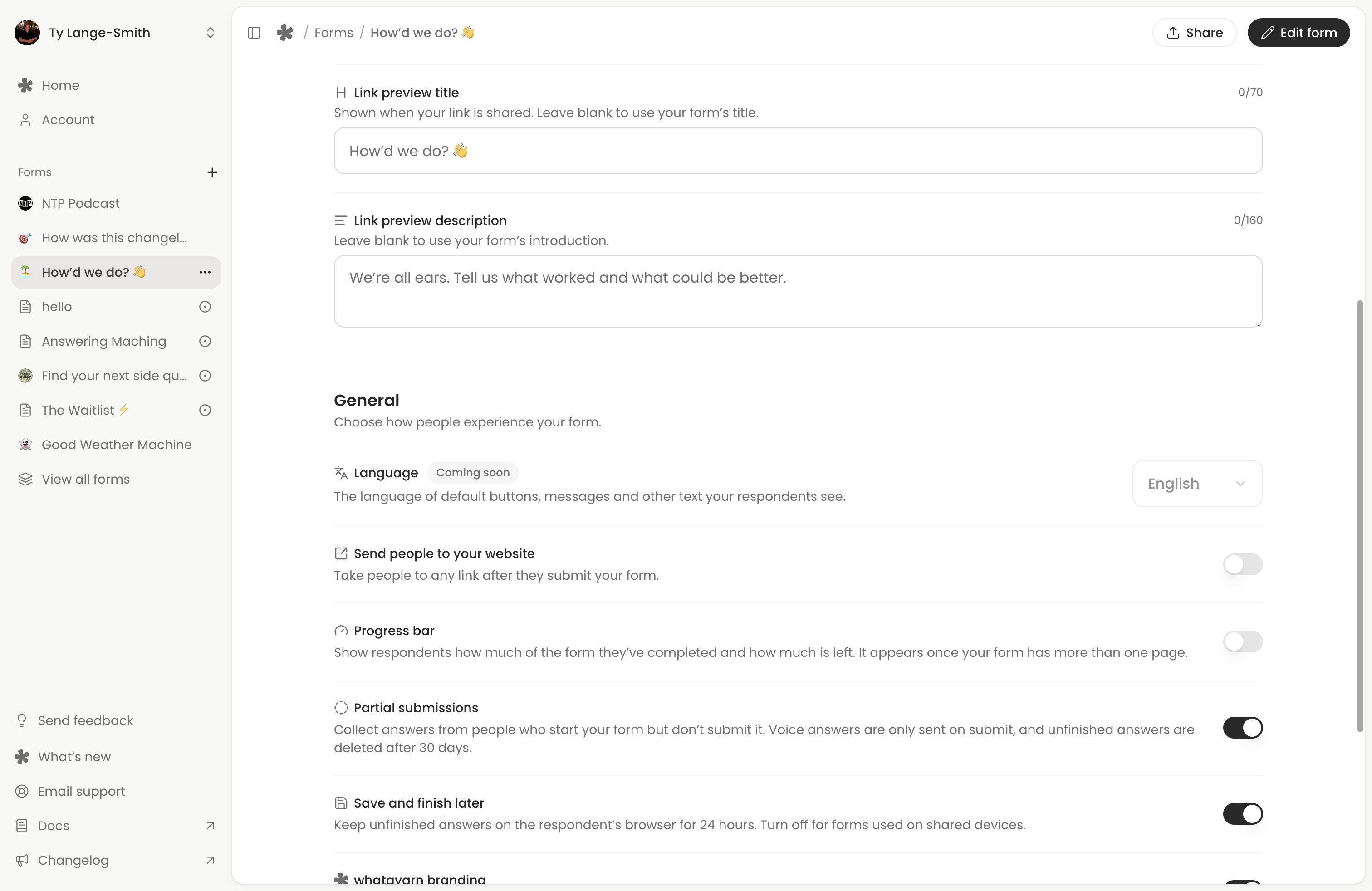
When enabled, answers stay in the same browser for up to 24 hours after the last change so people can return and finish. Continue where you left off restores them; Start over clears the saved attempt. A shared device may contain another person’s progress, so check any restored answers.
Browser saving does not make those unfinished answers visible in Responses. If the owner separately enables Partial submissions on Creator, supported answers also save to the owner’s Responses view before submission. See Saved progress and partial submissions for the difference and which answers are included.
Submit and confirm
Review your answers, complete required questions, then select the form’s submit button and wait for confirmation. Keep the form open while any uploads finish. Follow any error shown on the form. If a connection problem offers Retry, use it in the same form so the app can check the earlier submission.
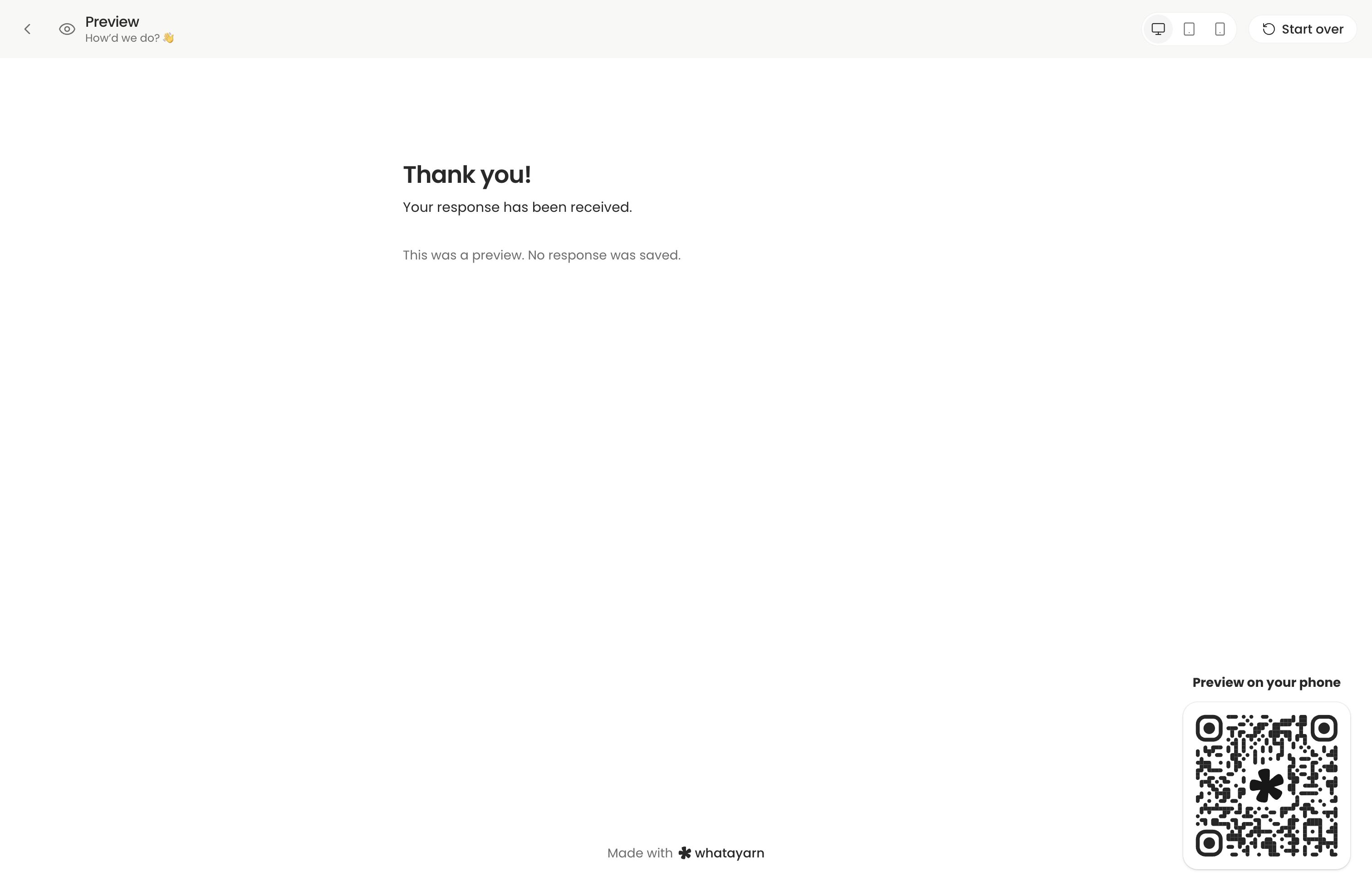
The owner sees completed answers in the form’s Responses view after successful submission. A thank-you message or configured redirect confirms that the form was submitted.
If you are testing an existing Classic form, see Classic forms for its separate workflow.
Next action: Open the live link from Share and complete this flow yourself before inviting respondents.