
A calculated field is a named result your form works out, such as a quiz score, an estimated total, a booking category or a yes or no like Is adult. It is available on Free and Creator. Respondents see the result only where you insert it with @.
Open your form’s Edit form view and select Logic. On a phone, open Tools, then Logic. If you have not used logic before, start with Add conditional logic.
For complete examples that combine fields with page routes and personalised content, try Recipes for smarter forms.
Add a calculated field
- Choose Add field under Calculated fields in the Logic panel.
- Give it a unique Name, such as Score or Total.
- Choose its Type: Number for arithmetic, Text for words, or Yes or no for a named condition.
- For Number and Text, choose how its Value is worked out, using the table below. Only Number fields can add up.
Value | Use it for | Example |
|---|---|---|
| Adds up | A starting number plus each amount whose condition matches. | Add 10 to Score for each correct answer. |
| First match | A different value for each matching condition, with a fallback. | Show a booking category based on group size. |
| Formula | One expression that works out a result from answers or fields. | Multiply a ticket quantity by 10. |
New Number fields add up and start at 0. Set Starts at to another number. A Text field starts as First match, with Otherwise as its value until a case matches.
Good to know
- Calculated fields live in the Logic panel. You do not add a question for respondents to fill in.
- Changing Value replaces the previous amounts, cases or formula. The starting value is kept and becomes Otherwise in First match.
Adds up
Use Adds up when answers should change a running result. The field’s What it adds list says what each answer adds and when. Each amount is added or subtracted. One without a condition always counts.
Build a quiz score
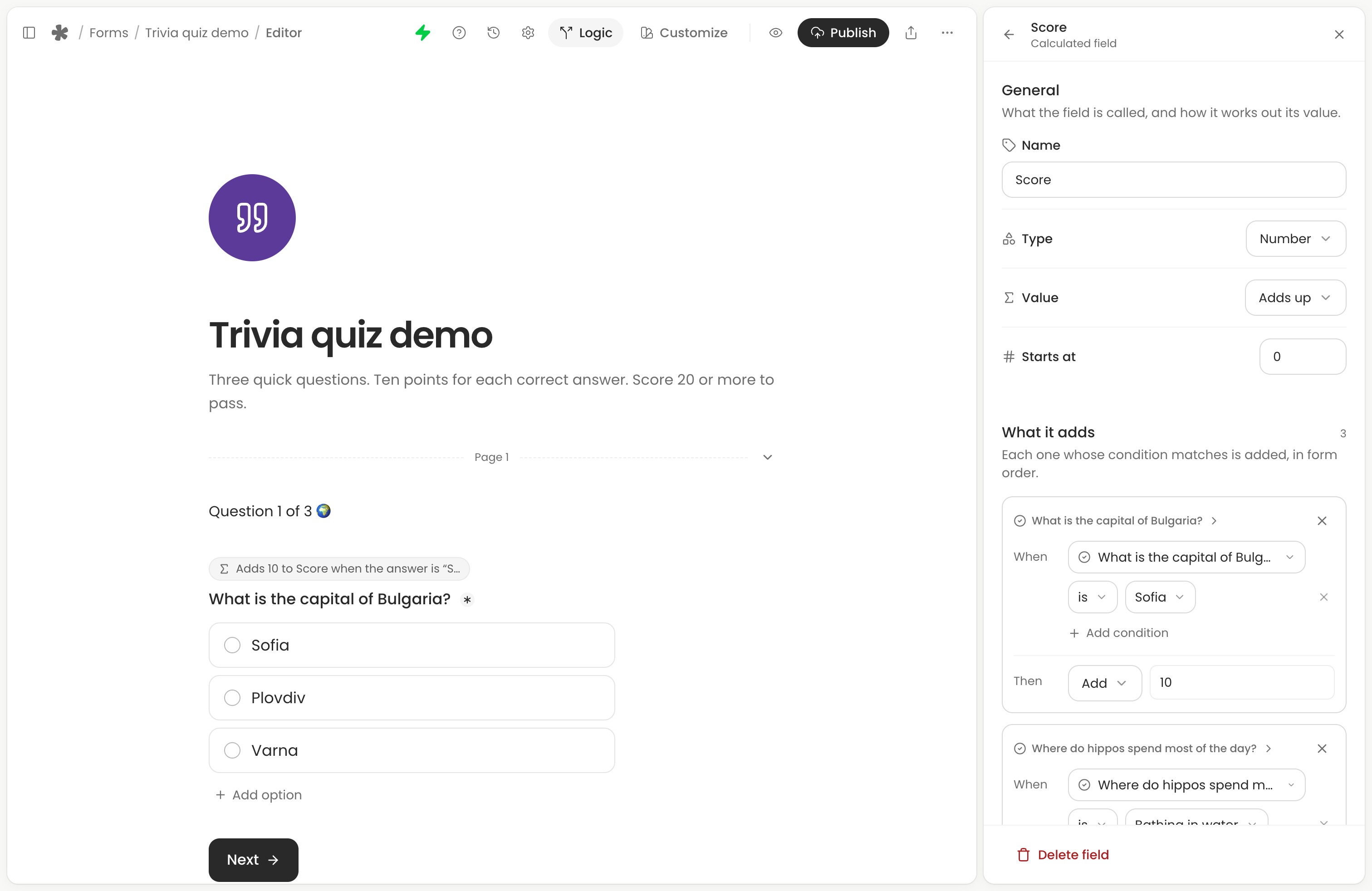
This example has three Multiple choice questions, worth 10 points each. A score of 20 or more passes.
- Add a Number field named Score. Keep Value on Adds up and Starts at on
0. - Choose Add an amount. Under When, choose the first question, is, then its correct answer. In Then, add
10. - Add an amount for each of the other two questions, again adding
10when its answer is correct. - On a Thank you page, write “Your score: ”, type @ and choose Score. Add “ / 30” after it.
- In Preview, check all four possible scores:
0,10,20and30.
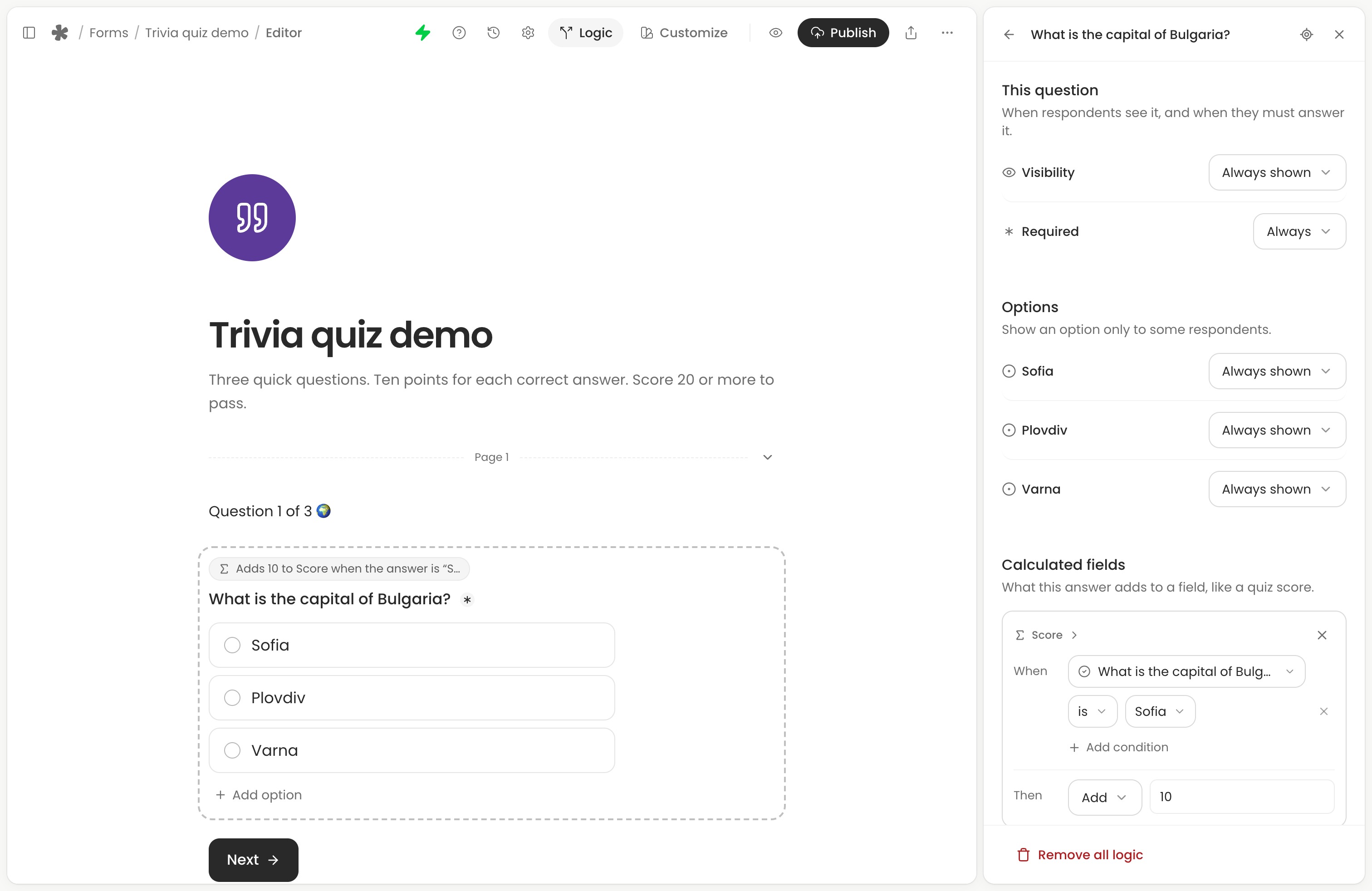
You can also add an amount from a question: open its menu, choose Add logic, then choose Use in a field in the Logic panel and pick Score. Its Σ label opens that amount in the question’s logic. Select Score there, or select an @Score reference in your text, to open the whole field.
For different pass and retry messages, route scores of at least 20 to the passing thank-you page and set Otherwise to the retry page.
Understand the running value
Read a field partway through the form to get its value so far: an amount counts once the person has passed the last question it reads, if that question was shown on their path. Skipped questions do not change the result.
Thank-you pages, redirects and saved responses use the final value. Changing an answer works the result out again, so returning to a page does not keep adding the same points.
An amount can include @ references, such as @Tickets * 10. To combine one adding-up field with another, use a Formula field instead.
First match
Use First match to choose one value from a list of conditions. For example, label bookings of five or more people Group booking and everything else Standard booking.
- Add a Number question named Group size.
- Add a Text calculated field named Booking category and choose First match for Value.
- Choose Add case. Set When to Group size is at least 5.
- In Then, enter
Group booking. - Set Otherwise to
Standard booking. - Preview with group sizes of
5and4, and check the category in Test logic.
Cases are checked from the top; the first matching case supplies the value. If none matches, the field uses Otherwise. Put more specific conditions before broader ones so they can match first.
Formula
Use Formula when one expression describes the result. For an estimated ticket total:
- Add a Number question named Tickets.
- Add a Number calculated field named Total and choose Formula for Value.
- In Formula, type @, choose Tickets, then type
* 10. - In a text block after the question, insert Total with @.
- Preview with
3tickets and check that Total is30.
The examples below use @Name to represent a reference chip. Insert each reference from the @ picker so it stays linked to the right question or field.
Type | Example formula | Result |
|---|---|---|
| Number | @Tickets * 10 | The ticket quantity multiplied by 10. |
| Number | (@Adults + @Children) * 12 | The combined group size multiplied by 12. |
| Number | @Subtotal + 10 * @Express delivery | Adds 10 when the Yes/No field is Yes. |
| Text | Thanks, @First name! | A sentence containing the person’s answer. |
Number formulas support +, -, *, / and brackets. A Yes/No field counts as 1 for Yes and 0 for No. Text formulas combine words with answers, including selected choice labels. A choice label cannot be used as a number; score it with an Adds up field instead.
Name a condition with Yes/No
A Yes or no field is Yes while its condition matches and No otherwise, including while the answers it needs aren’t given yet. Use one when the same condition decides several things.
For example, make Is adult Yes when Age is at least 18. Then show the wine question when Is adult is Yes, show the parent consent page when Is adult is No, and change the definition of adult in one place.
Show and use a result
Type @ in a question label or description, heading or text block, then choose the calculated field. For example, insert Total after “Your estimated total is ” or Score on a thank-you page. See Insert earlier answers with @.
To make a result stand out, like a score or a total, click its chip and choose Show as badge in the toolbar. Respondents see the value in a badge instead of plain text. The same toolbar has See how it’s worked out, which opens the field in the Logic panel.
You can also use calculated fields in conditions, other calculated fields and a redirect after a thank-you page. Used by in a field’s logic lists everything that reads it.
Good to know
- A field set by Formula or First match can only be used after the answers it depends on are available. This includes answers used in its case conditions.
- A field that adds up gives its value so far at the place you use it. Place a running total after the questions that change it, or use a thank-you page for the final result.
- Results are saved with the response and appear in Responses, CSV exports, AI inputs and Summary. Later form edits do not change past results.
Check your results before publishing
Open Preview, then Test logic, to inspect field values alongside the conditions and route. Check a normal result, each case and the fallback, and any threshold such as the exact passing score.
What you see | What to check |
|---|---|
| A score does not change | Check the amount’s condition matches and the question it reads is shown on this path. |
| A result appears too early or stays at its starting value | Move the reference after the questions that change or supply the value. |
| Not available | Check for division by zero, non-numeric answers in arithmetic or another unavailable source. |
| A field marked in red | Follow its message and repair missing sources, unfinished conditions or an invalid formula. |
Drafts save while fields are unfinished. Resolve any publishing errors, then publish and check a real test response to confirm the saved result.
Next action: Add one calculated field, verify its result in Preview, then publish your changes and submit a test through the live link.