
Conditional logic changes what people see as they answer. Use it to show a follow-up question, skip an irrelevant page or give different people different thank-you messages. Showing questions, routing between pages and calculated fields are available on both plans. Routes before the form and website redirects require Creator.
For scores, totals and personalised results, follow Use calculated fields.
How logic works
Logic belongs to what it changes: a question, a page, its Next or Submit button, or a thank-you page. Each has its own When condition, such as Age is at least 18.
To reuse a condition, make it a Yes/No calculated field, such as Is adult, then check that field wherever you need it.
Add logic
Open your form’s Edit form view. Add logic where you want something to change:
- A block: open its menu and choose Add logic. Once a block has logic, select the + beside its labels.
- A page line: hover over the line and choose Add logic.
- A page’s Next or Submit button: hover over the button and choose Add logic.
- A thank-you page: choose Add redirect below it.
- Before the form: hover above the title and choose Add logic.
Each one offers what that spot can do, then opens its logic in the Logic panel. You can also select Logic in the header to see all of the form’s logic. On a phone, open Tools, then Logic.
Show a follow-up question
Start with the Event RSVP template. It already sends people who can’t make it straight to their own thank-you page, so only people who might attend reach the guest questions on page two. Ask for guest names only when someone is bringing guests:
- Below Guests you’re bringing, add a Short answer question called Guest names.
- Open the menu on Guest names and choose Add logic. The Logic panel opens on that question.
- Set Visibility to Shown when.
- Under When, choose Guests you’re bringing, is more than, then enter
0. - Open Preview, choose Yes, I’ll be there, fill in a name and email, then continue. Enter
2guests to show the names question, then0to hide it.
The block now has a label in the editor saying when it’s shown. Select it to open that logic again.
Combine conditions
Choose Add condition to check another answer. Extra lines start with and, so every condition must match. Select and and switch to or when any one condition should be enough.
For example, show an invoice-details question when Booking type is Business and Send an invoice is Yes. Use the × beside an extra condition to remove it.
The comparisons depend on the answer type: text can contain words, numbers can be above a threshold, and choices can match selected options. Every question can be checked for whether it is answered or empty.
Show or hide blocks and options
Open a block’s logic and set Visibility to Shown when when it should appear only while the condition matches, or Hidden when when it should disappear while the condition matches. Both work with questions, text, headings, dividers, images and social links.
For an individual choice option, open the question’s logic and find it under Options. You can also open Option settings beside the option and choose Show when or Hide when.
Good to know
- If a selected option becomes hidden, it is removed from the person’s answer.
- A question someone never sees is never required, and its answer is not submitted.
- A conditionally hidden question is different from a hidden field, which stores a supplied answer without displaying a question.
Make a question required only sometimes
Open the question’s logic and choose Required when under Required. For example, require Company name when Booking type is Business.
Choosing Required when makes the question optional when its condition does not match. Choose Always to require it whenever it is shown, or Optional to remove the requirement.
Required conditions are checked when people continue or submit, so they can use answers from anywhere on the same page.
Show or hide pages
Hover over a page line, choose Add logic, then Show this page when or Hide this page when. For example, show a page of business details only when someone chooses Business on an earlier page.
You cannot hide the first page. To start visitors on a later one, use routes before the form. A page whose blocks are all hidden is skipped automatically. To change the order people follow or send them to a particular ending, choose where the page before it goes instead.
Choose where a page goes next
Hover over a page’s Next or Submit button, choose Add logic, then Go to a page when. Each route sends people to a later page or a thank-you page when its condition matches.
For example, send Would you like a follow-up? is No straight to page three, skipping contact details on page two. Everyone else follows Otherwise, which is the next page unless you choose another.
Give quiz results different endings
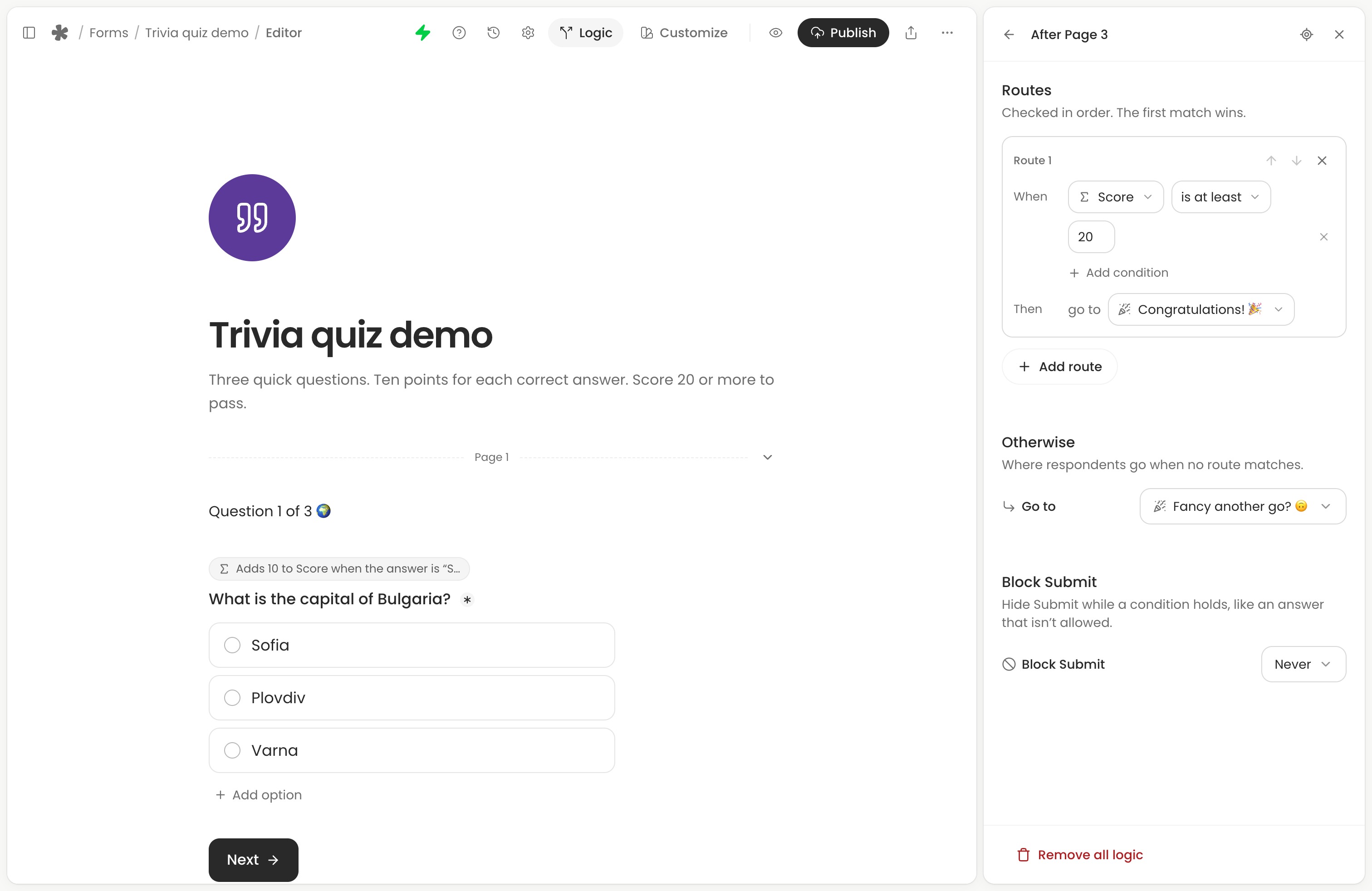
The trivia example awards 10 points for each of three correct answers. A score of 20 or more passes:
- Add two thank-you pages: Fancy another go? and Congratulations!.
- Open Add logic beside the last answering page’s Submit button and choose Go to a page when.
- Set When to Score is at least 20, then choose Congratulations! as the destination.
- Set Otherwise to Fancy another go?.
Follow Build a quiz score to set up Score.
Send each answer to its own page
Add a route for each answer that needs a different destination. For example, Topic is Billing goes to the billing page and Topic is Technical help goes to the support page. Set Otherwise for all remaining answers.
Older forms may already route each choice option directly. Use Turn into routes in that page’s logic to add conditions while keeping its destinations.
Good to know
- When a page has several routes, the first matching route wins. Use Move up and Move down to change the order.
- Routes only go forward. Earlier pages are unavailable in the destination picker.
- If a destination page is hidden, people continue to the next visible page.
- A form can have several thank-you pages. The first is the default; use a route to choose another. Routes from an answering page show the ending after a successful submission.
Use journey details
Conditions can also read how someone reached the form, not just their answers. Journey details are in their own Journey group in every condition picker:
- Device: Mobile, Tablet or Desktop.
- Browser and Operating system, such as Safari on iOS.
- Opened as: the form’s link, or embedded on a website.
- Referrer: the site someone came from, such as instagram.com. It’s empty for a direct visit, and for apps that hide where people came from.
- UTM source, medium, campaign, term and content from the link, such as
?utm_source=newsletter. - Language: the browser’s language, such as
en.
They’re known from the moment the form opens, so they work on page one and before the form. For example, show a Get the app text block when Operating system is iOS, or welcome people from your newsletter with UTM source is newsletter.
Journey details help personalise the form; they do not verify someone’s identity or permission to answer.
These conditions are available on both plans. To review the paths people actually took after sharing, see Journeys in Insights, available on Creator.
Choose where people start
Routes before the form decide where some visitors start, before they see anything. Hover over the top of the form and choose Add logic, or open Logic and choose Add route under Before the form. Each route goes to one of:
- A later page, which skips the pages above it. For example, start people from your newsletter on page 2 when UTM source is newsletter.
- A thank-you page, shown instead of the form. For example, show “Open this on a laptop” when Device is Mobile.
- Another website. For example, send phones to your app’s page. Use @ in a website address to pass on a journey detail or hidden field.
The first route that matches decides. Everyone else starts on page 1.
Before the form, nothing has been answered yet, so conditions can read journey details, hidden fields and calculated fields that only use those.
Good to know
- Routes before the form are part of Creator.
- Website redirects before the form have loop protection. Returning to the same form in the same tab within 30 minutes shows the form instead. Publishing also checks for redirects to the form’s own address.
- Showing a thank-you page before the form creates no response. These visits and visits sent straight to another website do not count as form views in analytics.
- Preview never leaves the editor. It starts on the page a visit would and shows the thank-you page it would see, with a way on to the form. For another website, it tells you where the live form would send the visit.
Send people to different websites
Each thank-you page has its own redirect. Hover over the end of a thank-you page and choose Add redirect, or choose Add redirect under the thank-you page in Logic. A form without thank-you pages has one redirect for its built-in thank-you message, under Thank you page in Logic. In the editor’s settings panel, Open in Logic beside Send people to your website opens the same place. On the form’s Settings tab, that row offers Open the editor instead.
- Where people go sets the default destination: Stay here or Go to a website.
- Routes send some people to a different website when their condition matches, such as the App Store when Operating system is iOS. Routes are checked from the top, the first match wins, and everyone else follows Where people go.
- When to go chooses whether people see the thank-you page for 3 seconds first, or go straight away.
A redirect URL can include answers, hidden fields, calculated fields and journey details. Once the box holds a web address, select @ to add one, such as https://example.com/thanks?plan= followed by Plan.
Redirects go live when you publish, like the rest of your logic.
Stop someone finishing
Choose Block Next when, or Block Submit when on the last answering page, to stop people continuing while a condition matches. For example, block registration when the number of tickets requested exceeds the limit for one booking.
Show a text block under the same condition to explain what needs to change. Otherwise, the form displays “This form can’t be submitted yet.” where the button would be.
Changing the answer so the condition no longer matches brings the button back. Respondents can still use Back if you have enabled it.
The Logic panel
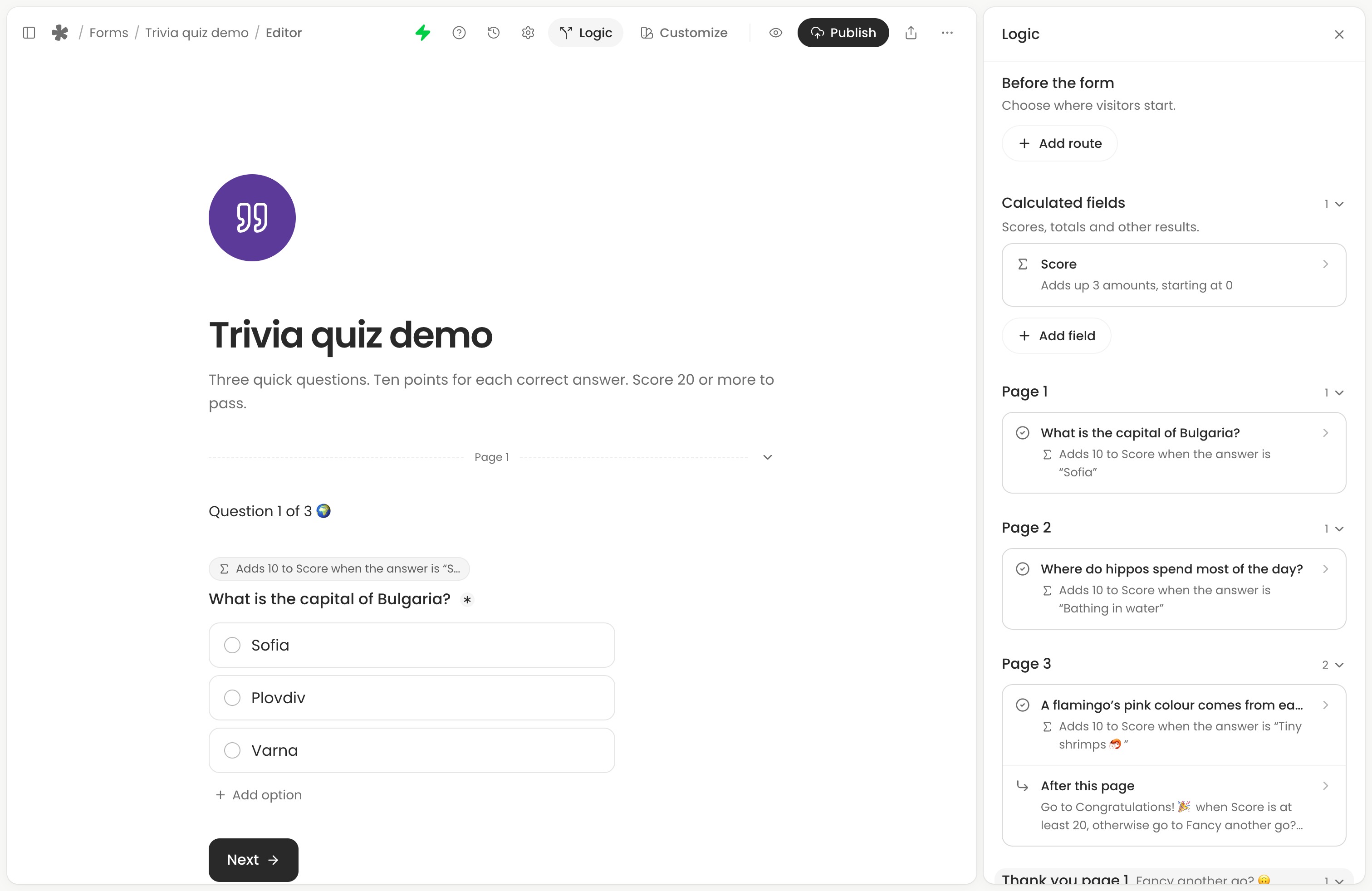
The panel groups Before the form, Calculated fields, logic on each page, and thank-you page redirects. Each row describes what it does. Select a row to open it. Back returns to the list where you left it. Edits save as you make them.
In a block’s or page’s logic, Show in form scrolls to it, and Remove all logic takes its logic away. A calculated field has Delete field instead, and a redirect has Remove redirect.
Keep questions in a usable order
A Show or Hide condition needs its answers before the block or page it changes, so a question that comes later is unavailable in its picker. A required condition can use the whole current page. Routes and Block Next are checked at the end of their page.
If a later edit breaks some logic, its label in the editor turns red and its logic says what to fix. You may need to move a question back above the content that uses its answer, or choose another source.
Calculated fields
Test before you publish
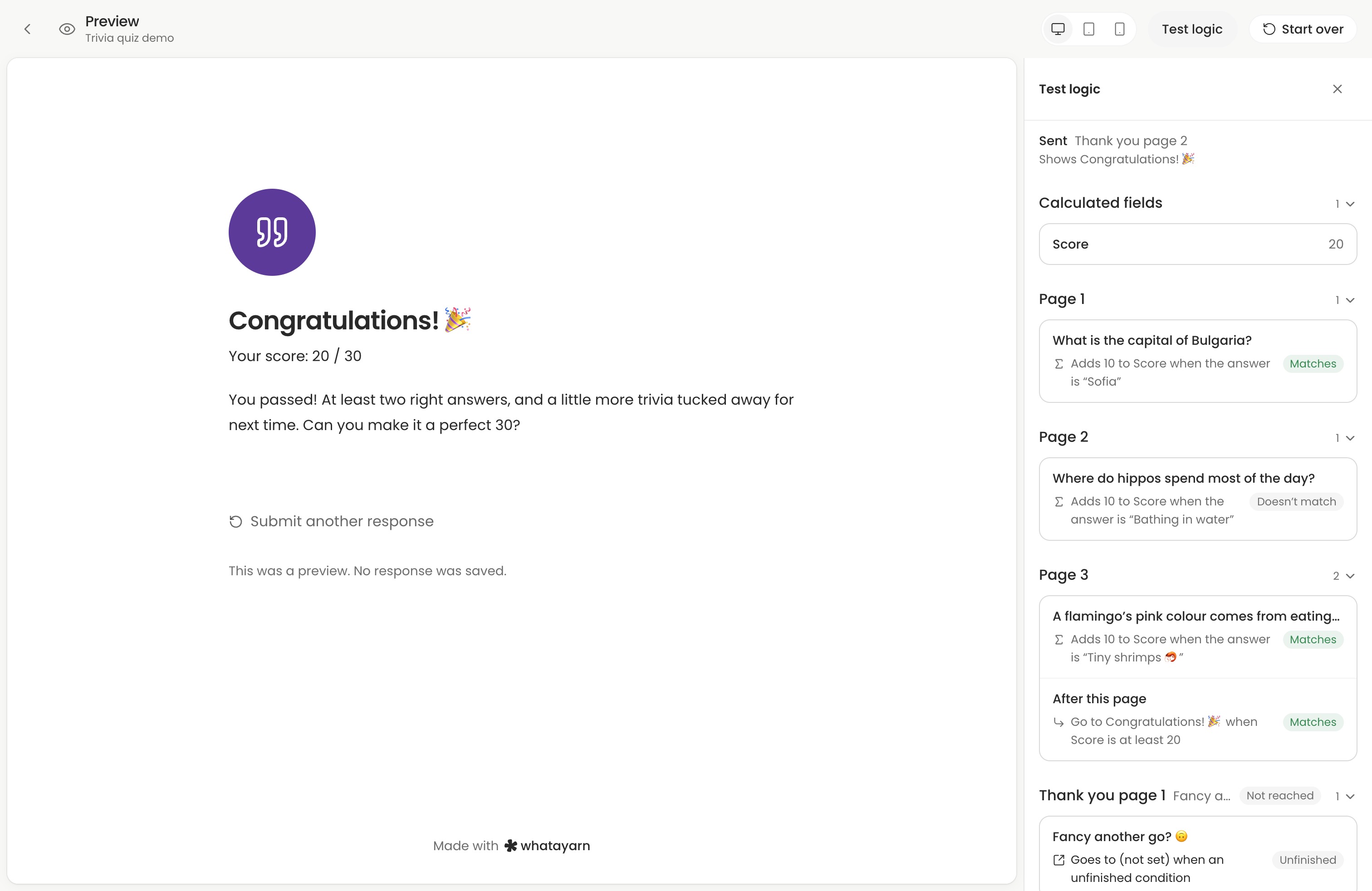
Open Preview, then Test logic, to see which conditions match, what calculated fields hold and where the next step goes. Under Journey, you can try the form as another visitor, such as a phone from Instagram. Device follows the preview size until you change it.
- Try an answer that matches each condition, then one that does not.
- Change an earlier answer and check that follow-up questions, required answers and routes update.
- Check every route and Otherwise, including each thank-you page.
- Fix anything marked in red before publishing.
Drafts save while you work. Unfinished logic does not block saving; logic that can’t work blocks publishing. See Saving, publishing and version history.
Responses and analytics
A question left out of someone’s path shows as Skipped in Responses and stays blank in a CSV export. Journeys and drop-off follow the pages each person was shown, so a page they skipped is not treated as a place they stopped.
Next action: Add one follow-up question, test both outcomes in Preview, publish your changes and submit a test through the live link.