
Start with the result you want people to see, then add only the questions and conditions it needs. These recipes use the same tools in conditional logic and calculated fields.
Follow-ups, page routes, scores and journey conditions work on Free and Creator. Routes before the form and website redirects require Creator.
A quiz with a score and two endings
Build: Three questions worth 10 points each. Scores of 20 or more pass.
- Add three required Multiple choice questions, one per page.
- In Logic, add a Number field called Score. Choose Adds up and start at
0. - Add three amounts: each adds
10when its question’s correct answer is selected. - Add a retry thank-you page and a passing thank-you page. Insert Score with @ on both.
- On the last answering page’s Submit button, choose Add logic, then Go to a page when. Send Score is at least 20 to the passing ending and set Otherwise to the retry ending.
Test: Try scores of 0, 10, 20 and 30. Go Back and change an answer; the score should be recalculated, not counted twice.
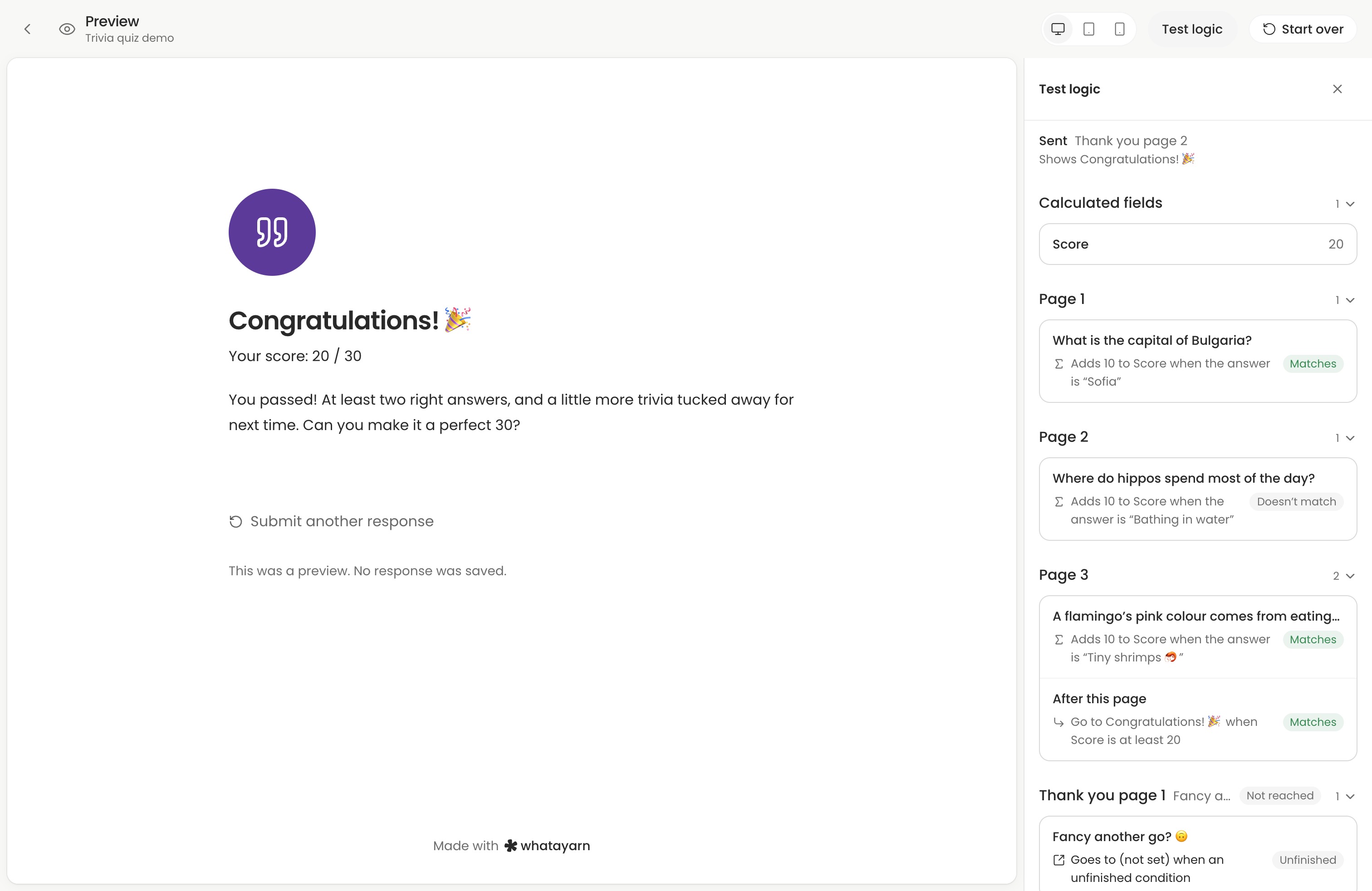
Follow the full quiz score walkthrough and ending setup.
Follow-up questions that stay relevant
Build: An RSVP that asks for guest names only when someone is bringing guests.
- Start with the Event RSVP template. It already sends people who can’t make it to their own thank-you page, so only people who might attend see page two.
- On page two, add a Long answer question for guests’ names after Guests you’re bringing.
- Open its menu, choose Add logic, then set Visibility to Shown when. Choose Guests you’re bringing, is more than, then enter
0. - Set the names question to Always required. It only requires an answer while shown.
Test: Decline the invitation, attend alone, then attend with two guests. Change the guest count back to 0; the hidden names answer should not be submitted.
Use Required when instead when a question should stay visible but only sometimes need an answer.
Different journeys through one form
Build: A contact form with separate pages for billing questions and technical help.
- On page one, add a required Multiple choice question called Topic, with Billing, Technical help and Something else.
- Add a billing page, a technical-help page and a general-enquiry page, followed by one shared contact-details page.
- On page one’s Next button, add a route for Topic is Billing to the billing page and one for Topic is Technical help to the technical-help page. Set Otherwise to general enquiries.
- On each specialist page’s Next button, set Otherwise to the shared contact-details page. This skips the other topics.
Test: Follow all three topics. Each path should include its own questions and the shared contact details, without visiting the other topic pages.
Routes only move forward. You can use the same pattern for a short interactive story: each decision leads to a later scene, and each final branch leads to its own thank-you page. See how page routes work.
An instant estimate
Build: Show an estimated total for work charged at $50 per hour.
- Add a required Number question called Hours. Set its minimum to
1. - Add a Number calculated field called Total and choose Formula.
- Insert Hours from the @ picker and type
* 50after it. - On the next page, write “Your estimated total is $”, then insert Total from the same picker.
Test: One hour should show $50; three should show $150. Check that zero cannot continue.
This displays an estimate; it does not take a payment. For optional extras, use Adds up or a Yes/No field in a formula.
A welcome for your campaign
Build: Show a special introduction to people arriving from your newsletter.
- Add
utm_source=newsletterto your form link. Use?before the first parameter, or&if the link already has one. - Add a text block saying “Welcome, newsletter readers!”
- Choose Add logic, then set Visibility to Shown when. Under Journey, choose UTM source and set the condition to is newsletter.
- On your general introduction, set Visibility to Hidden when with the same UTM source is newsletter condition. People with another source, or no source, see this introduction instead.
Test: Open Preview, select Test logic and find Journey. Try newsletter, another source and an empty source. Then check the tagged and untagged live links after publishing.
Use campaign tags when you control the link: apps can hide the referrer. On Creator, you can also start a campaign on a different page.
Send people to the right app store
Build: After submission, send iOS users to your App Store page, Android users to Google Play and everyone else to your website. Requires Creator.
- On the thank-you page, choose Add redirect.
- Set Where people go to Go to a website and enter your website as the fallback.
- Add a route. Under Journey, choose Operating system and set the condition to is iOS. Enter your App Store URL as its destination.
- Add another for Operating system is Android with your Google Play URL.
- Set When to go to show the thank-you page for 3 seconds first.
Test: In Test logic, try iOS, Android and a desktop operating system. Check the destination for each, then publish and follow the live redirect on a test submission.
For a link that redirects before anyone answers, use Before the form instead. That creates no response.
Check the journey after sharing
Journey conditions use details such as device, browser and campaign tags to change the form. Journeys in Insights show how people actually moved through it, including the pages reached and where they stopped. Reviewing those timelines requires Creator.
After publishing, open Insights to review the paths people took. A page omitted by logic is not a drop-off. Use Responses to check the saved score or estimate alongside the answers.
Next action: Pick one recipe, test every path and its fallback in Preview, then publish and test the live form.