
Open your form and choose Integrations. All deliveries lists sends across the form. If you already have a completed response open, select a destination in its Integrations section to go straight to that delivery. To set up your first destination, start with Form integrations.
Read delivery health
Awaiting first delivery means the destination is connected and has no completed attempt. Delivery queued means work is waiting. Last delivery succeeded records a successful send. Last attempt failed means the most recent attempt returned an error. Open the failed delivery in the table to see whether another attempt is scheduled.
A Paused destination stops receiving new responses. Turn on Send responses in its sidebar to resume queued work and receive future completed responses.
Find one event
Each completed response has one delivery per enabled destination. A webhook test has its own event. Use the status filter above the table to choose All, Delivered, Waiting or Failed. Waiting includes queued deliveries, sends in progress and retries.
On desktop, click a column header to sort the full log and click again to reverse the order. Drag a header to reorder columns or drag its edge to change the width. Event time stays first and shows when the delivery was queued. Response shows when the form was submitted; select it to open that response. Last attempt and Event ID can’t be sorted. Choose Columns to show or hide details or reset the layout. This browser remembers the layout for each form.
Select a delivery to open Delivery details. At the top, check its status, Attempts and Last attempt. A webhook can show the HTTP reply. After a failed attempt, look for the error and Next retry. Copy the Event ID to match a webhook delivery with your receiver’s log.
See what a destination received
Data sent shows question answers and calculated values. Below them, AI columns, Journey and Source show the values included with that delivery when available. For a webhook, switch from Fields to JSON to inspect or copy the payload. What gets sent explains each group.
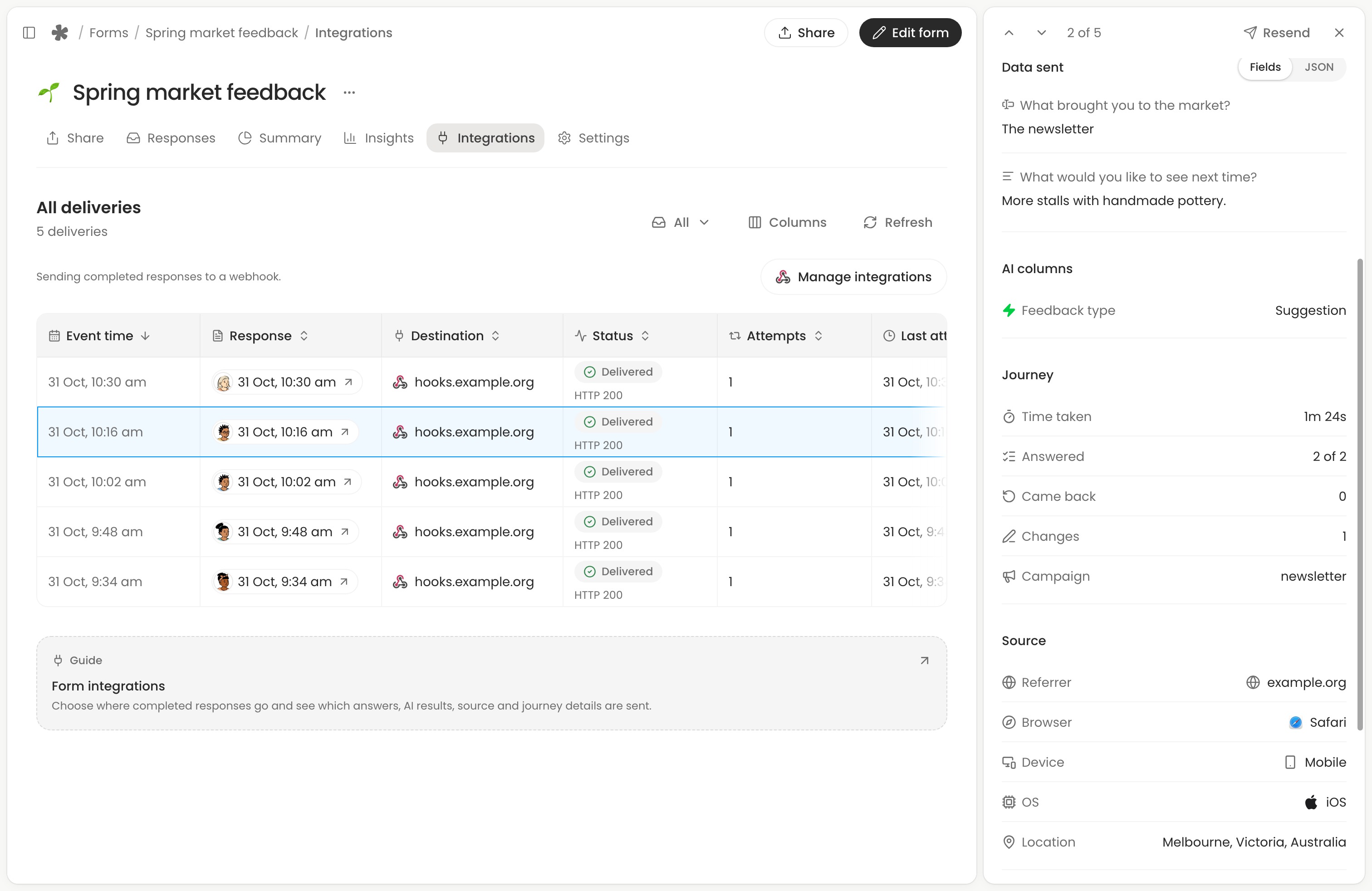
For a real submission, select Response to open the answers as they are now. This is useful when someone has corrected an answer since delivery. A test event uses sample answers and has no respondent to open. Select Destination to manage the connection, or use the arrows at the top to step through deliveries.
Retry a delivery
A webhook that times out or returns an unsuccessful HTTP status is retried automatically with the same payload. After fixing the endpoint or reconnecting an account, open the failed delivery and select Resend. You can also resend a delivered response to pass on a correction. A manual resend uses the current answers and AI columns with the same event ID. For Google Sheets, it updates the response’s existing row.
To check a webhook with sample answers, open its sidebar and inspect the Example request body, then select Send test event.  Connect and test a webhook.