
Home (opens in a new tab) lists every form, grouped by folder. The sidebar shows the same pins and folders in the same order, so a change in one place appears in the other.
Only you see your folders and pins. Even an archived form can keep collecting responses at its usual link.
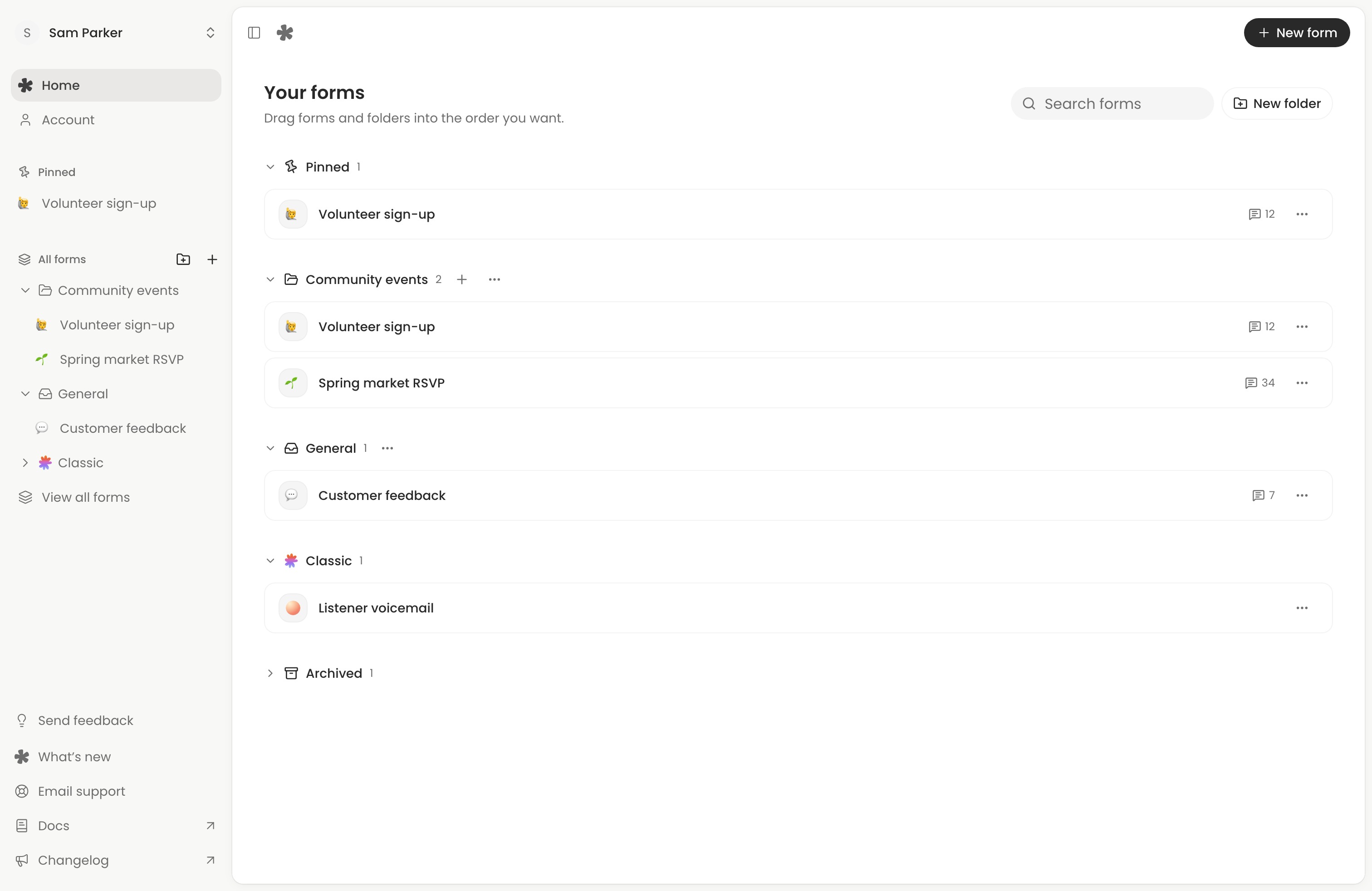
Find a form
Type in Search forms on Home to match form names and links across every folder, including archived forms. Clear the search to collapse folders or drag again.
Select a form to open it. Forms open on Share, and Classic pages open on Responses. Choose Edit in a form’s actions menu (⋯) to go straight to the builder.
In the sidebar, select a folder to expand or collapse it. A collapsed folder still shows the form you have open. Choose All forms to return to Home.
Pin the forms you use most
Open a form’s actions menu and choose Pin, or drag the form into Pinned. Pinned sits at the top of Home and the sidebar.
A pin is a shortcut. The form stays in its folder too. Drag pinned forms to put them in the order you want.
To remove a pin, choose Unpin. Dragging a pinned shortcut into a different folder also removes the pin and moves the form there.
Move a form or folder
Drag a form up or down to reorder it, or drop it on another folder to move it. Drag a folder heading to reorder the folders. On a phone, press and hold before you drag.
You can also open a form’s actions menu, choose Move to folder and pick a folder.
Create a folder
Every account has General, which holds any form that isn’t in another folder. You can rename General from its actions menu, but you can’t delete it.
On Creator, choose New folder on Home or in the sidebar. Name the folder, then choose Create folder. To create a folder for a particular form, open its actions menu and choose Move to folder, then New folder…. The form moves into the new folder.
Select + beside one of your folders to start a new form there. It’s filed in that folder as soon as you start editing.
To rename or delete a folder, open the folder’s actions menu. Deleting a folder moves its forms to General. No forms or responses are deleted.
Folders on Free
Free includes General. You can rename it, pin forms, search and drag forms into order. Creating a custom folder requires Creator.
If you switch from Creator to Free, your custom folders stay. You can still rename, reorder and delete them, and move forms in and out of them. You need Creator to create another folder. See Free and Creator.
Classic pages
Pages made with the earlier editor sit together in a Classic folder. It appears when you have at least one Classic page. You can drag it into position among your folders, but you can’t rename or delete it.
Classic pages can’t be pinned, archived or moved to another folder, and other forms can’t be moved into Classic. If all your pages are Classic, the sidebar lists them without a folder. See Use your existing Classic forms.
Archive, pause or delete
Choose what should happen to the people who already have your link.
- Archive a form to put it away. Open its actions menu and choose Archive. Find it under Archived at the bottom of Home. Once you leave it, it drops out of the sidebar. A live form keeps collecting responses. A paused form stays paused.
- Pause a form to stop collecting responses at the same link. Open Settings and turn off Accepting responses. Existing answers stay in Responses. To set a deadline instead, see Control access to your form.
- Delete a form to permanently remove the form and its responses. Its link stops working. Before you delete, export the answers and download any recordings or files you want to keep.
Bring back an archived form
Choose Undo just after archiving, or open Archived on Home and choose Restore in the form’s actions menu. It returns to its folder. If it was pinned, choose Pin again to put the shortcut back.