

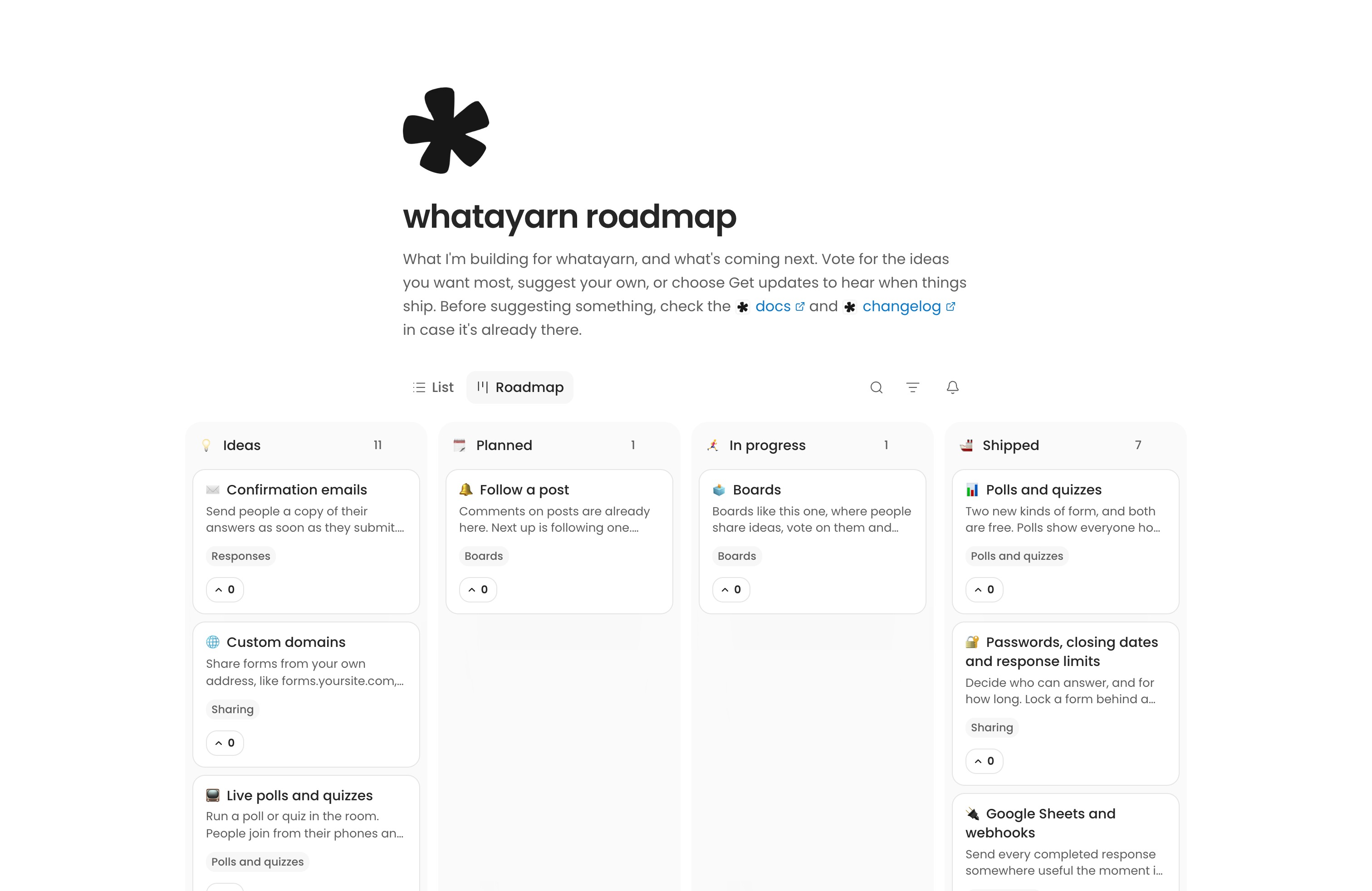
A board is a public page where people add posts, vote for the ones they want and see where each one is up to. Use it for feature requests, a public roadmap or a list of what’s new.
Visitors don’t need an account to post, vote or comment. Boards are available on Free and Creator.
Start a board
- Choose New form in the sidebar.
- Choose the Board card.
- Give it a title and a description so people know what to post.
A new board has four statuses, Ideas, Planned, In progress and Done, and no posts yet.
A board has no Publish button or version history. Changes are live as soon as they save. Select Preview to try the board as a visitor.
You can also turn a form you already have into a board.
Build the page around your board
The board is one block on the page. Add text, headings, lists, images, dividers, files and social links around it. Click + between blocks, or type / on an empty line.
Drag the board to move it. It can’t be deleted or copied. Questions can’t go on a board, and a question you paste arrives as plain text.
Your title, description, logo, cover and Customize work as they do for any form. See Customize your design.
Choose how the board looks
Open Settings in the editor bar, or the form’s Settings tab. The board’s own settings come first.
Setting | What it does |
|---|---|
| Opens on | List shows every post in one list. Roadmap shows a column for each status. |
| List rows | Roomy shows the full card. Compact shows one line a post. |
| Order | How the list is sorted when someone opens it: Top (most votes), Trending, New or Your order. |
Visitors can switch between List and Roadmap, sort the list another way, search posts and filter by tag. For Your order, drag posts on the board.
Set up statuses and tags
Statuses say where a post is up to. Select Edit statuses to rename, recolour, reorder or add them, or give one an emoji. A board can have up to 12. On the Roadmap, select a column’s name to edit it, or collapse it to a narrow strip.
Tags say what a post is about and show on its card. Select Add tags to create them. A post can have up to three tags.
Decide who can post and vote
Under Posts in Settings:
Setting | What it does |
|---|---|
| Who can add posts | Anyone who opens the board, or Only me. With Only me, visitors can still read and vote. |
| Review before they show | On for new boards. A visitor’s post waits for you to approve it. Your own posts show straight away. |
| New posts land in | The status a visitor’s post starts in once it shows. It starts as your first status. |
| Voting | Turn it off to hide vote buttons and counts. Top and Trending need voting. |
The gear beside Add a post on the board changes the button’s text, and has Review new posts and New posts land in close at hand.
Post fields
Post fields set what every post holds. Title is always asked. A new board also asks for Details and Email.
- The Board column shows a field on posts for everyone.
- The Form column asks for it when someone adds a post.
A field that is off the board stays private to you, like Email. Select Add a field for a line of text, a paragraph, one pick from a list you set, or an email address.
What visitors see
Voting. Visitors select a post’s vote button to vote, and again to take it back. Each browser gets one vote a post.
To stop repeat voting, each vote and heart is also kept with a one-way code made from the visitor’s network address and your board. The address isn’t stored. One network can give a post up to 10 votes a day, and a comment up to 10 hearts, so people sharing a connection can all vote.
Adding a post. They select Add a post (or your own button text), give it a title, then add details and up to four images if they like. If the title matches posts already on the board, the board suggests voting for one of those instead.
When you review new posts, they’re told it will show once reviewed. Until then, only they see it, marked as waiting for review.
On the Roadmap, a card shows its first image, your latest reply and the faces of recent voters. Once three or more votes arrive in a week, it shows a count of new votes.
What each plan includes
Boards are on every plan, with no cap on posts, votes, comments, updates or subscribers. Update emails have sending limits on both plans.
Creator adds what it adds for any form, such as a password, opening and closing times and a custom link. See Free vs Creator.
Good to know
- You can start a board without an account at Create a form. Posts, updates and Share wait until you sign up. Your page and settings come with you, but a post typed before signing up needs adding again.
More about boards
Next action: Start a board, add a few posts of your own, then open Preview to vote and add a post as a visitor would.